


In 2026, trying to run a YouTube channel without a bit of AI help feels like editing with one hand tied behind your back. Auto-subtitles, smart reframing, noise cleanup, etc. All that “magic” is already in many tools. You just need to pick an editor that feels like a teammate, and not a waste of time.
1. Movavi Video Editor
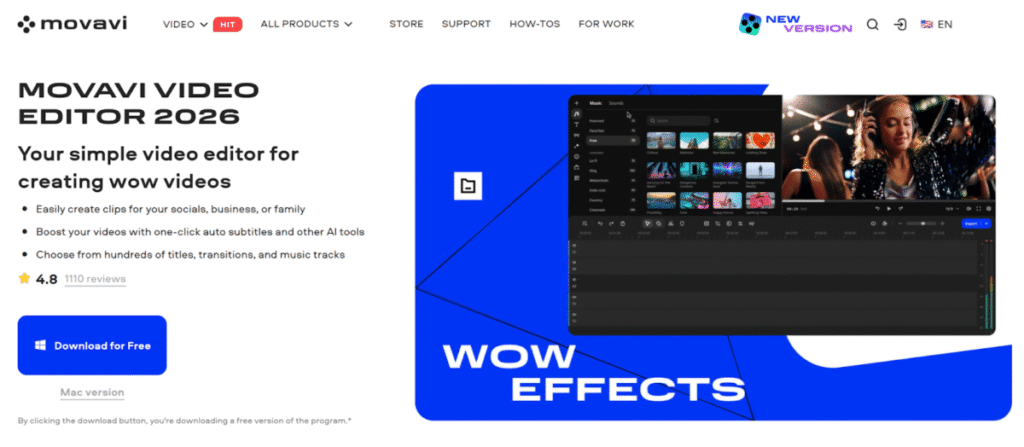
The video editor by Movavi is for people who want their videos to look good without doing a five-year film school course on the side. The interface is clean, the buttons are where you expect them to be, and the AI quietly does the boring stuff for you.
You get auto-subtitles that turn speech into text in a few clicks, AI noise removal to kill hums and background chatter, motion tracking to attach extras to an object in your footage, and background removal that doesn’t require a green screen. It’s the kind of software where you open it once, and by the end of the day you’ve actually finished a video.
If you’re starting a new channel and want something friendly but still powerful, Movavi Video Editor is an easy first stop.
2. Adobe Premiere Pro
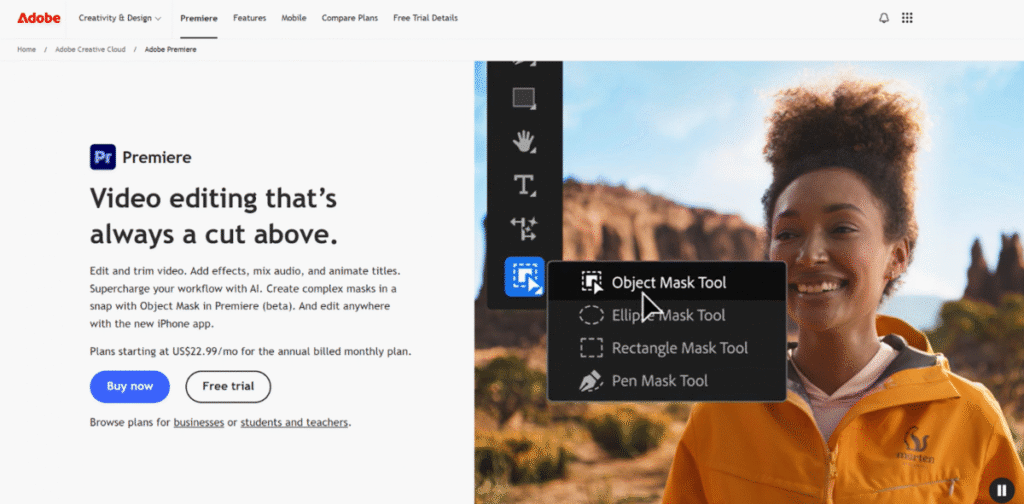
Premiere Pro is what a lot of full-time creators and editors use, and there’s a reason for that. It’s not the simplest, but it’s one of the top choices if you see yourself growing into more advanced editing.
Its AI can transcribe your video and let you cut clips by editing text, auto-reframe your footage for vertical or square formats, and clean up audio with voice enhancement. Once you get used to it, you can rip through edits much faster than doing everything manually.
If you’re aiming for professional long-form videos, and you’re okay with a subscription and a bit of a learning curve, Premiere is one of the best AI tools to grow into.
3. DaVinci Resolve
DaVinci Resolve is well-known for its color grading tools, but for YouTubers, there’s more to it than that. The base version costs nothing, which is incredible considering everything it can do.
Some of its AI-driven abilities include: automatic scene detection, face recognition for organizing clips by people, smart reframing for vertical formats, and clever tools for removing noise and cleaning up footage. There’s a Studio (paid) version with even more AI power, but many YouTubers happily stick to the free one.
Resolve is for those who don’t mind learning something more complex in exchange for professional-level results. If you’re okay with a bit of study, it can easily be your main YouTube video editor for years.
4. CapCut
CapCut is free, works on phones and desktops, and is perfect if your content leans towards Shorts, Reels, and fast edits.
AI here is very shortcut-oriented: auto-captions, background removal, filters, and lots of trending templates. If you’re still figuring out how to make YouTube videos and don’t want to get lost in menus, CapCut lets you combine clips, text, and music and export without overthinking.
It’s not the most flexible for complex long-form videos, but for quick content, short videos, or testing new ideas on your channel, it’s really convenient.
5. Apple Final Cut Pro
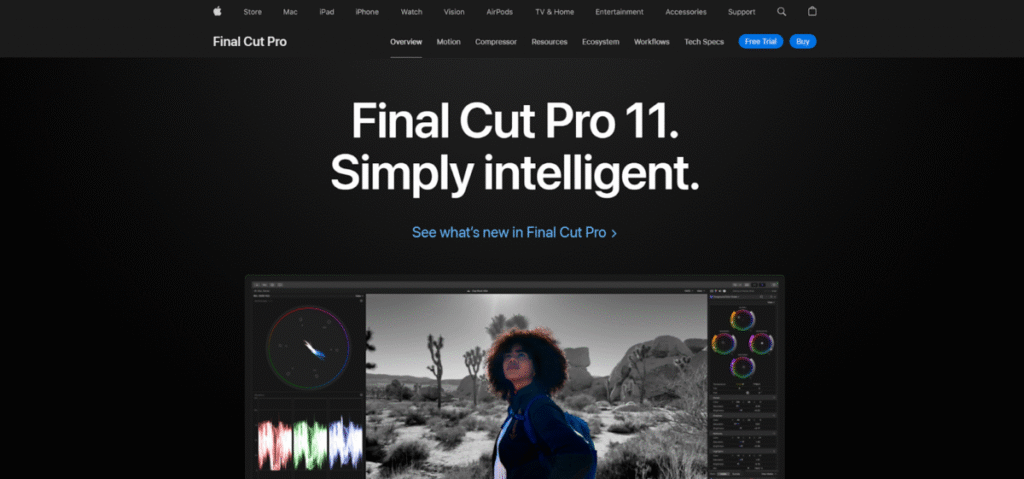
If you’re on a Mac and don’t want a subscription, Final Cut Pro is the heavyweight that still feels fast and smooth. Apple has quietly added a lot of smart tools to it.
You get things like automatic reframing (great for turning landscape footage into vertical content), voice isolation to make dialogue clearer, and a generally very fast, optimized experience, especially on Apple Silicon.
For creators fully in the Apple world who want a one-time purchase and pro-level control, Final Cut is one of the best long-term investments.
How to Make YouTube Videos: Tips Beyond the Edit
Having tools is great, but let’s talk about another important YouTube channel part: how you actually use them and what you put in front of the camera.
1. Start your channel like a small project
Don’t wait for the perfect idea that will magically carry you to a million subscribers. Open an account, set a simple but memorable name, upload a profile picture, and write a short description. You can always change things later.
Think of this as your channel’s “front door.” It doesn’t need to be fancy, just clear.
2. Pick a theme
Picking a niche doesn’t mean you’re locked in forever; it just gives your viewers (and you) something consistent to hold onto.
Ask yourself:
- What could I talk about every week without getting bored?
- What kinds of videos do I already watch a lot?
- Is there a specific problem I can help people solve?
It could be gaming, tech, language learning, cozy vlogs, tutorials, reviews, etc. The important part is to pick a direction, so people know why they’re subscribing.
3. Learn how to make videos by making them
The best way to learn how to edit YouTube videos is not to binge tutorials for months; it’s to edit your own footage. Film something simple: a day in your life, a product you like, a short tip, a reaction.
Then open your editor of choice and focus on three basics:
- Cut out the boring parts.
- Make sure viewers can hear you clearly.
- Add text or subtitles where it helps.
Once that feels comfortable, start playing with transitions, color, and effects. Let AI handle the subtitles, reframing, and noise reduction so you can spend more time on pacing and storytelling.
4. Have a realistic plan
You’ll hear “post consistently” a lot. That doesn’t mean “post daily or fail.”
Maybe you can handle one video a week. Maybe it’s one every two weeks. What matters is that it’s realistic. Use your editor’s AI features to help you batch work:
- Film two or three videos in one recording session.
- Edit them across the week.
- Let AI handle subtitles and basic cleanup so you’re not stuck doing everything by hand.
This is where good software genuinely helps you keep going instead of burning out.
5. Think in terms of stories, not just clips
Even short videos work better when there’s a simple structure. Before recording, ask:
- What’s the point of this video?
- What’s the hook in the first 5–10 seconds?
- What will make someone stay until the end?
Your tools can improve the result, but they can’t decide what you want to say. That part still comes from you.
The Bottom Line
AI won’t make you a creator on its own, but it will make the process much lighter. That’s the real AI impact on creativity: less hard work, more space for ideas. Picking the right YouTube video editor is less about choosing the perfect tool and more about finding one that matches where you are right now.
Movavi Video Editor and CapCut are friendly options if you’re just starting. DaVinci Resolve, Premiere Pro, and Final Cut Pro will be there as your skills grow. All of them help you move faster so you can focus on ideas, not settings.
Record something simple. Edit it with the tools you have. Learn a bit more with each video. Over time, your channel becomes a library of everything you’ve figured out about how to make YouTube videos. And AI quietly supports you in the background while you do the real work: creating.
