

Uizard launched in 2018 as one of the first AI-powered design tools on the market.
Miro Labs acquired it in May 2024, and since then the platform has expanded its AI capabilities significantly – most notably with Autodesigner 2.0, which generates multi-screen user flows from a single text prompt.
The core promise is simple: describe what you want, and Uizard builds it.
Type “a fitness tracking app with a dashboard, workout log, and progress charts” and Autodesigner produces multiple screens with navigation, buttons, text blocks, and layout structure – all editable in a drag-and-drop editor.
I tested this exact prompt and got a 5-screen flow in about 40 seconds. Three of the five screens had logical layouts that made structural sense.
The other two needed rearranging – the progress charts screen put the navigation bar in an odd position, and the settings page was mostly empty placeholder blocks.
That 60–70% usable rate on first generation was consistent across my testing. I ran 15 different prompts over two weeks – mobile apps, web dashboards, landing pages, and SaaS admin panels.
The AI consistently nailed the overall structure and screen flow, but struggled with visual hierarchy and content density. Screens tended to feel either too sparse or too evenly weighted, without the focal points that a human designer would create naturally.
Key Features
1. Autodesigner: The Headline Uizard AI Design Tool Feature
Autodesigner 2.0 is the reason most people try Uizard. You type a product description, pick a device type (mobile, tablet, or desktop), and the AI generates a complete multi-screen prototype.
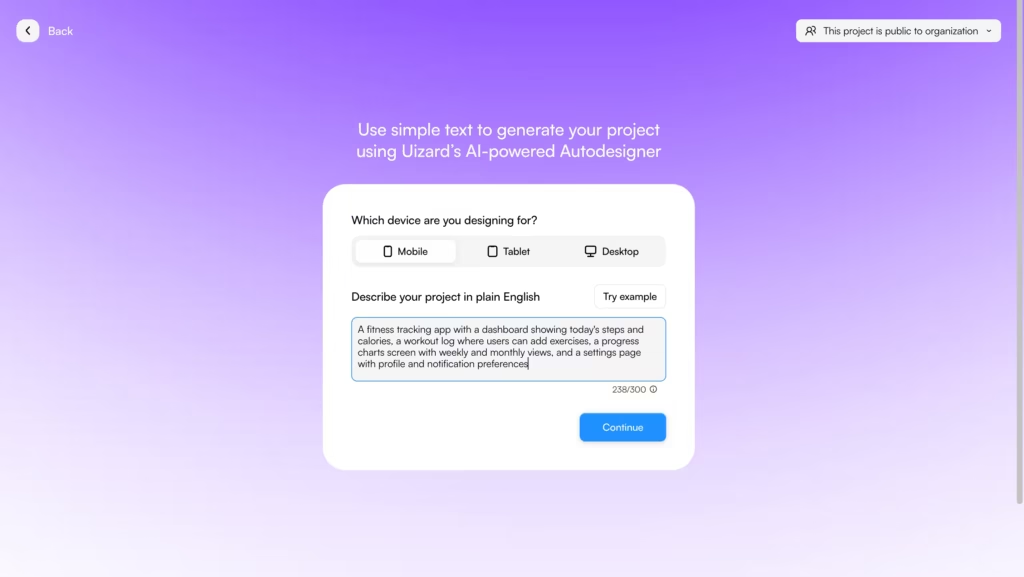
It’s fast – most generations complete in under a minute – and the output includes interactive links between screens so you can click through the flow immediately.
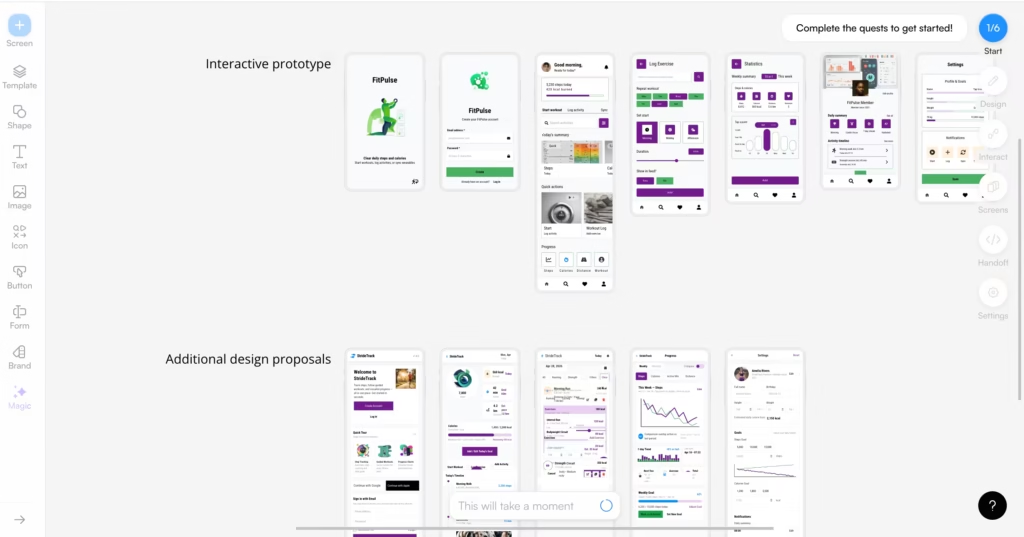
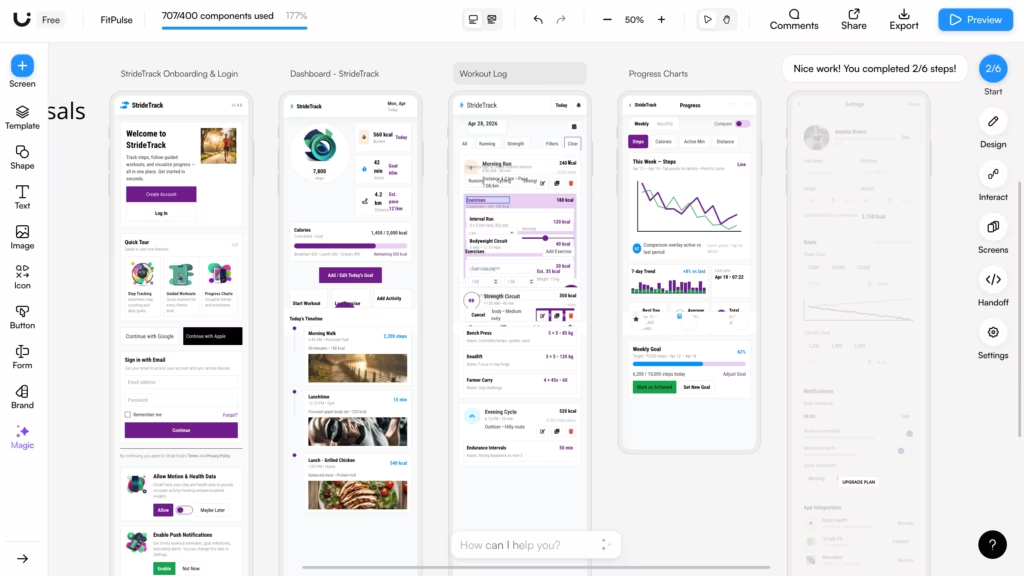
When I prompted “an e-commerce app for handmade jewelry with product listings, a cart, checkout, and order tracking,” Autodesigner generated 6 screens with a logical purchase flow.
The product grid used card layouts with image placeholders, the cart summarized items correctly, and the checkout included form fields for shipping and payment. The order tracking screen was the weakest – it showed a generic status bar without any real detail. But as a starting point for a founder pitching this concept to a developer? Absolutely usable.
The free plan only gives you access to Autodesigner 1.5, which produces noticeably lower-fidelity output. If you’re evaluating Uizard based on the free plan alone, you’re seeing a weaker version of what the tool can do.
2. Screenshot Scanner
This is the feature that surprised me most.
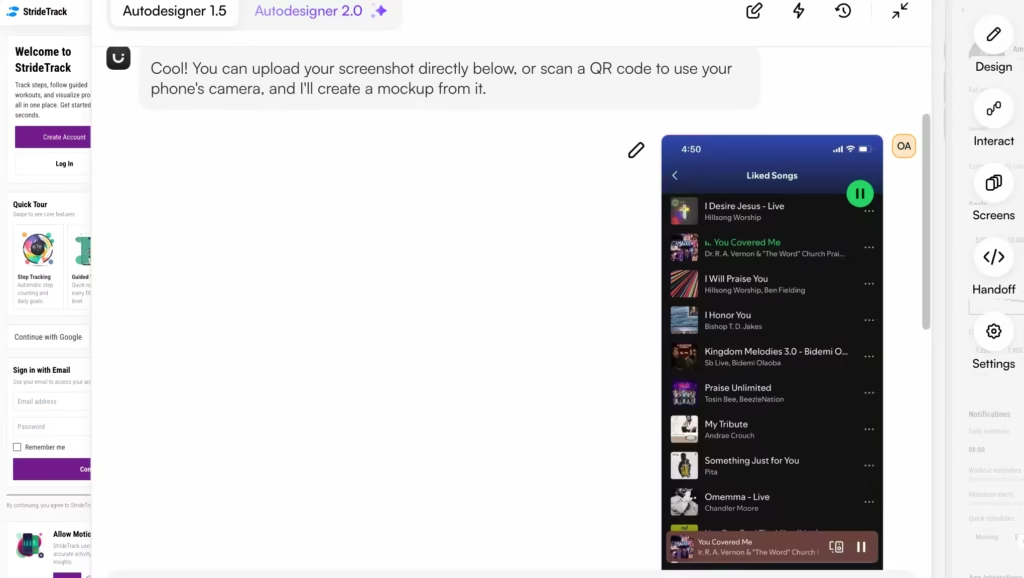
You upload a screenshot of any existing app or website, and Uizard reverse-engineers it into editable design components.
Headers become header blocks, buttons become button elements, images become image placeholders – all editable and rearrangeable.
I uploaded a screenshot of Spotify’s mobile home screen and got an editable mockup that captured about 75% of the layout accurately.
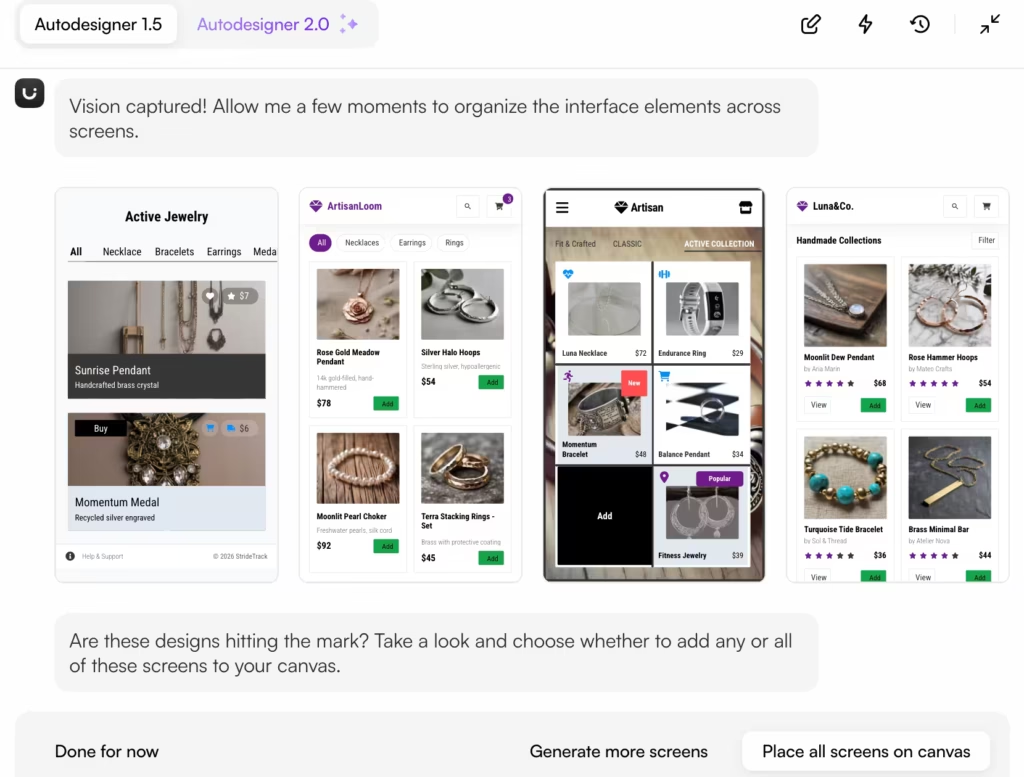
The card grid, search bar, and navigation tabs all translated correctly. The “Recently Played” carousel lost its horizontal scroll behavior and became a static grid instead, which required manual fixing.
But for teams that need to iterate on an existing interface – “take this competitor’s layout and adapt it for our product” – the Screenshot Scanner saves hours of manual recreation.
3. Sketch to Design
You draw a rough layout on paper, photograph it, and Uizard converts it into a digital wireframe.
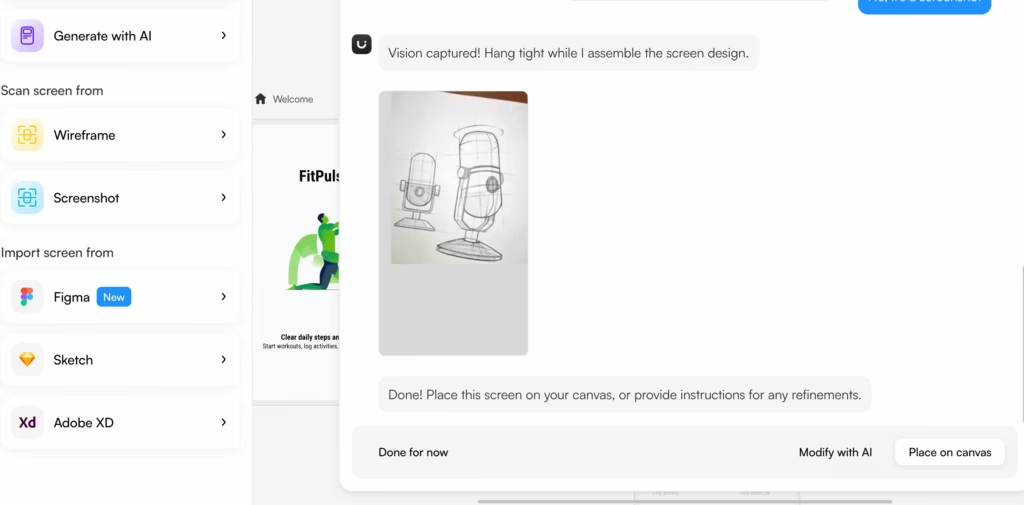
For brainstorming sessions and design workshops where people sketch ideas on whiteboards, this feature bridges the gap between “rough idea on paper” and “something a stakeholder can actually react to.”
What’s Good About This Uizard AI Design Tool
The speed is the real product. Going from a text prompt to a clickable 5-screen prototype in under a minute is something no traditional design tool can match.
I timed myself doing the same task in Figma (building a basic 5-screen app wireframe from scratch) and it took 45 minutes. Uizard’s output needed another 20 minutes of cleanup, but 21 minutes total still beats 45 minutes by a wide margin.
The learning curve is nearly flat. I watched two product managers on my team – neither of whom had ever used a design tool – open Uizard and produce their first prototype within 15 minutes of creating an account. They didn’t need a tutorial. The interface is that intuitive.
The template library covers a wide range of use cases: SaaS dashboards, e-commerce flows, social media apps, onboarding screens, and more. Each template is fully editable, and you can mix components from different templates into one project.
Developer handoff (Pro and above) generates React and CSS code snippets for individual components. It’s not production-ready code, but it gives engineers a concrete reference instead of a screenshot and a prayer.
What Needs Work
The visual quality of AI output is the biggest limitation. Every Uizard-generated screen looks like AI-generated UI. The components are generic – stock button styles, default color palettes, standard card layouts.
Experienced designers will recognize immediately that a human didn’t produce it. For internal concept validation and stakeholder feedback, this is fine.
For user research sessions, investor decks, or customer-facing demos, the visual quality isn’t sufficient without substantial manual refinement.
The 500 AI generation cap on Pro sounds generous until you realize that every individual action – regenerating a screen, tweaking a component with AI, running Autodesigner – counts as one generation.
During my two weeks of testing, I hit the cap by day 9. If you’re iterating heavily on multiple projects, you’ll either need Business (5,000 generations) or you’ll learn to be very deliberate with your AI usage.
Export limitations on the free plan are frustrating. You can’t export without Uizard branding, and SVG export (the format you’d need to bring designs into Figma) is locked behind Pro. If you’re evaluating Uizard for team adoption, the free plan won’t let you test the full workflow.
Figma interoperability is a pain point. You can import from Figma into Uizard, but there’s no direct export back to Figma. The workaround is exporting screens as SVGs and importing them, but the layers come in messy and require cleanup. For teams that use Figma as their system of record, this friction adds up.
Competitors’ Comparison
| Tool | Starting Price | Free Plan | AI Generation | Best Use Case |
| Uizard | $12/mo (annual) | Yes (2 projects, 3 AI gens) | Text-to-UI, sketch-to-design, screenshot scanner | Fastest path from idea to prototype for non-designers |
| Figma | $19/mo (annual) | Yes (3 projects) | Plugin-based AI (limited native) | Industry standard for professional UI/UX design teams |
| Visily | $11/mo (annual) | Yes (starter) | Text-to-UI, screenshot-to-design | Closest Uizard competitor with more AI credits on free tier |
| Galileo AI | $100/mo | Limited | High-fidelity UI from prompts | Best AI output quality for designers who want polished screens |
| Penpot | Free (open-source) | Yes (full access) | No AI features | Best free alternative if you don’t need AI generation |