
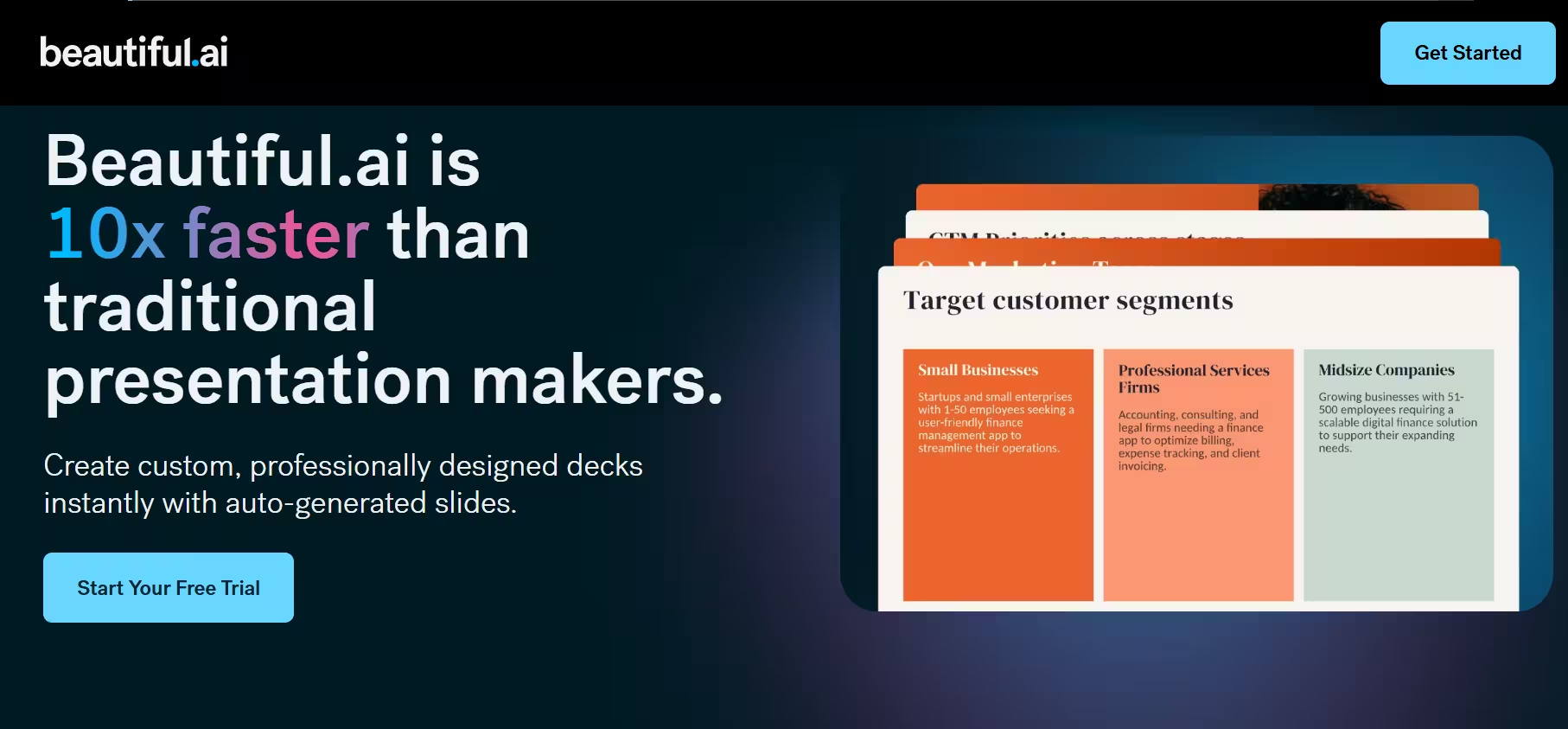


Beautiful AI runs entirely in the browser; there is nothing to install. Setup takes minutes, and the interface is clean enough that most users can build their first deck without any tutorial. That low barrier to entry is one of its strengths.
The core mechanic is the Smart Slide system. When I tested it by adding five bullet points to a single slide, the layout automatically reflowed in roughly two seconds. Elements repositioned themselves cleanly without any manual adjustment. It eliminated the tedious resizing that normally eats up time in PowerPoint.
However, that automation has a real tradeoff. When I tried to adjust the spacing between elements manually, the Smart Slide system pushed back. It wants to control the layout, and it resists when you try to override it. For users with a specific design vision, that friction is genuinely limiting. Beautiful AI works best when you trust its judgment rather than fight it.
The platform integrates with Slack, Google Drive, and Microsoft Teams. Sharing and collaboration feel seamless. I’ll say that it performs strongly within its niche, but it is presentation-only. For wider design needs, you will still need a separate tool.
Also read: 10 Best AI Presentation Makers in 2026
Key Features
1. Smart Slide Templates
Smart Slides automatically adapt to your content. Add a bullet point, and the layout adjusts. Remove an image, and the spacing self-corrects. When I tested this feature across several slide types, it consistently saved the kind of manual formatting time that adds up fast on longer decks.
2. AI Design Suggestions
As you build slides, Beautiful AI actively suggests layouts, color schemes, and visual structures. The suggestions are context-aware and generally useful. They are especially helpful for users who struggle with design instincts. The tool gives you a strong starting direction rather than leaving you with a blank canvas.
3. Brand Kit and Style Controls
Teams upload logos, color palettes, and fonts once. From that point on, every slide created by any team member automatically reflects those brand standards. This is particularly valuable for marketing teams managing multiple contributors. It removes the need for constant brand policing.
4. Real-Time Collaboration
Multiple users can edit the same deck simultaneously. Comments and updates appear instantly. The collaboration layer is smooth and comparable to Google Slides, but with significantly stronger design guardrails underneath.
5. Analytics and Viewer Insights
Beautiful AI tracks how viewers engage with your presentations. During testing, the analytics revealed that viewers spent considerably more time on visual slides than on text-heavy data slides, the kind of finding that directly informs how you restructure your deck for better impact.
6. Extensive Template Library
Hundreds of templates cover pitch decks, proposals, sales presentations, and more. Each one is Smart Slide-enabled, so you get a strong starting structure that still adapts as you build.
7. Presentation Sharing and Export
Decks can be shared via link, embedded, or exported to PDF and PowerPoint. The PowerPoint export works reliably, which matters when stakeholders outside the platform need to access or edit your files.
Verdict
Beautiful AI does what it promises. It makes professional presentation design faster and more accessible, particularly for teams that need consistent output without a dedicated designer on staff.
The $12/month Pro plan is great for anyone who builds presentations regularly. The Team plan is harder to justify unless your team is actively collaborating on decks and needs the brand controls. At that point, the price makes sense.
The tool is not for everyone. Designers who want granular control over layout will hit walls quickly. The Smart Slide system is powerful precisely because it is opinionated, and that same quality becomes a limitation when your vision conflicts with its logic. If you are comfortable working within its design framework, you will produce great results quickly. If you are not, the friction will outweigh the convenience.
Start with the free trial and build one real deck, not a test deck, but something you actually need. That experience will tell you immediately whether Beautiful AI fits your workflow.