
Free plans across the leading platforms vary considerably, even when their video results appear similar.
Some provide a one-time allowance, others renew credits monthly but restrict commercial use, while certain tools place watermarks on every free export.
Choosing an AI photo-to-video generator therefore depends on how the finished clip will be used. Testing ideas has different requirements from creating client work, publishing commercial content, or producing videos regularly.
Part 1. 6 Best Photo-to-Video AI Generator Tools
The tools below all turn a still image into video, but they differ in how they generate motion, what controls they provide, and what happens after the clip is created. Some focus mainly on image animation, while others include editing and export features. The following 6 photo-to-video AI generator tools show how these approaches compare in practice:
1. Magiclight AI
Best For: Turning animated photos into longer story-based videos with narration.
Magiclight AI turns uploaded images into video while providing control over the generation model and supporting reference media. Its AI photo-to-video generator can work with images alongside optional text prompts, allowing creators to describe the motion or scene they want rather than relying only on automatic animation.
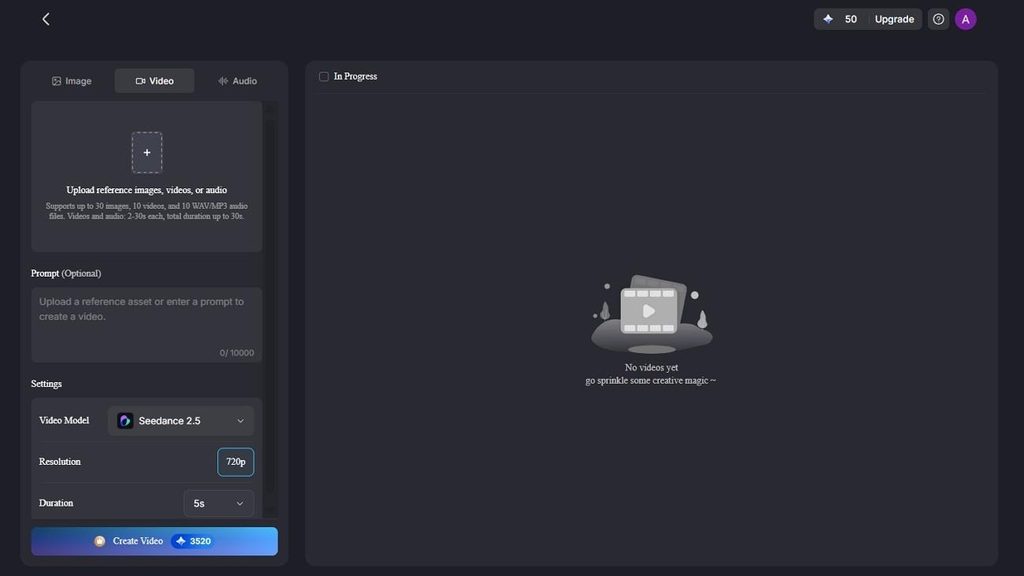
The platform also accepts video and audio references, making it suitable for projects that need more than a single source image. Users can select from several video models, including Seedance 2.5 and more, and adjust available output settings before generation. This provides a more configurable process for turning source material into finished video clips.
Key Features
- AI Character Generation: Create a reusable character with a prompt of up to 1,000 characters for consistent use across scenes.
- Multiple Reference Inputs: Add up to 5 reference images to provide additional visual references for generation.
- Video and Audio References: Use reference clips between 2 and 30 seconds long to provide additional source material for the generated video.
- AI Model Selection: Choose from 20 AI video models to generate different image-to-video results, including Kling 3.0 and Seedance 2.0.
2. Runway
Best For: Creating controlled image-to-video clips with multiple AI model options.
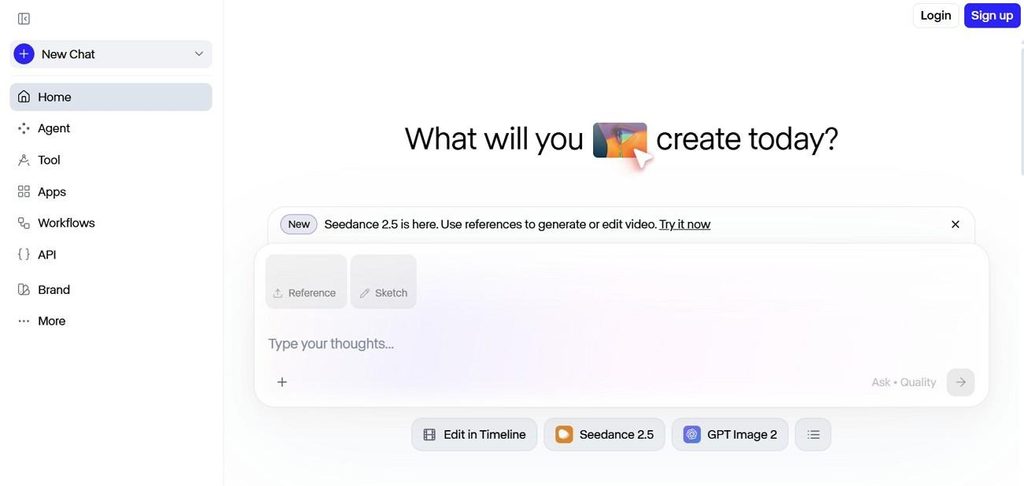
Runway turns a still image into video while letting the prompt define the movement that follows. Its current model selection includes Runway’s own Gen-4.5 alongside third-party options. For image-to-video generation, the uploaded picture establishes the subject, composition, lighting, and visual style before motion is applied.
Key Features
- Gen-4.5 generates video from an uploaded image, with prompts controlling movement and changes within the scene.
- Runway includes its own video models alongside third-party options such as Google Veo 3.1.
- Gen-4 References helps maintain a character’s appearance across different settings, lighting, and generated images.
3. Luma Dream Machine
Best For: Animating still images with controlled camera movement and scene changes.
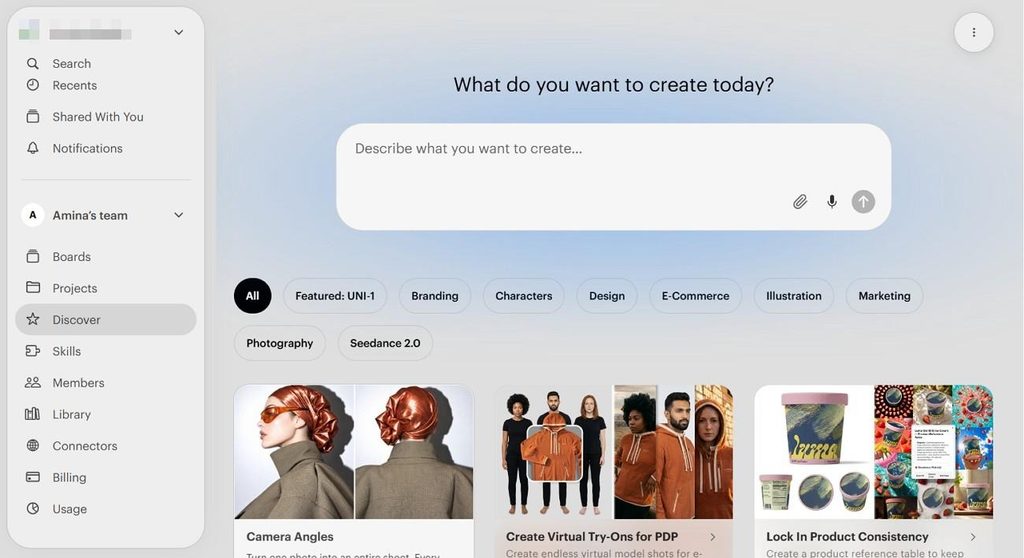
Built for generating motion from visual inputs, Luma Dream Machine works as a free AI photo-to-video generator option for turning still images into short clips. Users can describe the subject and camera movement through prompts, while keyframes provide additional control over how the scene develops from one visual point to another.
Key Features
- Ray models generate 5- or 10-second videos from still images, with options to extend generated clips.
- Camera movement can be guided through prompts, including actions such as orbiting around the subject.
- Image keyframes define visual points within a sequence and guide how the video transitions between them.
4. Adobe Firefly
Best For: Brand teams creating image-based videos intended for commercial projects.
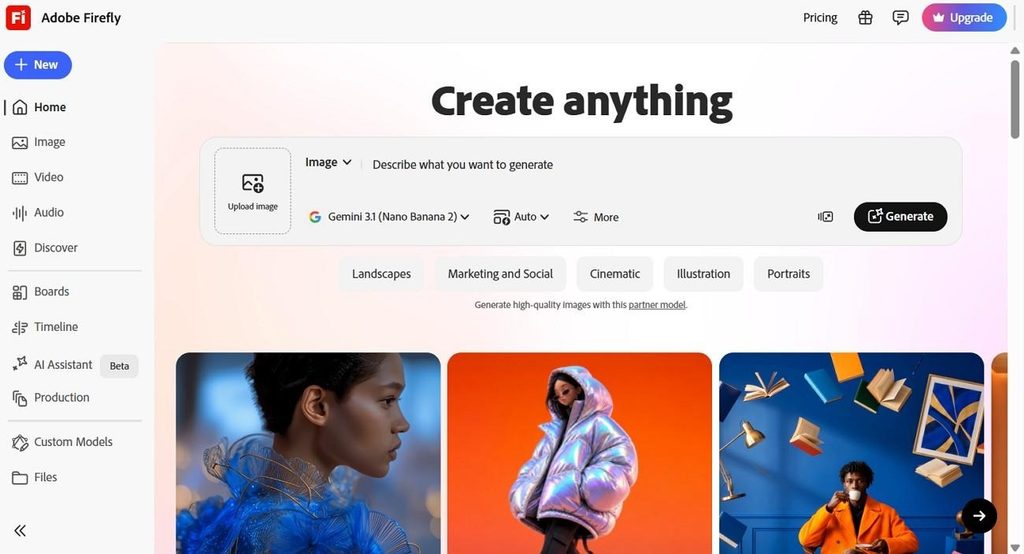
Adobe Firefly turns uploaded images into videos using text prompts and adjustable motion controls. Its Firefly Video Model uses licensed and public-domain material rather than Adobe customer content. This training approach gives commercial teams clearer information about the sources used to develop the model.
Key Features
- Image-to-video controls support camera movements such as zoom, pan, and tilt within generated clips.
- Users can select Adobe’s model or partner options, including Runway Gen-4.5 and Veo 3.1.
- Generated videos support MP4 downloads, with selected models and settings providing resolutions up to 4K.
5. Canva
Best For: Marketing teams creating short animated visuals within existing Canva designs.
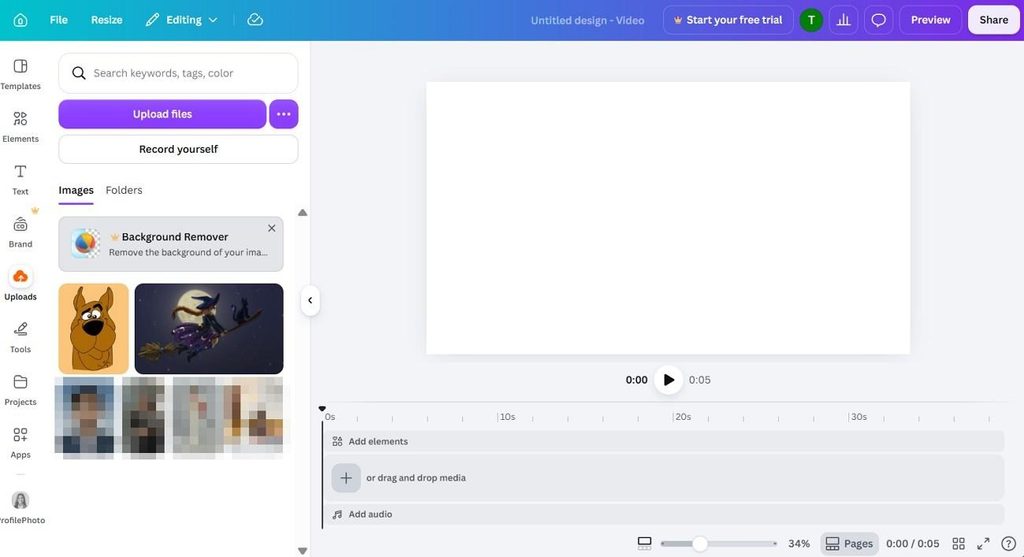
Canva combines image-to-video generation with its existing design editor for creating short marketing content. Its AI photo to video generator free tool animates photographs, illustrations, diagrams, and 3D shapes. Users can automatically add motion or enter a prompt describing how the source image should move.
Key Features
- The Image to Video tool converts uploaded images into three-second animated video clips.
- Users can choose Smart automatic animation or Custom mode to guide movement with prompts.
- Generated clips can be edited with text, audio, filters, effects, and other design elements.
6. VEED
Best For: Generating image-based clips and editing them within the same workspace.
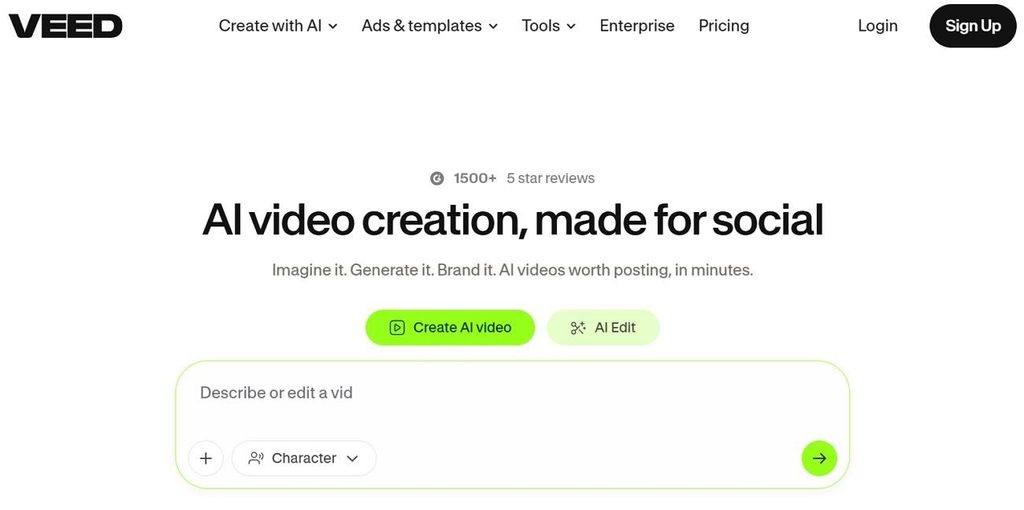
Instead of treating image animation as a separate step, VEED places generation inside its broader video workflow. The free photo-to-AI-video generator option creates motion from still images using different AI models. After generation, the resulting footage remains available for further editing, making it easier to prepare clips for different publishing formats.
Key Features
- Image-to-video models include options such as Veo 3.1, Seedance 2.5, Kling, and Luma Ray.
- Generated clips can be edited with captions, text, brand assets, and other video elements.
- Free accounts export videos at 720p with a VEED watermark, while paid plans support higher resolutions.
Part 2. Free Photo to Video AI Generator Options
Free access varies considerably across the 6 tools, particularly in credits, watermarks, usage rights, and export limits. These differences determine whether a free plan works for occasional testing or regular content creation. The table below compares each free photo-to-video AI generator across the restrictions that matter most before choosing one:
| Tool | Free Allowance | Refreshes | Commercial Use |
| Magiclight AI | Free plan, no card | Yes | Paid plans |
| Runway | 125 credits, about 10 seconds | No, one-time only | Paid plans |
| Luma | About 30 credits monthly | Monthly | Not permitted free |
| Adobe Firefly | Around 25 credits monthly | Monthly | Watermarked free |
| Canva | Generous free tier | Ongoing | Included free |
| VEED | Watermarked 720p exports | Ongoing | Paid plans |
What the Free Terms Actually Allow
Runway provides 125 free credits once, and they do not renew after use. This makes the free plan more suitable for testing than regular production. Luma takes another approach: videos created with its Free and Lite plans are limited to personal use, while commercial rights require an eligible paid subscription for business or client projects.
Canva permits AI-generated output for lawful purposes, including commercial projects, although extra licensing terms may apply when Canva library content is included. Luma’s free-use terms also grant the company broad rights over uploaded and generated content. These rights include using, reproducing, distributing, and publicly displaying material for purposes such as improving services and developing its AI models further.
Part 3. How to Use an AI Photo to Video Generator App
The process follows a similar path across most tools. These steps show how to create and export a clip using an AI photo-to-video generator app:
Step 1: Upload the Photo
Start in the Video tab and add the image you want to animate. Magiclight AI accepts JPG, JPEG, and PNG files up to 10MB. Once the photo appears in the upload area, move to the prompt field below to define how the still image should come to life.
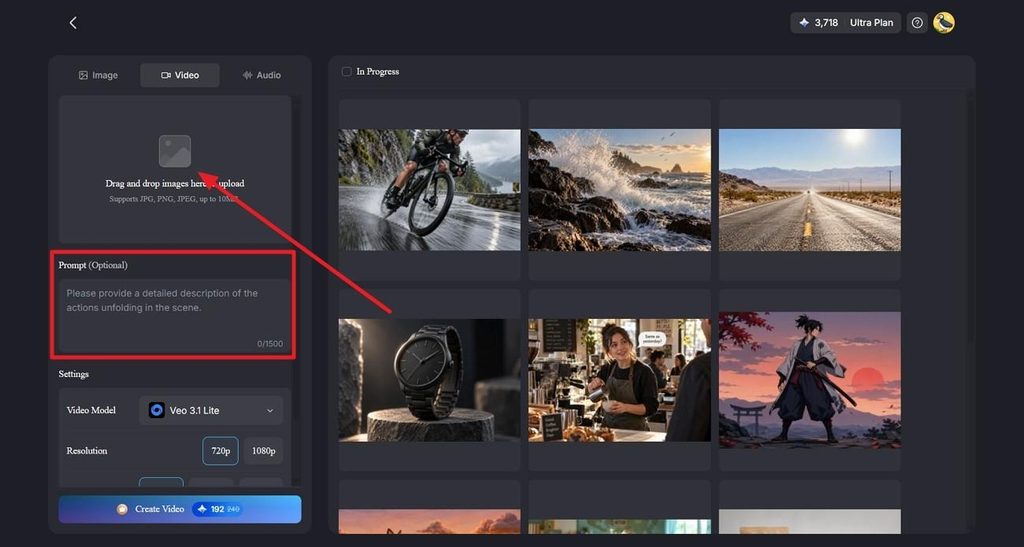
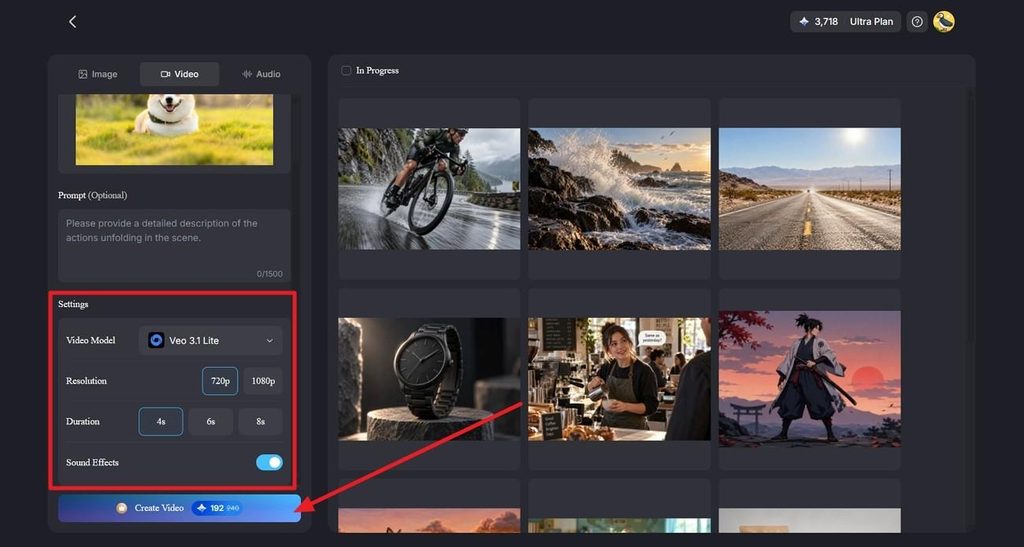
Step 2: Set the Motion and Video Options
Then work through the settings directly below it. Choose a video model such as Veo 3.1 Lite, select 720p or 1080p, and set the duration to 4, 6, or 8 seconds. Enable sound effects when required, then select Create Video.
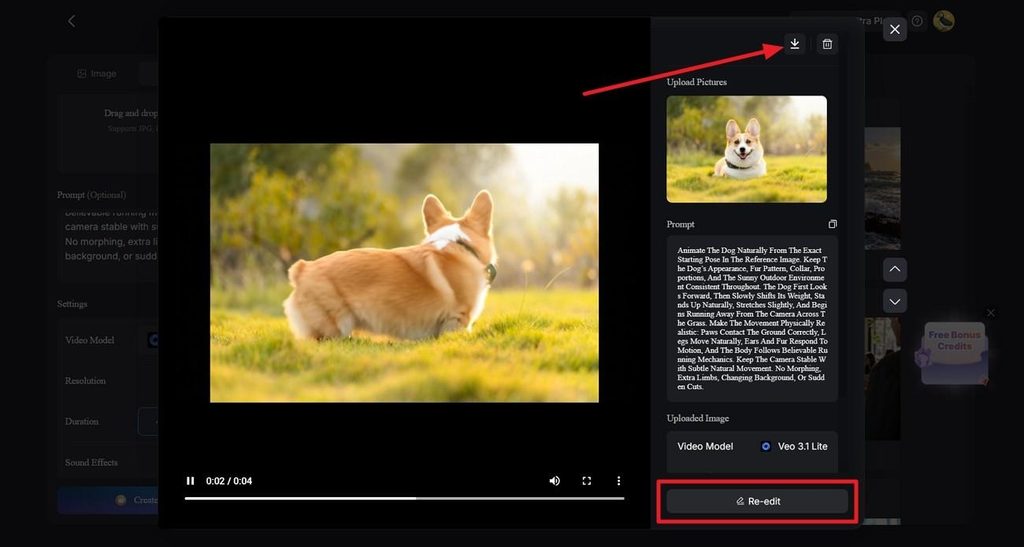
Step 3: Review and Export the Result
After generation finishes, open the completed video from the results area. Play the clip and check the movement against the original image and prompt. If changes are necessary, select Re-edit and adjust the generation settings. Once the result is ready, use the Download icon in the preview window to save the finished video.
Conclusion
Choosing an AI photo-to-video generator depends on more than visual quality. Free limits, commercial rights, available models, editing controls, and export options determine which platform fits a particular project. Some tools focus on short animations, while others support broader production needs. For creators who want to turn animated photos into more complete video projects, Magiclight AI is a practical option.
FAQs About AI Photo To Video Generator
1. What is the best AI photo to video generator?
Dream Machine produces the most convincing motion from a single still, particularly where physics matter. Among any free AI photo to video generator shortlist, Magiclight AI suits creators who need that animation to continue into a longer piece.
2. Is there a free AI photo to video generator?
Several of them exist, though their terms vary considerably in practice. Canva permits commercial use on its free tier, while Luma prohibits it entirely and Runway supplies a single non-renewing allowance of 125 credits.
3. What is the best free photo-to-video AI generator?
Canva is the pick for anything commercial, since its free tier attaches no license restriction. Anyone comparing a free photo-to-video AI generator will find Luma gives around thirty monthly credits. Magiclight AI opens a free plan needing no card at all.
4. Is there an AI photo to video generator app?
Dream Machine runs on iOS alongside its web version, and browser-based tools work from a phone without installation. That covers most mobile workflows, since uploads come straight from the camera roll.
