

Pixelcut started as a simple background removal app. It has since grown into a comprehensive AI photo editing platform used by millions of e-commerce sellers. The platform now covers background removal, object erasing, AI imagery, batch editing, and generative fill, all accessible from desktop or mobile.
Pixelcut has both iOS and Android apps, which are useful for those who may not have sophisticated devices. Still, the desktop version is noticeably more capable for batch workflows. Mobile is better suited for quick, single-image edits.
Pixelcut is primarily built for product and e-commerce photography. This is the pro and the con. Advanced retouching, typography control, and multi-layer design work aren’t supported.
Key Features
1. Background Remover
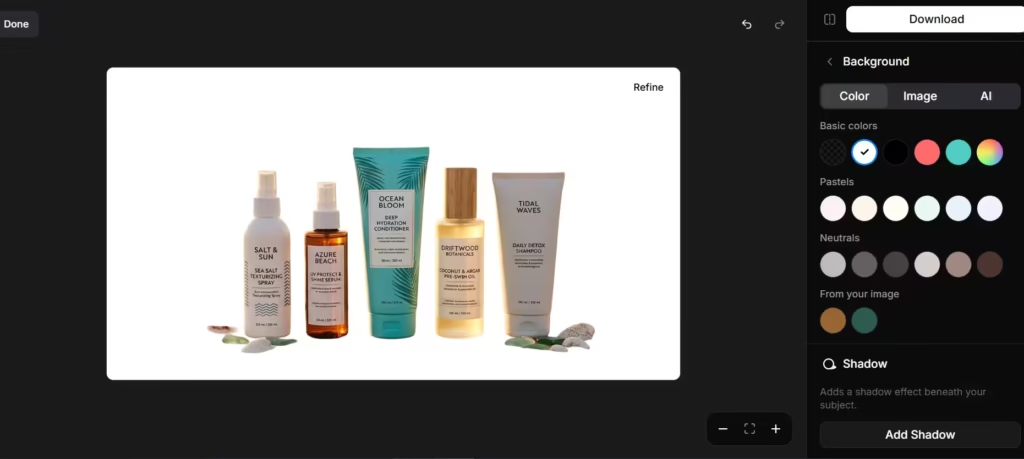
This is Pixelcut’s main tool, and it shows. I uploaded product photos with varied backgrounds. Pixelcut removed backgrounds accurately without any manual correction.
An original image:

After background removal:
I decided to test Pixelcut in an area where AI tools falter- subjects that don’t have a solid, clean edge. Usually, fine, semi-transparent details will make the AI retort to pixel-blend rather than just drawing a sharp line.
Original image:

With background removal and replacement:
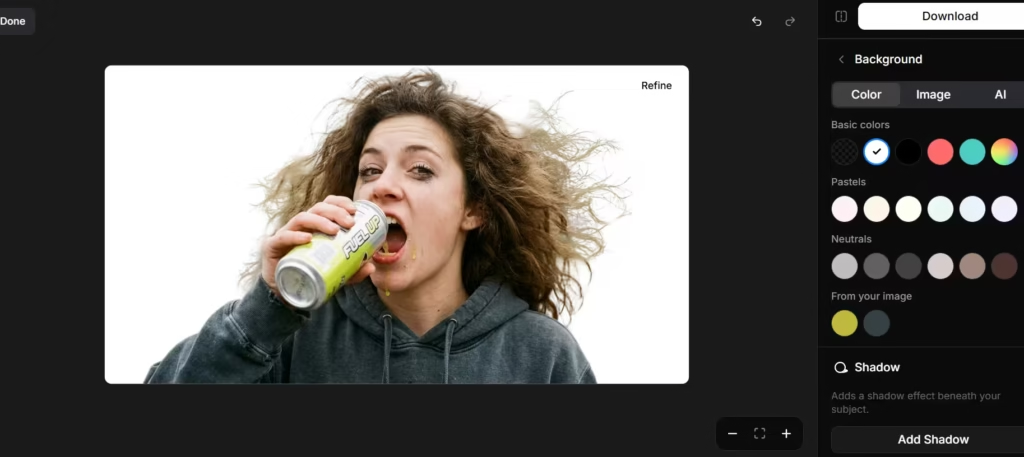
I replaced the background with a white backdrop to clearly see the details. Pixelcut AI did do a decent job of removing the image, but a close-up look reveals a slight blur.
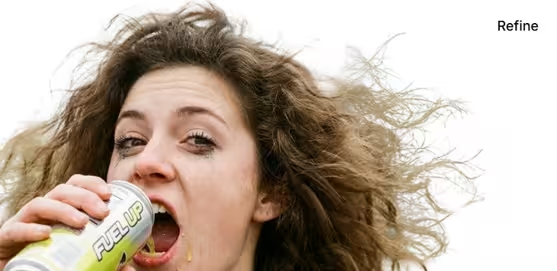
For comparison, Remove.bg, its key rival, also struggled with the same.
2. Edit
This allowed me to make changes to an image’s resolution, size, and even angles. It’s more of a brush-over tool than something deeply changing. I could also make a video out of the tool or edit it using AI prompting.
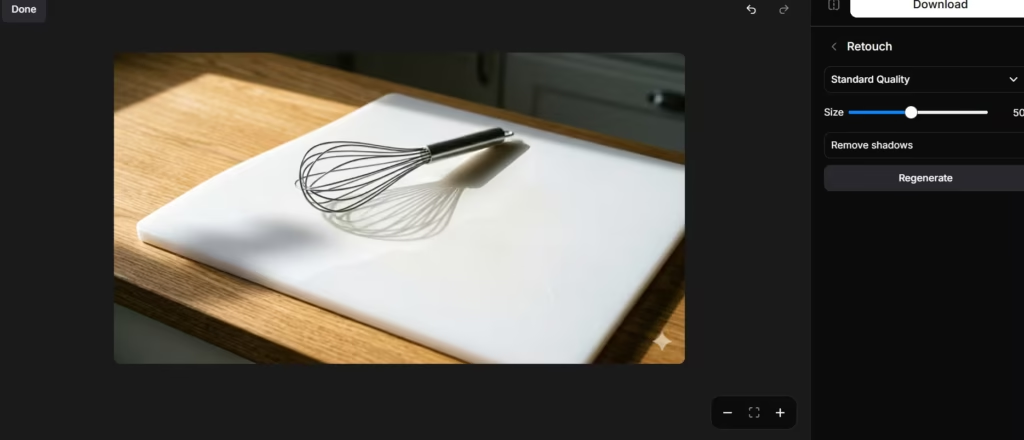
I decided to use it to remove shadows cast across a cutting board. This didn’t turn out well.
3. Generative Fill
Generative fill involves brushing over an area, typing a prompt, and the tool expands or replaces that section using outpainting. Pixelcut uses Gemini’s nanobanana technology for this.
4. AI Backgrounds
The AI Backgrounds feature generates crafted backgrounds to place products in various settings, removing the need for physical photoshoots.
5. Image Upscaler
Using this feature results in an improvement in edge sharpness and readable fine text on product labels. The tool may struggle with highly reflective surfaces. For instance, a stainless steel water bottle showed some artifacting along the reflection gradient.
6. Batch Editing
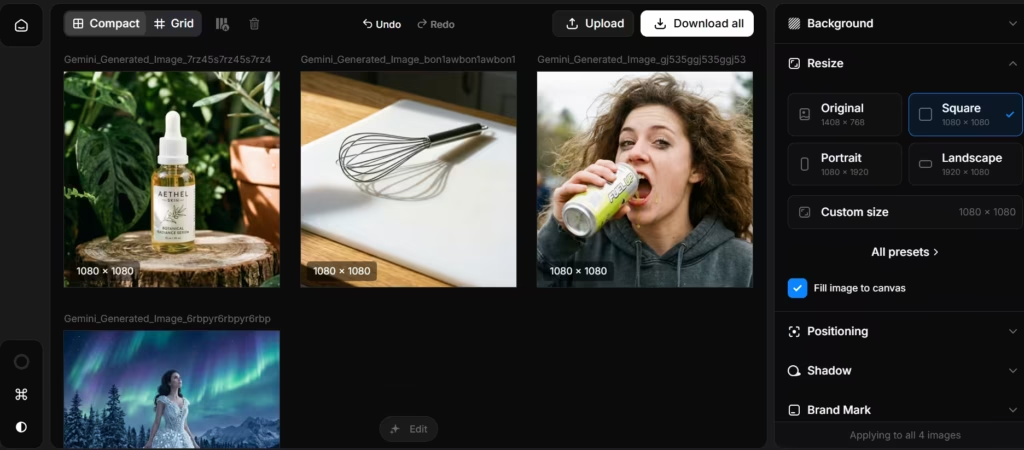
Batch editing allows users to edit multiple images simultaneously and cut down on time. I edited 4 different product images in seconds by applying the same effect across all images. In another tool like Canva, I would have to spend time on individual images.
What Could Be Better
I found Pixelcut AI very useful, especially the background remover. However, the editor could use more fine-tuning. I had used it, more like tried, to remove a shadow cast across an object; instead, the tool left behind a blur with the shadow still visible.
I also found the batch processing to be good for productivity. I can apply the same effects across many images in one go. These are all available in the free plan. Yet the pro plan (at $10/month) makes financial sense for any seller processing more than a handful of product images per week. The extra features it unlocks will prove handy for creating imagery that captivates the target audience.