
Pixlr has been around since 2008, making it one of the oldest browser-based photo editors still actively developed.
Swedish developer Ola Sevandersson built the original, Autodesk acquired it, and it eventually landed with Inmagine Group – the Malaysia-based company behind 123RF and Designs.ai.
That ownership matters because it connects Pixlr to a professional stock media infrastructure, which shows in the template library (10,000+ designs) and the 15+ AI models now integrated into the platform.
As of mid-2026, Pixlr reports over 500 million registered users across 160 countries. That’s a staggering number for a tool most people still think of as “the free Photoshop alternative.”
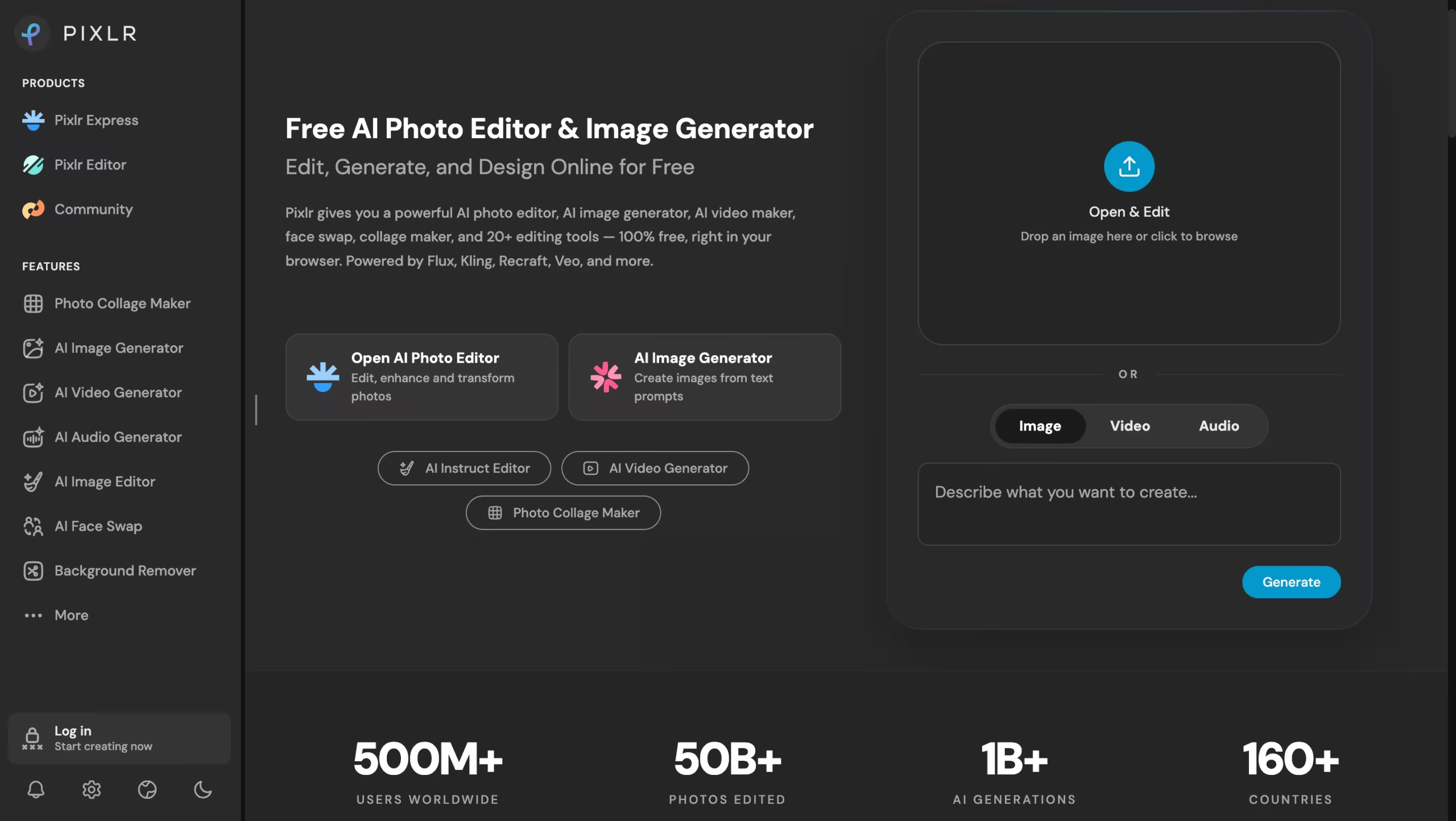
And while that description was accurate five years ago, the 2026 version of Pixlr has expanded well beyond photo editing into AI image generation, video creation, face swapping, and even audio synthesis.
I tested Pixlr on three projects: retouching product photos for an Etsy listing, creating social media templates for a client’s Instagram, and stress-testing the AI image generator across 20 prompts. The editing experience in Pixlr E genuinely surprised me.
Layers, masks, blend modes, clone stamp, healing brush, curves adjustment – it handles roughly 80% of what I’d normally open Photoshop for, and it loads in about 3 seconds in Chrome. The remaining 20% – RAW file processing, advanced color grading, non-destructive smart objects – still requires Photoshop or Lightroom.
But for most web-first editing workflows, Pixlr E fills the gap without costing a cent.
Key Features
Pixlr E: The Photoshop-Style Editor
Pixlr E is the editor that earns Pixlr its reputation.
It opens in your browser and presents a workspace that any Photoshop user will recognize immediately: tools on the left, layers panel on the right, menu bar across the top.
You get layers with blend modes, layer masks, selection tools (lasso, magic wand, magnetic, polygon), clone stamp, healing brush, dodge and burn, curves, levels, and a full filter library.
I tested Pixlr E on a product retouching project – removing dust spots from jewelry photos, adjusting exposure, and compositing three images into a single lifestyle shot.
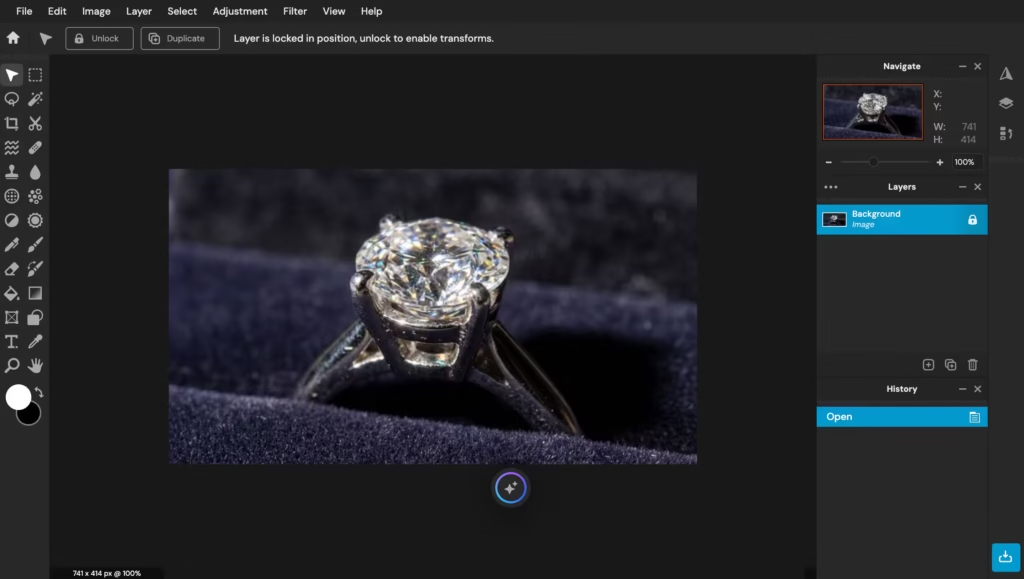
The layer compositing worked smoothly. The clone stamp and healing brush handled dust removal without the smearing artifacts I’ve seen in cheaper editors.
Curves adjustment gave me the control I needed for exposure correction. The one area where Pixlr E stumbled was with a large file (4500×3000px, multiple layers) – the browser lagged noticeably when moving layers, and undo operations took about 2 seconds instead of being instant.
Pixlr E can also open PSD files, though complex Photoshop documents with adjustment layers and smart objects get partially flattened during import. For straightforward PSDs with standard layers, it works fine.
Pixlr X: Quick Edits and Social Design
Where Pixlr E is the scalpel, Pixlr X is the Swiss Army knife. It’s built for speed: crop, resize, apply filters, add text, drop in stickers and overlays, adjust colors, and export – all designed to take minutes, not hours.
The template library (10,000+ designs for Instagram stories, Facebook banners, YouTube thumbnails, and more) makes it useful for social media managers who need consistent branded graphics without opening a full design tool.
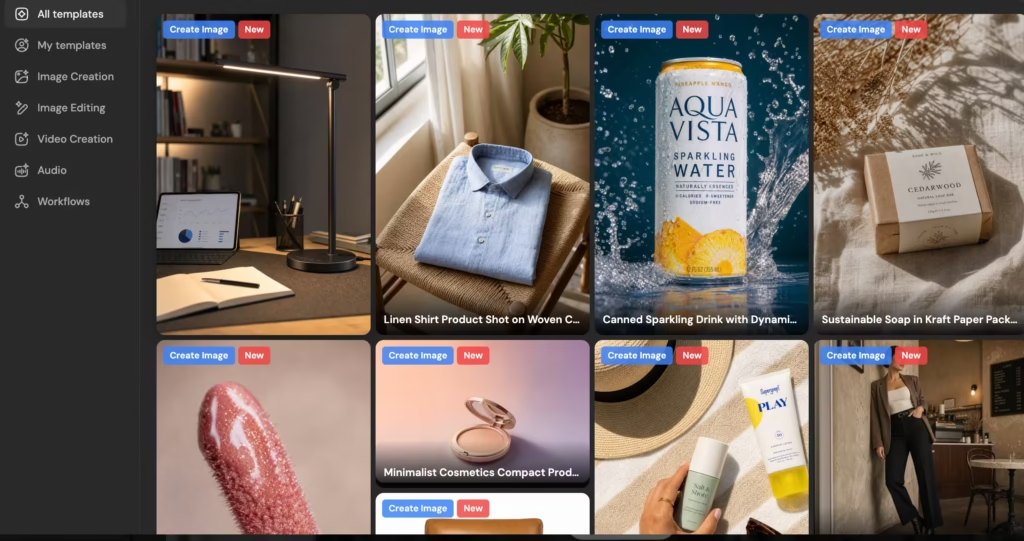
I used Pixlr X to create 8 Instagram story templates for a client. Each took about 4 minutes from template selection to final export. The templates are customizable enough to feel unique – swap fonts, adjust colors, replace images, change layout proportions.
They’re not as polished as Canva’s best templates, but they’re free and watermark-free, which is more than Canva’s free tier offers for some premium templates.
AI Background Removal
Background removal is Pixlr’s most-used AI feature, and it works well. One click isolates the subject and produces a transparent PNG – no watermark, even on the free plan. I tested it on 10 images: product photos, portraits, pets, and a group shot. Solo subjects with clear edges processed cleanly in about 2 seconds.
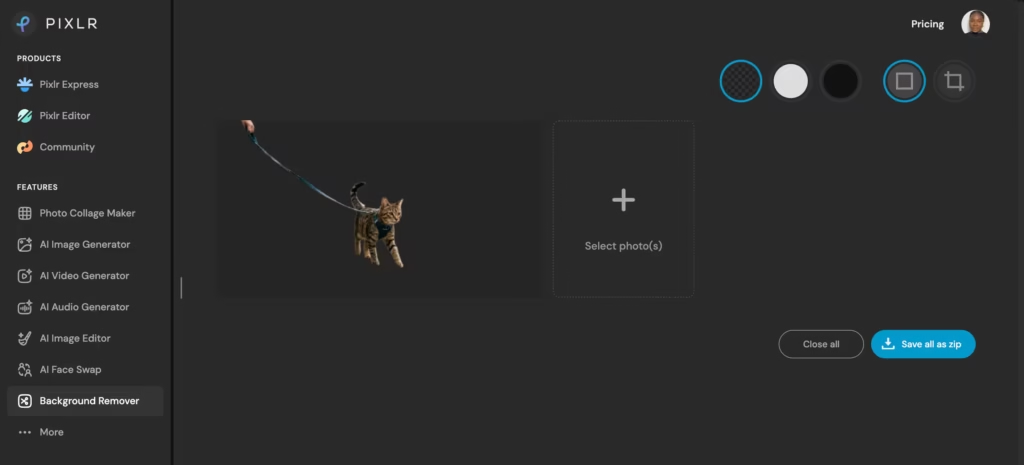
The group shot (4 people, overlapping arms) had rough edges around the contact points but was 90% usable without manual cleanup. Hair edges were handled better than Canva’s remover and roughly on par with PicWish’s output.
AI Generative Fill and Object Removal
Select an area, type what should replace it, and the AI fills accordingly.
I tested generative fill by asking Pixlr to replace a signpost in the background of am image, and it did quite a decent job.
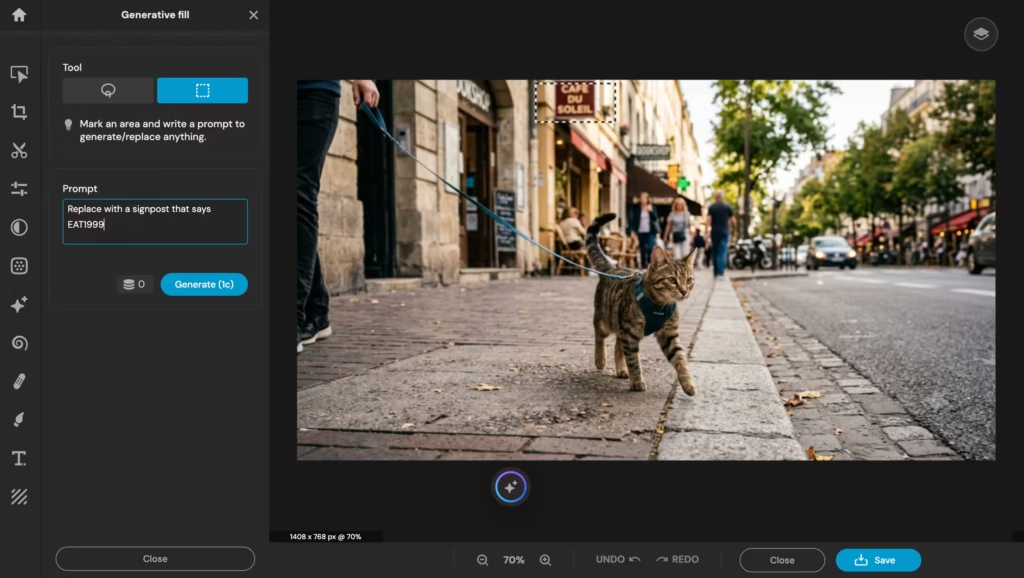
These features consume AI credits from your monthly pool. On the free plan, I ran out of generative fill credits after about 2 operations in a single session. Premium’s larger credit pool lasted me through a full week of moderate use before I started watching the counter.
AI Image Generation
Pixlr integrates 15+ AI models for text-to-image generation, with Premium unlocking the full roster: Flux, Flux Pro, Recraft V4, Grok Imagine, Seedream, and more. Each prompt generates four variations.
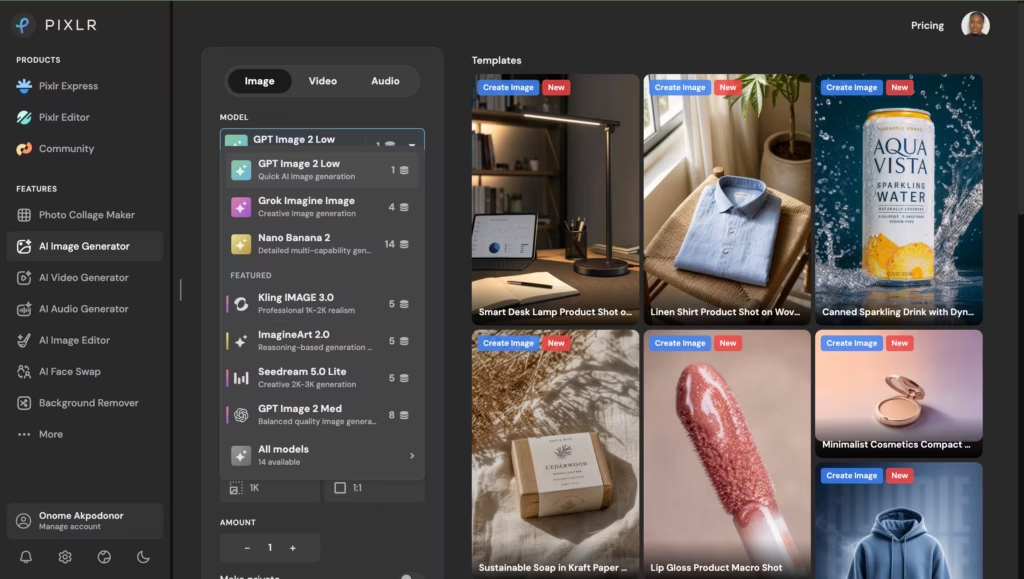
I tested 20 prompts ranging from simple product shots to complex illustrated scenes.
The strongest results came from Flux Pro on product mockup prompts – a candle on a wooden shelf, a coffee mug on a desk with morning light. These looked polished enough for Instagram ads.
The weakest results came from complex multi-subject scenes where spatial relationships between characters broke down. Recraft V4 handled illustration-style prompts better than the photo-focused models, which is useful for creators who need both styles.
AI Video and Audio (Premium+)
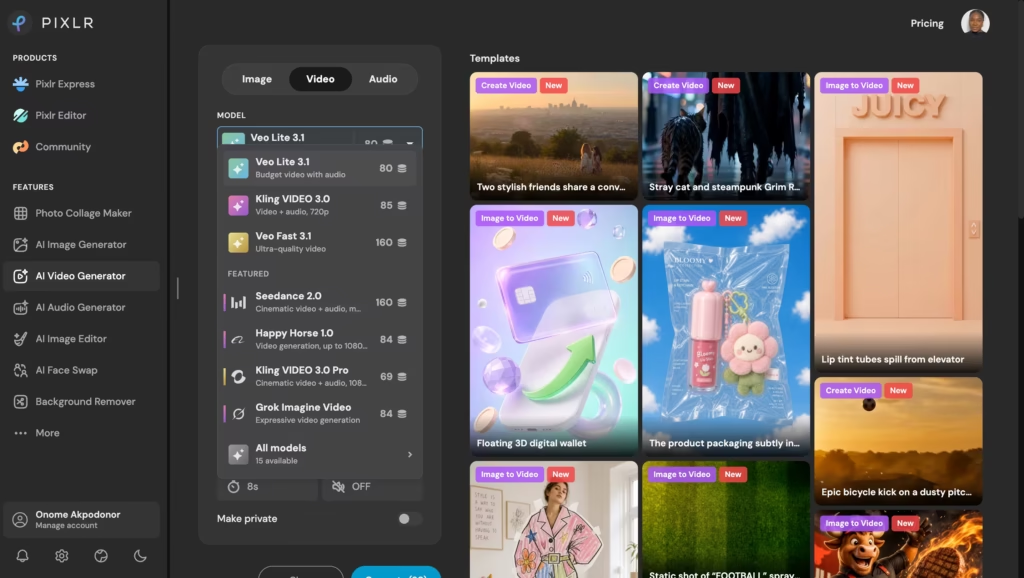
Pixlr now integrates Kling AI and Google Veo for text-to-video, plus ElevenLabs for text-to-audio. These are Premium-tier features that consume significant AI credits.
I generated a 4-second product showcase video through Kling AI – the camera movement was smooth but the product details softened noticeably. For social media teasers, it’s passable. For anything that needs to look sharp, dedicated video tools still win.
Competitors Comparison
| Feature | Pixlr | Photopea | Canva | Fotor | Adobe Express |
| Starting Price | $2.49/mo (Plus) | $5/mo | $15/mo | $8.99/mo | $9.99/mo |
| Free Plan | Yes (strong, no watermarks) | Yes (full features) | Yes (generous) | Yes (limited) | Yes (limited) |
| Layer Support | Full (Pixlr E) | Full (PSD compatible) | Basic | Basic | Basic |
| AI Background Removal | Yes (free, no watermark) | No | Yes (Pro) | Yes | Yes (limited) |
| AI Image Generation | Yes (15+ models) | No | Yes (Magic Studio) | Yes (limited) | Yes (Firefly) |
| AI Generative Fill | Yes | No | Yes | No | Yes (Firefly) |
| Batch Editing | Yes (Premium+) | No | Limited | Yes | No |
| PSD Support | Partial (basic layers) | Full (closest to PS) | No | No | No |
| RAW File Support | No | Yes | No | No | No |
| Templates | 10,000+ | None | Millions | Thousands | Thousands |
| Video Generation | Yes (Kling, Veo) | No | Yes (limited) | No | No |
| Best For | Free all-rounder with AI + layers | Free Photoshop clone without AI | Brand design ecosystem | Quick AI photo enhancement | Adobe ecosystem users |