

Recording narration requires a decent microphone, a quiet space, and time for repeated takes. Many creators lack these resources, which can leave finished video projects without narration. Creators can turn scripts into spoken narration with an AI voice generator without recording.
Filmora offers Text to Speech options to turn prepared scripts into spoken audio. Creators can choose suitable voices and adjust settings to match their video content. This guide explains the process and key choices that create natural-sounding narration.
Part 1. Why Video Creators Are Switching to AI Voice Generators
Creating voiceovers can take extra time when recording equipment and retakes are required. Using text-to-speech turns written scripts into narration without another recording session. Script changes also become easier because creators can update text before generating speech. The table below compares common demands of recorded narration and generated voiceovers for creators:
| Recording It Yourself | Generating It From Text |
| Requires a quiet room, microphone, and audio level check before recording starts. | Requires a prepared script and voice selection without setting up recording equipment. |
| A missed line requires another take that matches the tone of earlier audio. | A missed line can be corrected in the script before generating that section again. |
| Script changes after editing may require returning to the recording setup. | Script changes can be entered into the text before creating updated narration. |
| Another language may require another speaker or a voice actor who speaks it. | Supported languages and voices can help creators produce narration for different audiences. |
| Tone can change between recording sessions held on different days. | Using the same selected voice can help maintain a consistent sound across videos. |
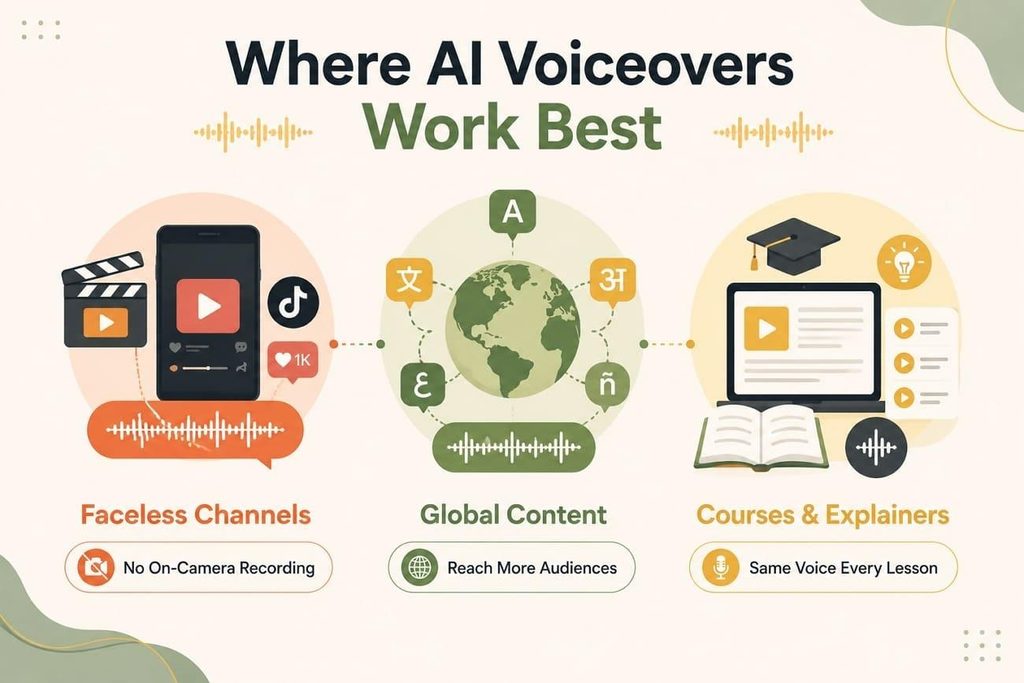
Where AI Voiceovers Work Best
Now, let’s see which projects gain the most from a text-to-voice AI workflow:
- Faceless and Short-Form Channels: Creators posting on TikTok, Reels, or Shorts can publish without appearing onscreen. Their chosen voice becomes part of channel identity without limiting posting frequency.
- Content for a Global Audience: One script can work across several languages without repeating the full process. Creators can reach new audiences without finding speakers for each target language.
- Courses and Explainer Videos: Long series need the same voice across modules to prevent unwanted changes. Technical terms also sound the same each time across courses and explainer videos.
Part 2. Step-by-Step: How to Convert Text to Speech with Filmora
Filmora gives creators tools for generating voiceovers while editing their video projects inside. The Filmora Text-to-Speech feature turns prepared scripts into editable narration clips. Its voice library offers more than 40 options across 33 supported languages.
AI Copywriting can draft scripts when creators have topics instead of finished written drafts. Creators can then choose suitable voices and languages based on their specific video needs. Now, follow the steps below to turn your script into a voiceover with Filmora:
Step 1. Import the Video and Open the Text to Speech Panel
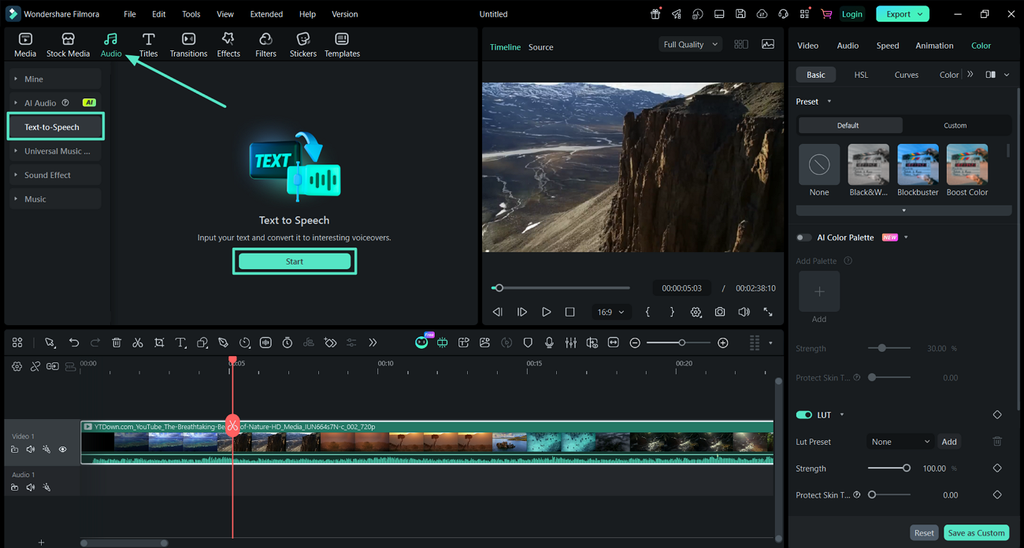
First, create a project in Filmora for video editing. Then, import your clip and drag and drop it over the timeline to start working. Choose the “Audio” section and press “Text-to-Speech” on the left side panel. After that, click “Start” to initiate the voiceover process.
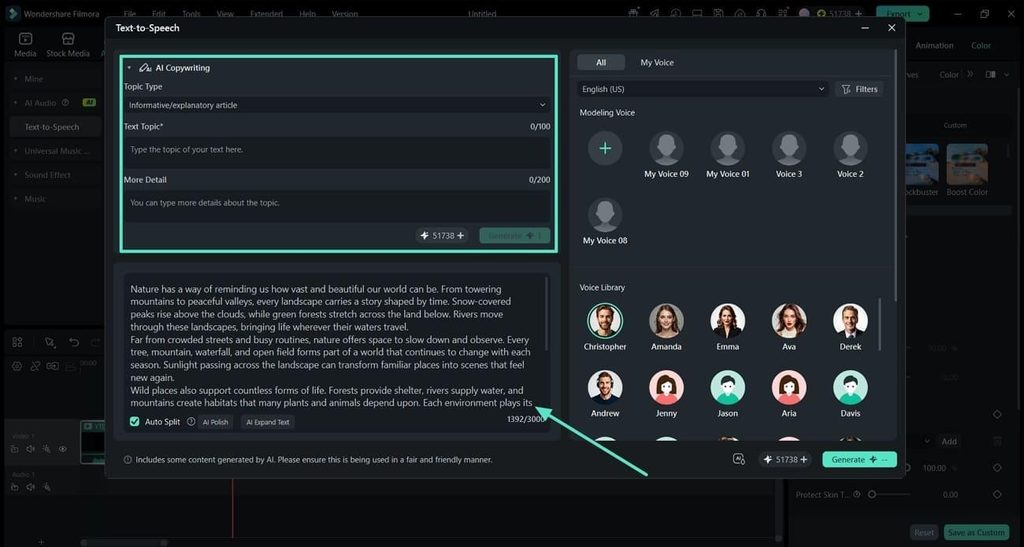
Step 2. Enter the Script or Let AI Draft One
Afterward, enter the script in the text box or expand the “AI Copywriting” section to let AI draft a script for you.
Step 3. Choose a Voice and Language, Then Generate
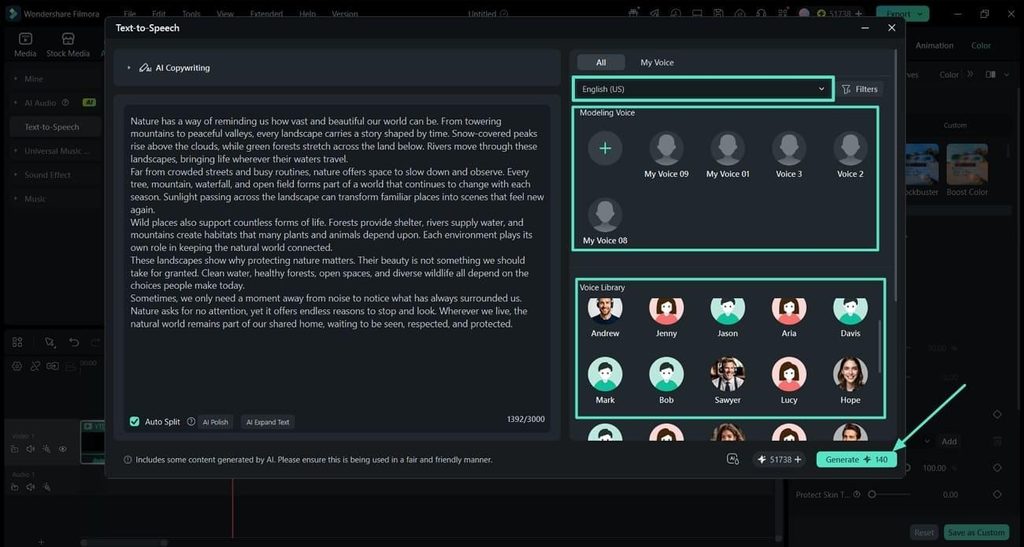
Pick the language your script is written in and choose a voice from the “Modeling Voice” or “Voice Library” section. Each voice is labeled with an age, a gender, and a tone such as formal, excited, deep, or mysterious. Then, press “Generate” to start text-to-speech conversion.
Step 4. Position the Narration and Export
Once the speech is generated, Filmora will segment the script into separate clips and place them against your video. Drag the speech clips to make each voiceover line match the right video scene. After that, simply press “Export” to save the final video.
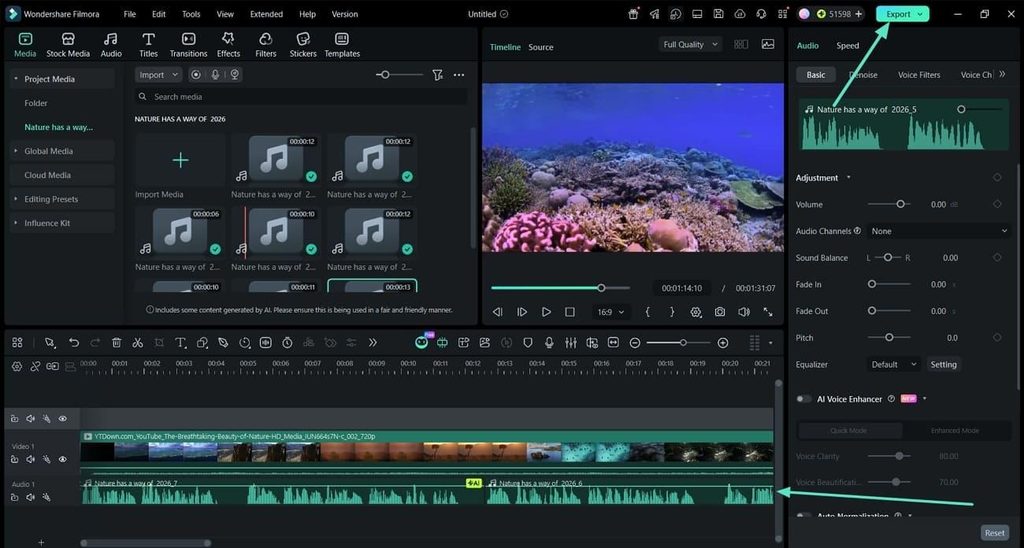
Note: Generate voiceovers in short passages instead of using one long script block. Script changes then require replacing one clip instead of the complete narration track.
Part 3. 4 Pro Tips to Make AI Voiceovers Sound 100% Natural
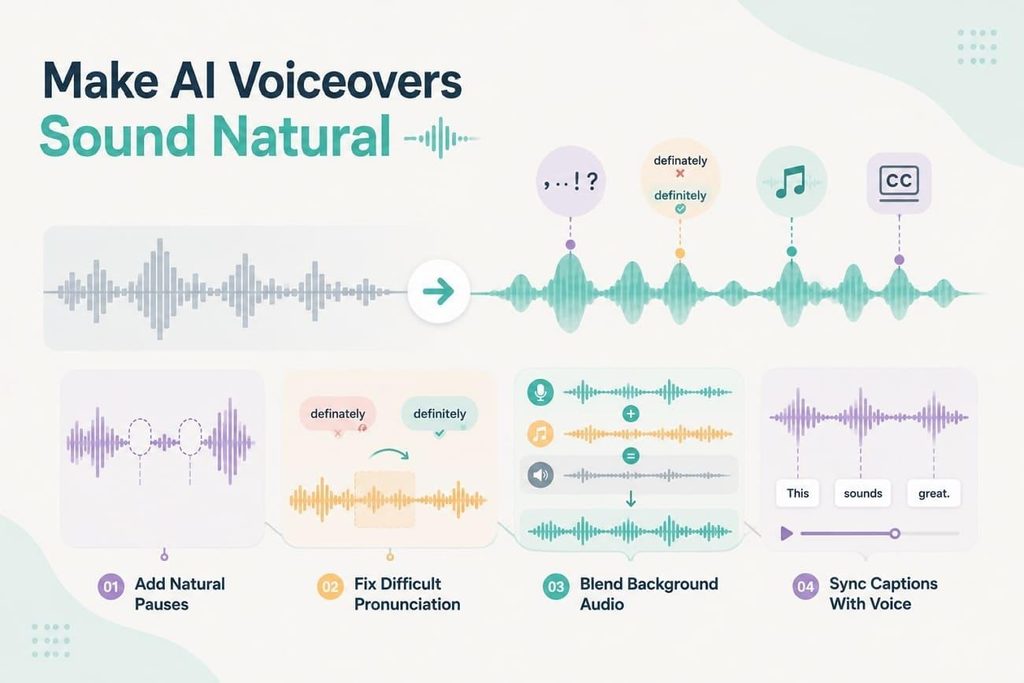
A clear voice can still sound unnatural when the script lacks proper speech cues. These 4 tips can help create realistic text-to-speech for video narration:
- Punctuate for Breath, Not for Grammar
Speech engines treat punctuation as timing instructions instead of standard grammar rules. Commas create short pauses, while full stops give the voice longer breaks. Break long sentences and place commas where you would pause for breath.
- Spell Difficult Words the Way They Sound
Product names, acronyms, and foreign words can expose errors in generated speech. Without dictionary entries, the engine guesses pronunciation from spelling and may fail. Write difficult words phonetically since listeners hear pronunciation, not the written script.
- Give the Voice Something to Sit Against
Narration over silence can expose small artifacts within the generated voice delivery. Low music or room ambiance can mask edges and create recorded sound. Keep background audio below narration so both tracks never compete for attention.
- Let the Captions Carry the Words
Generated voiceovers already have finished scripts, unlike narration recorded without written text. Captions can match that script without transcription steps or misheard term corrections. Sound-off viewers receive the narration while captions reduce any remaining voice stiffness.
Part 4. Supercharge Your Video Audio with Advanced Filmora AI Features
Filmora combines AI text-to-speech with other audio tools inside its video editor. The table below shows features that can improve and expand your generated voiceovers:
| Feature | What It Adds | When It Earns Its Place |
| AI Voice Cloning | Builds a voice profile from a sample of 10 to 60 seconds, then reads any script in it. | You want one consistent personal voice without recording every video. |
| AI Video Translation | Replaces the spoken audio in a target language, matched to the speaker’s mouth movements. | An existing video needs a dubbed version rather than translated subtitles. |
| Silence Detection | Finds and trims the quiet stretches inside your recorded footage. | The picture has gaps that a tighter generated narration no longer fills. |
| AI Audio Denoise | Strips hum, hiss, and room noise from clips recorded outside the editor. | Screen recordings or b-roll audio sit alongside the clean generated voice. |
The script remains the main source for generated narration in your project. Change the words, and those voice clips can be generated again without new recordings.
Conclusion
To conclude, creating video narration no longer requires microphones or dedicated recording spaces. An AI voice generator turns prepared scripts into speech for different video projects. Good punctuation, phrasing, and pronunciation choices help generated voices sound more natural. If you want voice generation alongside video editing, Filmora can support both tasks.
Frequently Asked Questions
- How do I stop an AI voice generator from sounding robotic?
Most of the fix sits in the script rather than in the settings. Shorter sentences, deliberate punctuation, and phonetic spellings for awkward words change the delivery more than switching voices does.
- Can I use Filmora text-to-speech voiceovers in monetized videos?
Filmora’s license terms allow commercial use of most built-in content but exclude the built-in music tracks and sound effects. Terms for AI-generated output are set out separately, so read Filmora’s commercial use license before monetizing.
- What languages and voices does Filmora text-to-speech support?
The feature covers 33 languages, including English, Spanish, Arabic, Hindi, Japanese, Tamil, and Turkish. Filmora offers more than 40 voices, each labeled by age, gender, and tone.
- Can I convert text to speech in my own voice?
Yes, Filmora Voice Modeling creates a voice profile from your recorded sample. You can then use text-to-speech to generate narration in that voice, though cloned voices may support fewer languages than stock voices.
- Do I need a microphone at all to generate AI voices?
The stock voices work entirely from typed text, so no recording equipment is involved at any stage. A short sample is only needed when you want narration produced in a clone of your own voice.
