

InVideo AI video link not working is one of the most common headaches users run into after spending time crafting the perfect AI-generated video.
You hit export, grab the share link, send it off, and the person on the other end gets a blank screen, an error message, or a link that just refuses to load.
Well guess what? Thousands of InVideo AI users deal with this exact problem every week.
This article walks you through exactly why your InVideo AI video link might not be working and, more importantly, how to fix it – step by step.
What Is InVideo AI, and How Do Video Links Work?
InVideo AI is an AI-powered video creation platform developed by InVideo Inc. It lets you type a simple text prompt and generates a complete video with script, voiceover, stock footage, captions, and music in minutes.
As of early 2026, the platform supports over 50 languages and has rolled out features like AI Avatars, UGC-style ads, and even full-length AI movie generation.
Once your video is ready, InVideo AI gives you a few options. You can export (download) the video as an MP4 file. You can also generate a shareable preview link.
This link lets other people watch your video directly in a browser without needing an InVideo account, assuming everything goes right.
That shareable link is where things often break down. And here is the frustrating part: InVideo does not always tell you why.
Why Is My InVideo AI Video Link Not Working?
Before jumping to fixes, it helps to understand the root causes. The issue usually falls into one of these categories:
| Cause | What Happens |
|---|---|
| Video not fully exported | You copied the link before InVideo finished processing. The link exists, but there is no video behind it yet. |
| Privacy set to “Unlisted” | Only logged-in InVideo users can see unlisted videos. Anyone without an account gets a blank page or error. |
| Browser cache issues | Old cached data prevents the page from loading correctly on the viewer’s device. |
| Expired or deleted project | If you deleted the project or your free plan expired, the link dies too. |
| Browser extensions blocking scripts | Ad blockers and privacy extensions can block the JavaScript needed to play InVideo videos. |
| Unstable internet connection | Video playback requires a solid connection. A weak or dropping signal causes infinite loading. |
| Platform outage or maintenance | InVideo occasionally undergoes server maintenance. During these windows, shared links may temporarily fail. |
Now that you know the usual suspects, let us get into the fixes.
How Do I Fix an InVideo AI Video Link That Is Not Working?
Work through these solutions in order. Most people find their issue solved by step 3 or 4.
Step 1: Make Sure the Video Is Fully Exported
This catches more people than you would think. InVideo AI needs time to render your video after you hit the export button. If you grab the share link before the export finishes, the link will point to nothing.
How to check: Go to your InVideo AI dashboard. Click on the project. Look for a green checkmark or a “Download” button next to your video. If you see a progress bar or a spinning icon, the export is still processing. Wait for it to finish, then try the link again.

Step 2: Change the Video Privacy to “Public”
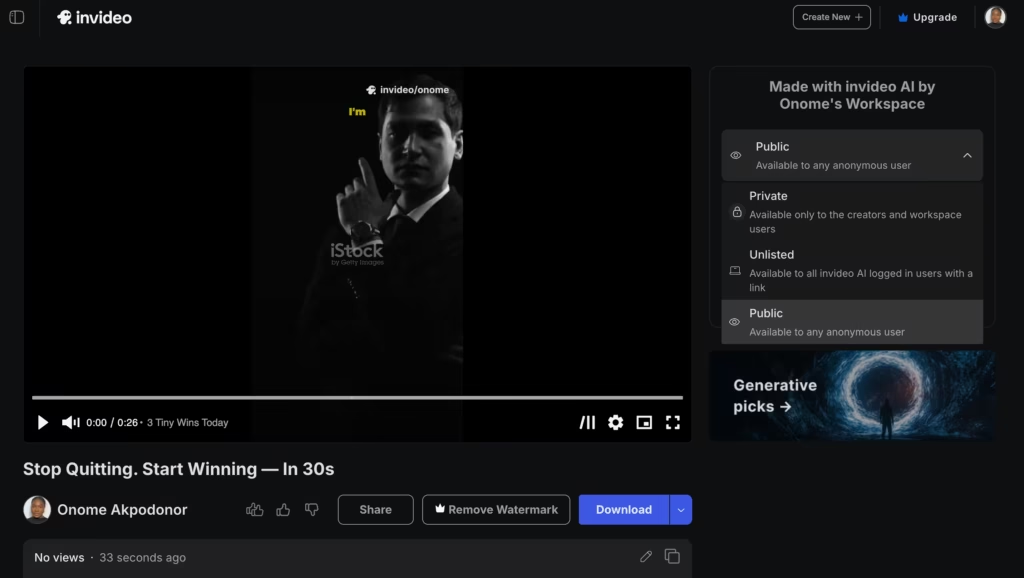
This is the single biggest reason shared links fail for the person receiving them. InVideo AI has two sharing modes:
- Unlisted – Only people logged into InVideo AI can view the video. Everyone else gets an error or blank page.
- Public – Anyone with the link can watch the video, no InVideo account required.
- Private – Available only to your workspace users and creators
How to fix it: After exporting your video, click the Share button. You will see the privacy toggle. Switch it from “Unlisted” or “Private” to “Public.” Copy the new link and send it. That should solve the problem for most people.
Step 3: Clear Browser Cache and Cookies
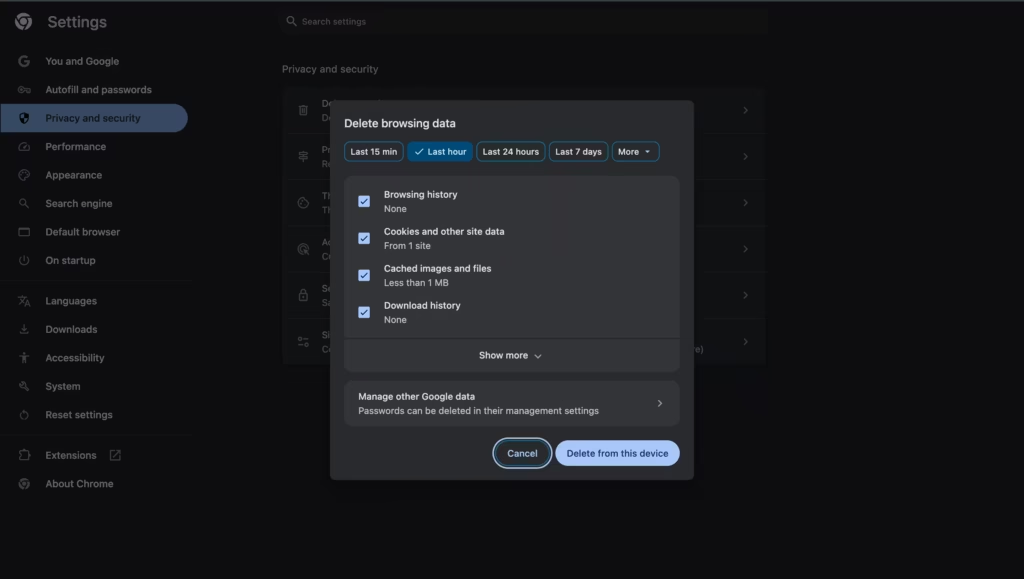
Sometimes the link works perfectly fine on InVideo’s end, but stale cached data on your browser (or your recipient’s browser) blocks the video from loading. Clearing cache sounds basic, but it solves a surprising number of playback issues.
Quick fix for Chrome: Press Ctrl + Shift + Delete (or Cmd + Shift + Delete on Mac). Select “Cached images and files” and “Cookies.” Clear them, restart the browser, and reload the link.
Step 4: Disable Browser Extensions Temporarily
Ad blockers like uBlock Origin, privacy tools like Privacy Badger, and script blockers can all interfere with InVideo’s video player.
The player relies on JavaScript to load and stream the video. If an extension blocks those scripts, the video will not load.
Try this: Open the link in an incognito or private browsing window. This automatically disables most extensions. If the video works in incognito mode, you know an extension is the culprit. You can then disable extensions one by one to find which one is causing trouble.
Step 5: Test Your Internet Connection
Video streaming is bandwidth-hungry. If your internet speed is below 5 Mbps, you will likely struggle with InVideo’s shared video player. And if you are on a flaky Wi-Fi connection that keeps dropping, the player may give up and show an error.
What helps: Run a quick speed test at speedtest.net.
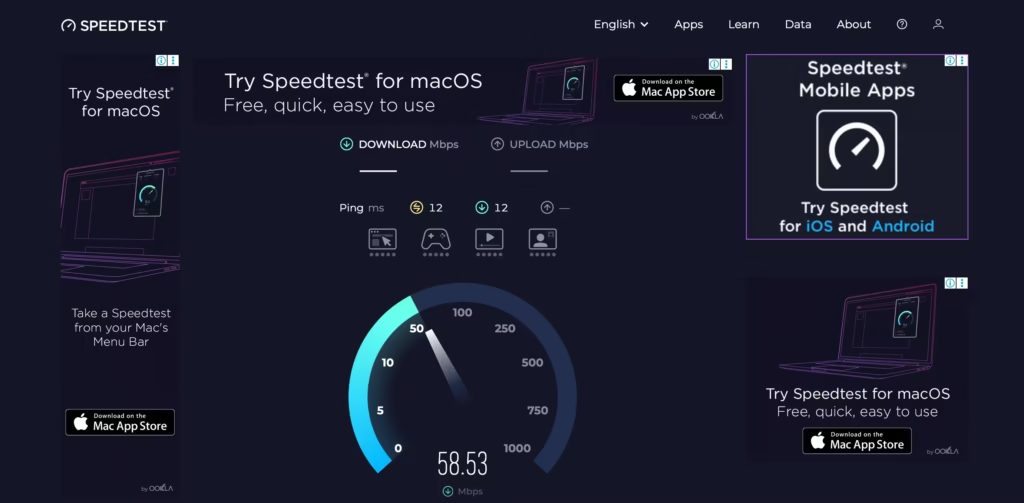
If speeds look low, try switching to a wired Ethernet connection, moving closer to your router, or restarting your modem. If you are on mobile data, make sure you have a strong signal.
Step 6: Try a Different Browser or Device
Not every browser handles web-based video players the same way. If you have been trying in Safari and it will not work, open the link in Chrome or Firefox.
The same goes in reverse. InVideo AI works best with updated versions of Chrome, Firefox, Edge, and Safari.
Also consider testing on a different device, phone, tablet, or another computer.
If the link works on one device but not another, the issue is device-specific and usually related to outdated software or extensions.
Step 7: Check if InVideo Is Down
This one is easy to overlook. Platforms go down for maintenance sometimes, and when they do, shared video links stop working temporarily. Before you pull your hair out troubleshooting on your end, check if InVideo itself is having problems.
Where to check: Visit a service like SaaSHub Down Detector and search for “InVideo.” You can also check InVideo’s official social media accounts on X (formerly Twitter) for any outage announcements. If the platform is down, you just need to wait it out.
Step 8: Re-export and Generate a Fresh Link
If nothing else works, sometimes the cleanest fix is the simplest one: go back into your project, re-export the video, and generate a brand-new share link.
Old links can occasionally break due to backend changes or updates on InVideo’s servers. A fresh export gives you a fresh, working link.
What If My InVideo AI Video Will Not Upload to YouTube?
This is a related but different issue that many InVideo users run into.
You download your exported MP4, try to upload it to YouTube, and get an error saying the file is not readable.
The fix is usually straightforward.
YouTube strongly prefers MP4 files encoded with the H.264 video codec and AAC audio. If InVideo’s export used a different codec, YouTube might reject it.
You can re-export the video from InVideo using standard settings, or use a free tool like HandBrake to convert the file to MP4 with H.264 encoding before uploading.
Also double-check that your file was not corrupted during download. Play it locally on your computer first. If it plays fine locally but still fails on YouTube, the codec mismatch is your most likely problem.
How Can I Prevent InVideo AI Link Problems in the Future?
- Always wait for the full export to complete before copying the share link. Patience here saves you headaches later.
- Set your video privacy to “Public” immediately if you plan to share the link with non-InVideo users.
- Test the link yourself in an incognito window before sending it to anyone else. If it loads for you there, it will load for them.
- Keep your browser updated. Outdated browsers are one of the top causes of web video playback failures.
- Download the MP4 as a backup. Even if you want to share a link, always keep a local copy. Links can expire. Downloaded files do not.
Quick-Fix Cheat Sheet
| Symptom | Most Likely Fix |
|---|---|
| Link shows blank page | Switch video privacy from Unlisted to Public |
| Spinning loader that never stops | Check internet speed; clear browser cache |
| “Error” or “Page not found” | Verify the project still exists; re-export if needed |
| Works on your device but not theirs | Ask them to try incognito mode or a different browser |
| Video plays but with no sound | Check device volume and browser audio permissions |
| YouTube says file not readable | Re-export as MP4 with H.264 codec or convert with HandBrake |
One Last Thing Before You Hit Share
An InVideo AI video link not working is annoying, but it is almost always fixable.
Nine times out of ten, the problem boils down to one of two things: the video was not fully exported, or the privacy setting is wrong. Those two fixes alone solve the majority of cases.
For everything else – cache problems, extension conflicts, slow internet, platform outages -the solutions are straightforward and take just a few minutes. The key is to work through them systematically instead of panicking and starting over from scratch.
And remember: always test your link in an incognito window before sharing it with anyone. That five-second check can save you a lot of embarrassment and back-and-forth.
FAQs
1. Can I share an InVideo AI video without the other person needing an account?
Yes, absolutely. But you need to set the video privacy to “Public” first. The default “Unlisted” option requires viewers to be logged into InVideo, which defeats the purpose of sharing with clients, friends, or social media followers.
2. Does the free plan let me share video links?
InVideo AI’s free plan does allow you to generate and share video preview links. However, free plan videos may include a watermark. If link sharing stops working on a free plan, make sure your account is still active and you have not exceeded any usage limits. InVideo’s pricing and plan details are available at help-ai.invideo.io.
3. Why does my InVideo video link work on my phone but not on my laptop?
This usually points to a browser extension on your laptop that is blocking the video player. Try opening the link in an incognito window on your laptop. If it loads, one of your extensions is the problem.
It can also be a browser version issue – make sure you are running the latest version of Chrome, Firefox, or Edge.
4. How long do InVideo AI shared links stay active?
As long as the project exists in your InVideo dashboard and your account is in good standing, the shared link should remain active. If you delete the project or if your subscription lapses and InVideo removes projects from inactive accounts, the link will break.
5. What should I do if none of these fixes work?
If you have tried every step in this guide and the link still fails, your best move is to contact InVideo’s support team directly.
You can reach them through the 24/7 chat button on invideo.io or by emailing [email protected]. They can check server-side logs and identify if the issue is on their end.
