

So what’s the best AI coding assistant right now?
That depends on what you need.
But wait a minute. Let’s press rewind.
The last time you Googled a tricky bug at 2 AM, you probably thought: “I really wish something could just fix this for me.” And now something can.
AI coding assistants have gone from a cool demo on Twitter to a genuine part of how millions of developers work every single day.
However, not all of them are equal.
Some will autocomplete your whole function perfectly. Others will confidently write code that compiles but breaks everything silently. Picking the wrong one wastes your time, clutters your workflow, and sometimes makes bugs harder to find.
This article breaks down the top contenders, what they actually do well, and how to figure out which one fits your workflow.
6 Best AI Coding Assistants
| Assistant | Lives In | Codebase Awareness | Free Option? | Starting Price | Privacy / Local? | Best Feature |
|---|---|---|---|---|---|---|
| AugmentCode | VS Code / JetBrains / Vim | Full architecture | Trial only | $20/month | Partial (no training on code) | Semantic dependency graph |
| Sourcegraph Cody | VS Code / JetBrains | Full org codebase | Free/Pro discontinued | $49/user/mo (Enterprise) | Enterprise only | Code graph search |
| JetBrains AI Assistant | All JetBrains IDEs | Full project | Yes | $8.33 | Local model support | Native IDE integration |
| Continue.dev | VS Code / JetBrains | Configurable | Yes | $10 | Full local support | Any model, any setup |
| Cline | VS Code / JetBrains Files you add | Saved context | Yes | Free + API costs ($5-$25) | Model-agnostic, local support | Plan & Act agentic control |
| Aider | Terminal / CLI | Files you specify | Yes | $10 | Model-dependent | Terminal-native editing |
1. AugmentCode
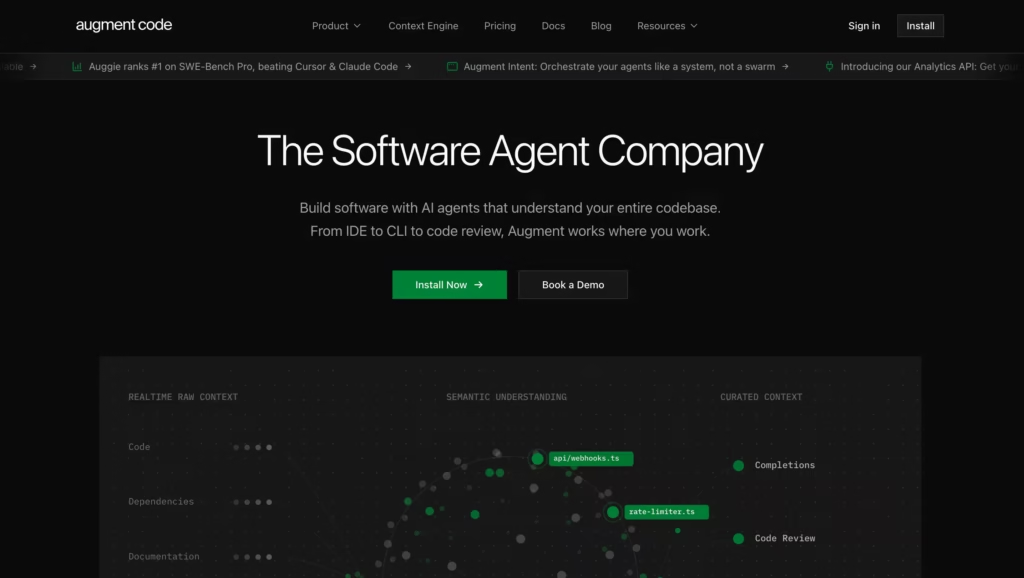
Most AI coding assistants understand the file you have open. Augment Code understands your entire system.
It installs as a plugin into VS Code, JetBrains, or Vim – without needing an editor switch – and then gets to work building a semantic dependency graph of your codebase.
That sounds technical, but the practical effect is this: Augment knows how every module, function, and service in your project connects to everything else.
It’s the difference between an assistant that can answer questions about the current file and one that can explain why a change in your payment service will break your auth middleware three files away.
The results back this up. Augment currently ranks #1 on SWE-Bench Pro, the industry benchmark for AI coding accuracy on real-world software engineering tasks, beating Cursor, GitHub Copilot, and Claude Code.
It gives you inline completions as you type, an agentic chat that can plan and execute multi-file changes, and a “Next Edit” mode that guides you step-by-step through complex refactors.
For developers working in large or legacy codebases where other AI assistants constantly get lost, Augment Code is in a category of its own.
Pros
- Works as a plugin, without needing an editor switch
- Semantic dependency graph understands your whole architecture
- #1 on SWE-Bench Pro (beats Cursor, Copilot, Claude Code)
- Inline completions + agentic chat + multi-file edits
- VS Code, JetBrains, and Vim all supported
Cons
- Initial codebase indexing takes time on large repos
- Credit-based pricing can be hard to predict
- Paid plans start at $20/mo (Indie) – no permanently free tier
Best for: Professional developers and teams working in large, complex codebases who need an AI coding assistant that understands the whole system, not just the current file.
2. Sourcegraph Cody
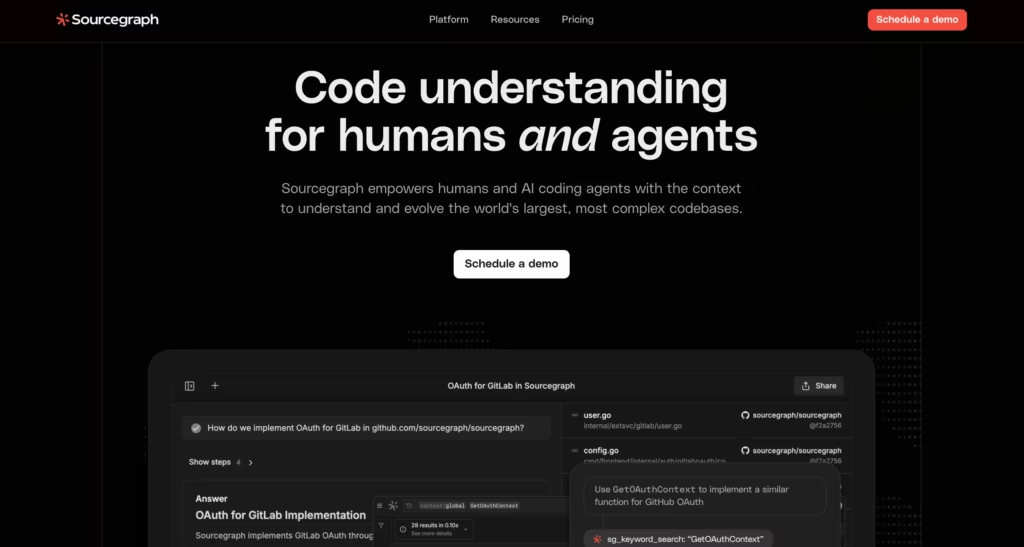
What makes Cody stand out as an AI coding assistant is its approach to context.
Most AI coding assistants look at whatever file you have open. Cody connects to your entire codebase, including remote repositories, and uses Sourcegraph’s code intelligence to understand symbols, relationships, and dependencies across thousands of files.
Ask Cody “where does the authentication middleware get called?” and it searches your actual code graph to find the answer.
For developers at companies with large, complex codebases, this kind of deep awareness is something other assistants simply can’t match. It plugs into VS Code and JetBrains, and the free tier is genuinely useful.
Pros
- Deep codebase-wide search and awareness
- Understands code relationships across files
- Works with both VS Code and JetBrains
- Excellent for navigating unfamiliar codebases
- Strong free tier for individuals
Cons
- Best features need Sourcegraph Enterprise setup
- Less effective on small solo projects
- Setup can be complex for large orgs
Best for: Engineers at larger companies who need an assistant that understands the full scope of a complex, multi-repo codebase.
3. JetBrains AI Assistant
If you’re a JetBrains user – IntelliJ, PyCharm, WebStorm, GoLand, PhpStorm, or any of the others – you already have one of the best AI coding assistants available sitting right inside your IDE, waiting to be turned on.
JetBrains AI Assistant integrates so deeply into the IDE’s existing tooling that it doesn’t feel like a plugin bolted on from outside. It feels like the IDE finally learned to think.
It uses the same semantic understanding of your project that powers JetBrains’ legendary refactoring tools, meaning its suggestions are aware of your project structure, types, dependencies, and coding style in a way that generic AI tools never are.
For developers already committed to the JetBrains ecosystem, no other AI coding assistant will ever feel as at-home as this one.
Pros
- Native integration – no editor switch, no separate install
- Free tier includes unlimited code completion
- Deep IDE context: types, project structure, dependencies
- Supports GPT-4.1, Claude, Gemini, and local models
- Multi-file edits + Junie coding agent on paid tiers
- Covers all major JetBrains IDEs under one subscription
Cons
- Only useful if you’re already a JetBrains user
- Cloud AI features are quota-based – heavy use can run out
- Free tier cloud quota is limited; chat/agents need a paid plan
Best for: Developers already using any JetBrains IDE who want a deeply integrated AI coding assistant without switching tools or paying immediately.
4. Continue.dev
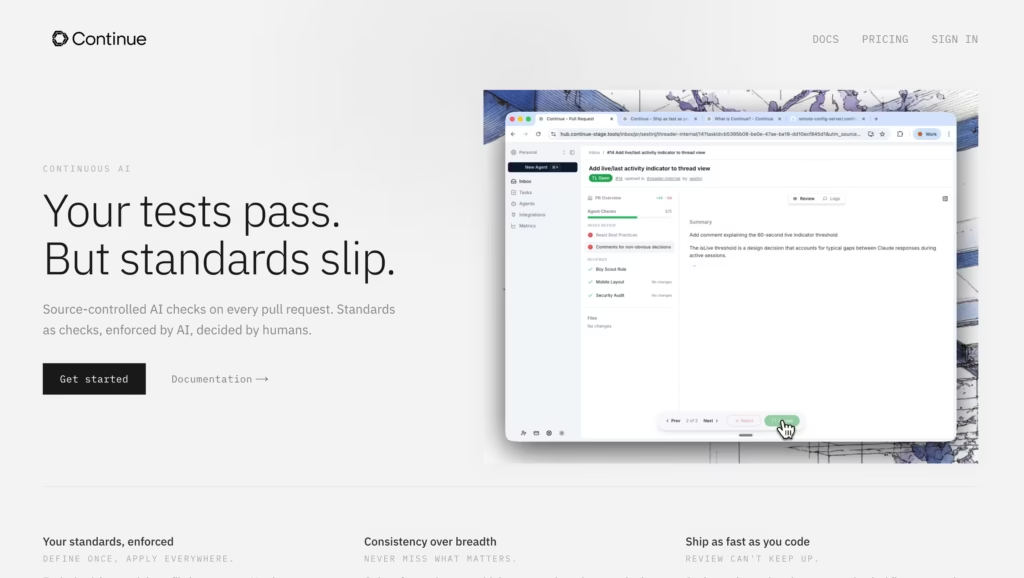
Continue is the choice for developers who want control over every layer of their AI coding assistant.
It’s fully open-source, plugs into VS Code and JetBrains, and lets you connect it to any AI model, whether that’s Claude, GPT-4, a locally hosted Ollama model, or a fine-tuned model running on your own hardware.
Why does that matter?
Because some teams can’t send code to external APIs. Others want to use a model they’ve trained on their own internal codebase. Continue makes all of that possible, with a clean interface and a growing library of community customizations.
For teams evaluating the best AI coding assistant under strict data privacy rules, Continue.dev is often the only real answer. It’s free, it’s transparent, and it gives you more control than any commercial tool out there.
Pros
- Completely free and open-source
- Connect to any model, including local ones
- Total control over data privacy
- Highly customizable workflows
- Active, growing community
Cons
- Requires some setup and configuration
- Quality depends heavily on which model you connect
- Less polished UI than commercial alternatives
Best for: Privacy-conscious teams, developers who want to run models locally, or anyone who wants full transparency and control.
5. Cline
Cline is one of the most popular AI coding assistants that most developers outside of certain circles haven’t heard of yet, despite being trusted by over 5 million developers.
It runs as a VS Code extension (and now JetBrains too) and operates as a fully autonomous coding agent. It doesn’t just suggest code – it reads your files, understands how everything connects, proposes multi-file changes, runs terminal commands, and even opens a browser to check your live dev server for errors.
What makes Cline stand out is its Plan and Act mode.
In Plan mode, it analyzes your codebase, clarifies what needs to happen, and lays out a full step-by-step plan before touching a single file.
In Act mode, it executes. You approve every file change and every terminal command – nothing happens without your sign-off.
For developers who want agentic power but not a runaway AI making decisions they didn’t ask for, that level of control is exactly what’s been missing. And since Cline is open-source and model-agnostic, you bring your own API key.
Pros
- Pure VS Code/JetBrains extension
- Plan and Act modes give you full control before anything changes
- Reads files, runs terminal commands, checks live browser errors
- Completely free – you only pay for AI inference (no markup)
- Model-agnostic: Claude, GPT-4, Gemini, local models, all work
- 5M+ developers, active open-source community
Cons
- API costs can add up on long, complex sessions
- Quality is heavily model-dependent
- No built-in inline autocomplete as you type
Best for: VS Code developers who want an agentic AI coding assistant with full transparency, human-in-the-loop control, and zero vendor lock-in.
6. Aider
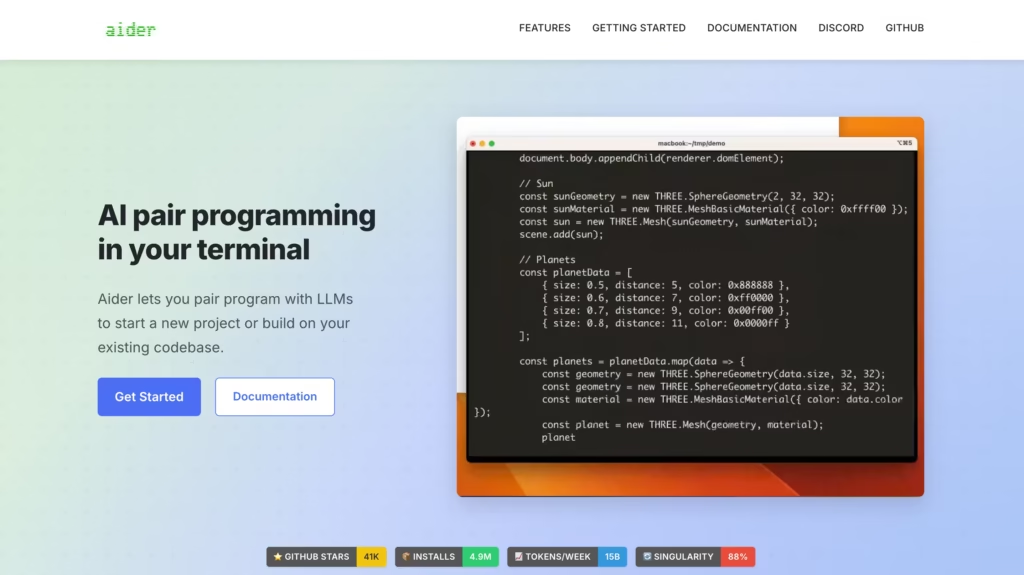
Not everyone wants a heavy IDE. Some developers live in the terminal, and for them, Aider is something genuinely exciting.
It’s an open-source command-line AI coding assistant that connects to the best LLMs (GPT-4o, Claude, and others) and helps you edit real local files through conversation.
You tell Aider what you want to change, in plain English, and it maps out which files need to change, makes the edits, and commits them to Git automatically.
It’s designed for working with existing codebases, not just generating fresh code. If your workflow is terminal-first, no other tool comes close.
Pros
- Works entirely in the terminal – no IDE required
- Automatically commits changes to Git
- Supports multiple top-tier AI models
- Free and completely open-source
- Great for scripting and automation workflows
Cons
- Not beginner-friendly at all
- Requires API keys for the underlying models
- No GUI – pure command line experience
Best for: Terminal-native developers, DevOps engineers, and power users comfortable with the command line.
5 Ways to Get More Out of Your AI Coding Assistant
Don’t fight the suggestions – tune the context. If suggestions feel off, it’s usually because the AI lacks context. Open the relevant files, rename vague variables, and add a short comment at the top of the file explaining what it does. Context is fuel.
Write better comments. Your AI assistant treats comments like instructions. The more specific and clear your comment is, the more accurate the suggestion. “// get users” will get you something generic. “// fetch active users from DB sorted by signup date, newest first” will get you something useful.
Accept suggestions critically. Never paste in AI code without reading it. AI assistants hallucinate. They write code that looks right but does the wrong thing. Always review, always test.
Use it for tests, not just features. One of the best use cases is generating unit tests. Give it a function and ask it to write edge-case tests. You’ll catch bugs you never would have found manually.
Ask for explanations. Most assistants let you highlight code and say “explain this.” Use that. Especially when working with a new library or someone else’s code. Understanding grows faster when the AI narrates what’s happening.
Which One Should You Actually Use?
Stop overthinking it. The best AI coding assistant for you depends on your specific workflow, not some ranked list. Here’s a quick guide based on what you actually need:
- If you work in a large or complex codebase and need AI that understands your whole architecture → Use Augment Code
- If you work at a company with a big codebase and need deep search → Use Sourcegraph Cody
- If you already use a JetBrains IDE and want AI built right into it → Use JetBrains AI Assistant
- If you need full data privacy or want to run a local model → Use Continue.dev
- If you want agentic, multi-file coding help inside VS Code with full control → Use Cline
- If you live in the terminal and prefer CLI over GUI tools → Use Aider
