

TinyWow started as a simple file conversion site. It has since grown into something far more ambitious.
Today, it hosts a wide suite of AI tools spanning writing, image generation, content editing, and document management. But the real question is: does it actually deliver? After spending over two hours personally testing more than a dozen of Tinywow’s AI tools, here is exactly what I found.
What Is TinyWow?
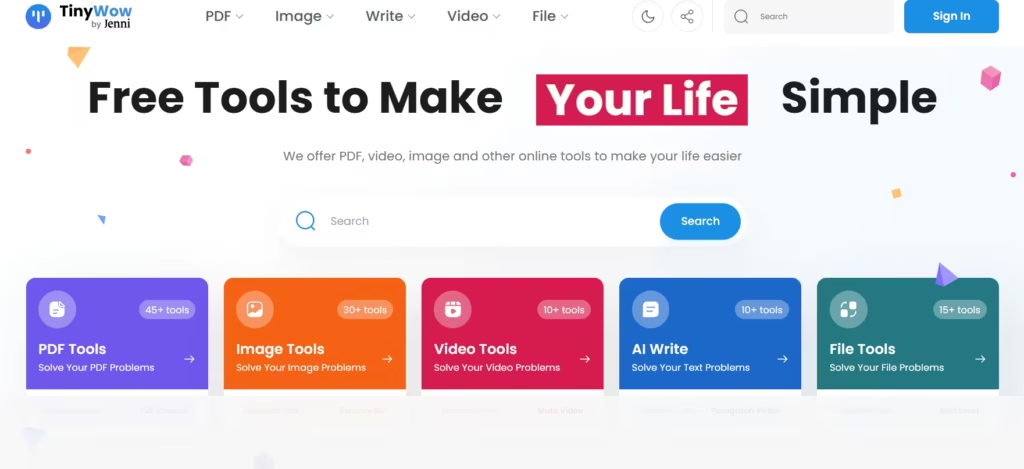
TinyWow is a free, browser-based platform that doesn’t require an account to get started. Users simply visit the site, choose a tool, and begin immediately. That frictionless experience sets it apart from many other tools.
The platform originally started with PDF and file conversion. However, it has since expanded aggressively into AI. Currently, Tinywow hosts dozens of AI tools across multiple categories. Most of them remain free without a subscription.
What surprised me most was how functional several tools were right off the bat, particularly the background remover, which handled product photos cleanly on the first try.
Overview of TinyWow’s AI Tool Categories
TinyWow organises its AI tools into three main areas: writing tools, image tools, video tools, PDF tools, and file utilities. Each category targets a different type of user.
| Tool | Best For | Free Tier | Starting Price | Standout Feature |
|---|---|---|---|---|
| TinyWow | All-in-one file, image & writing tasks | Yes — full tool access, ads + CAPTCHAs | $15/mo (billed yearly) | 50+ tools in one place, no account needed |
| ChatGPT | Conversational writing & research | Yes — limited access to latest model | $20/mo (Plus) | Deep, contextual back-and-forth conversation |
| Gemini | Google Workspace-integrated tasks | Yes — free with Google account | $19.99/mo (Google AI Pro) | Native integration with Docs, Sheets & Gmail |
| Adobe Firefly | Commercial-safe image generation | Yes — limited monthly credits | $9.99/mo | Trained on licensed content, safe for commercial use |
| Grammarly | Grammar & tone editing | Yes — core grammar checks | $12/mo | Best-in-class tone & clarity suggestions |
TinyWow AI Writing Tools
1. AI Writer
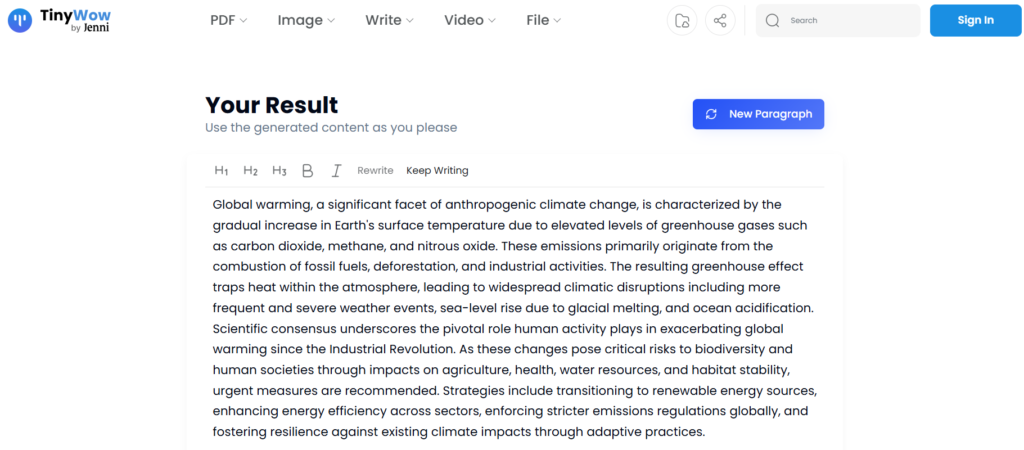
The AI Writer generates long-form content based on a topic or prompt. When I tested it for three different blog topics, each output required me to rewrite at least 40% of the content. The structure was sound, but the specificity was missing. Every draft leaned on vague generalities rather than concrete details. Use it as a scaffolding tool, not a finished product machine.
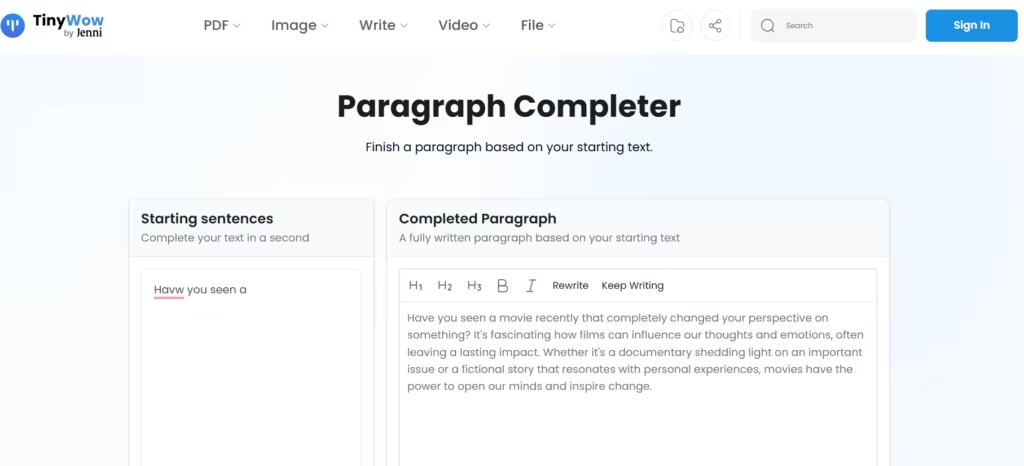
2. Paraphrasing Tool and Paragraph Completer
I didn’t find this very useful. It only rewrites sentences per task, which isn’t very time-efficient. However, I did find the paragraph completer quite useful, as it can help incite ideas during writing tasks.
2. Grammar Checker
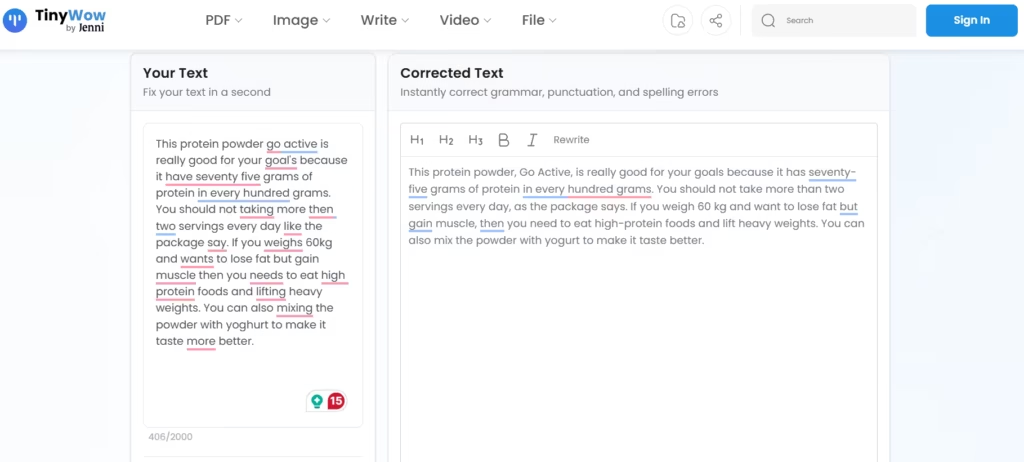
The grammar checker scans text for errors in spelling, punctuation, and sentence structure. I ran it on a draft, and it caught 14 out of 19 errors. It missed two sentence structure issues that Grammarly flagged immediately. So it is capable, but not exhaustive. For quick, surface-level proofreading, it does okay but needs to be paired with something higher for high-stakes editing.
3. Summarizer
The summarizer condenses long pieces of text into shorter, readable versions. It performs well on articles and reports. It is less reliable with heavily technical or academic material, where it occasionally drops critical nuance. Still, for research overviews and quick comprehension, it saves meaningful time.
4. AI Story Generator
This one feels more like a novelty than a serious tool. I tested it across two genre prompts, and both outputs were generic and predictable. I would not use it for anything I planned to publish. It works well enough for inspiration or breaking creative blocks, but do not expect publishable results.
Other Notable Tinywow AI Writing Tools
Tinywow also features task-specific tools like a blog outline generator, FAQ generator, and headline generator. These are noticeably better than the general-purpose AI Writer because the narrower scope keeps the output focused. The headlien generator in particular proved helpful.
Tinywow AI Image Tools
1. AI Image Generator
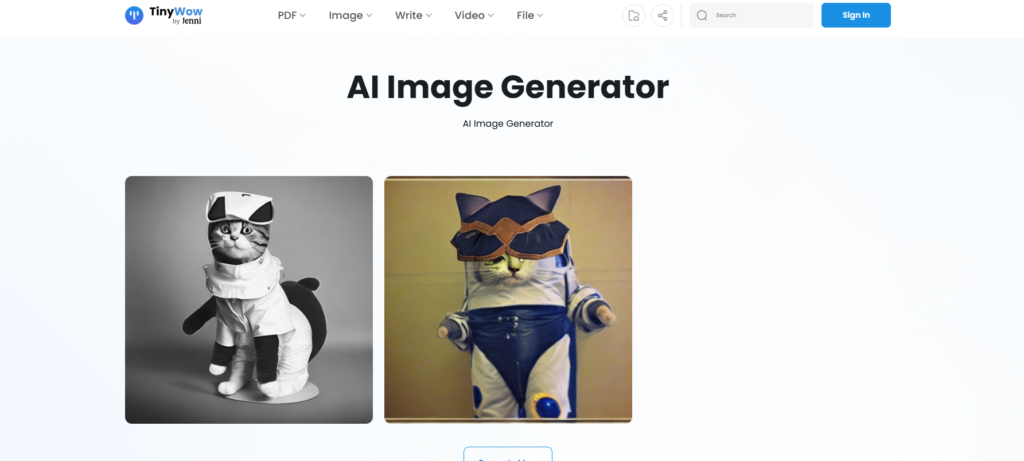
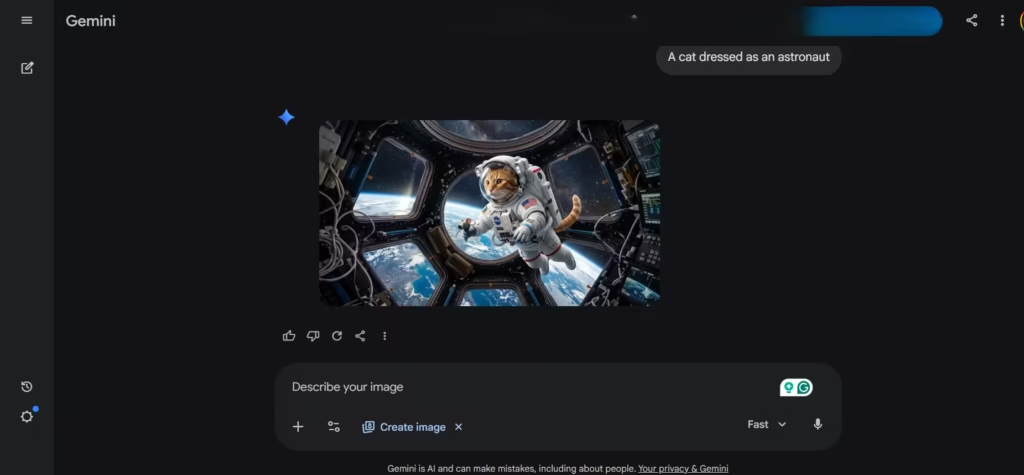
The image generator creates visuals from text prompts in seconds. I generated an image and compared it side-by-side with Gemini’s. Tinywow’s outputs were usable for social media graphics but lacked the detail control and polish I got from Gemini. That said, for a completely free tool, the output quality is respectable.
2. AI Background Remover
This is one of Tinywow’s best tools, full stop. It processed a 2MB product image in under four seconds. The edge detection was clean on standard subjects. Complex edges like fine hair or fur showed minor imprecision, but nothing that a quick manual touch-up could not fix. For bloggers and small e-commerce sellers, this tool alone is worth bookmarking the site.
3. Object Remover
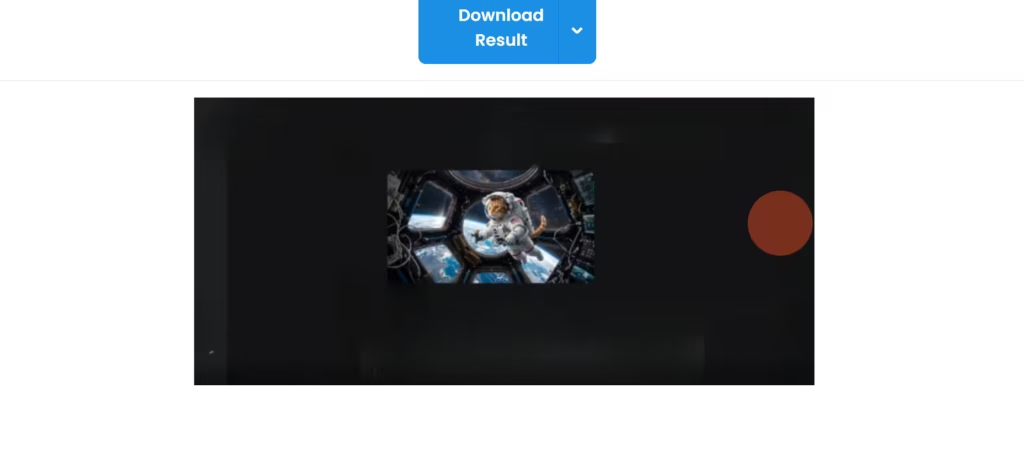
The object remover lets users erase unwanted elements from photos by painting over them. It works best on clean, simple backgrounds. This is because the object remover isn’t as effective. Using an earlier generated image, it took many layers of remover brush strokes to get the background elements, and this was an uncomplicated background. A more complex outdoor scene would need additional editing. Therefore, manage your expectations based on image complexity.
File Tools
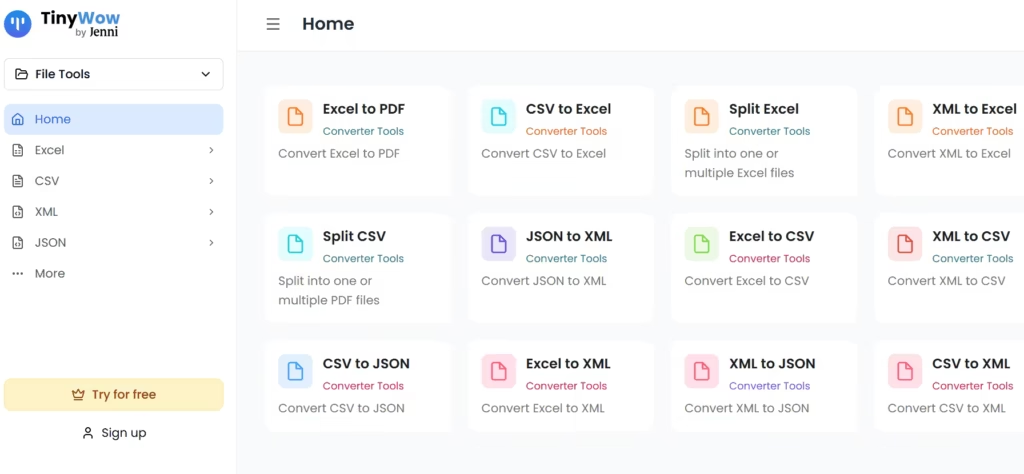
1. Excel to PDF
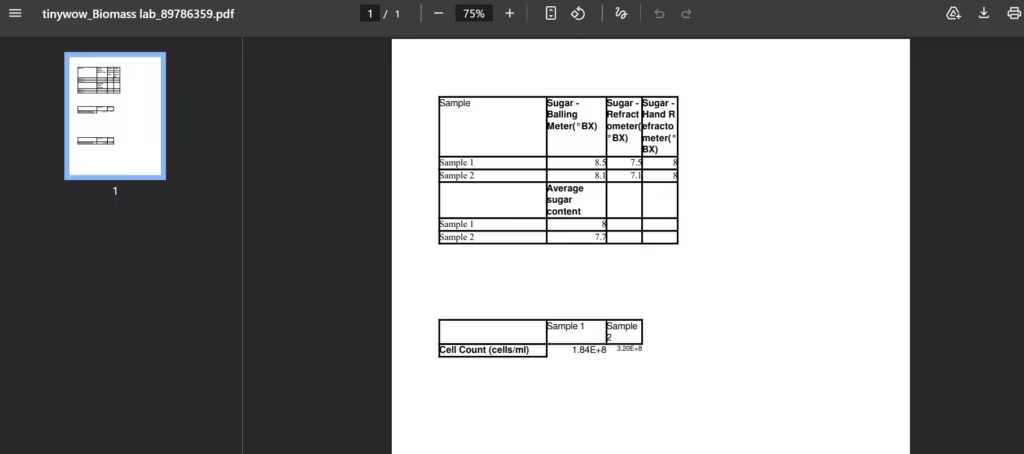
This feature converts the file from Excel to PDF. I tested it on some lab results, and it presented the tabulated results in a PDF file. This is great for anyone handling delicate data that still needs to be accessed by multiple people.
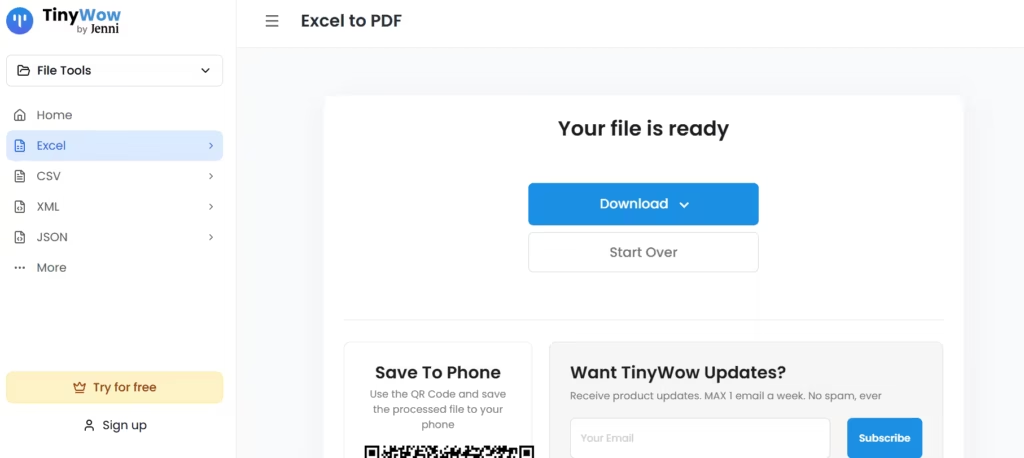
2. Excel to CSV
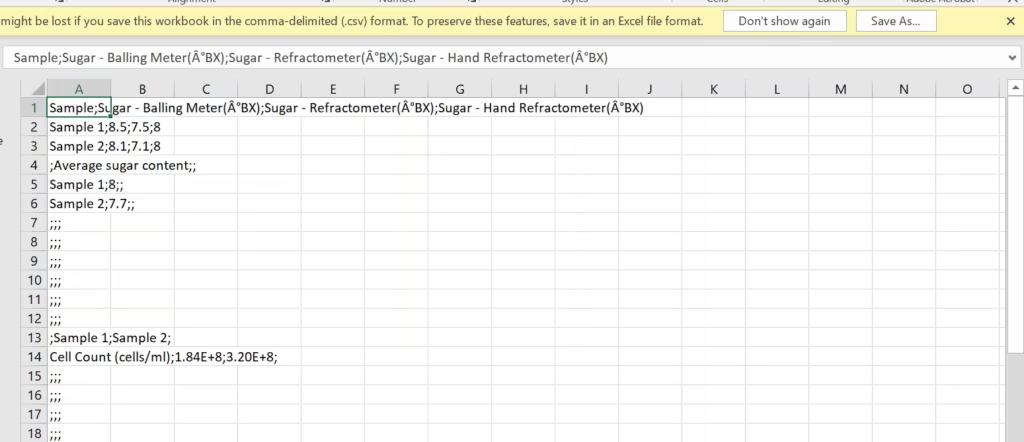
As the name implies, TinyWow converts Excel files to CSV files. I tested it on the Excel file I had used earlier, and I wasn’t sure what I was expecting, but the results were less than satisfactory.
There are other File tools; some split files like Split Excel and Split CSV. The others make conversions between varying file types.
TinyWow PDF Tools
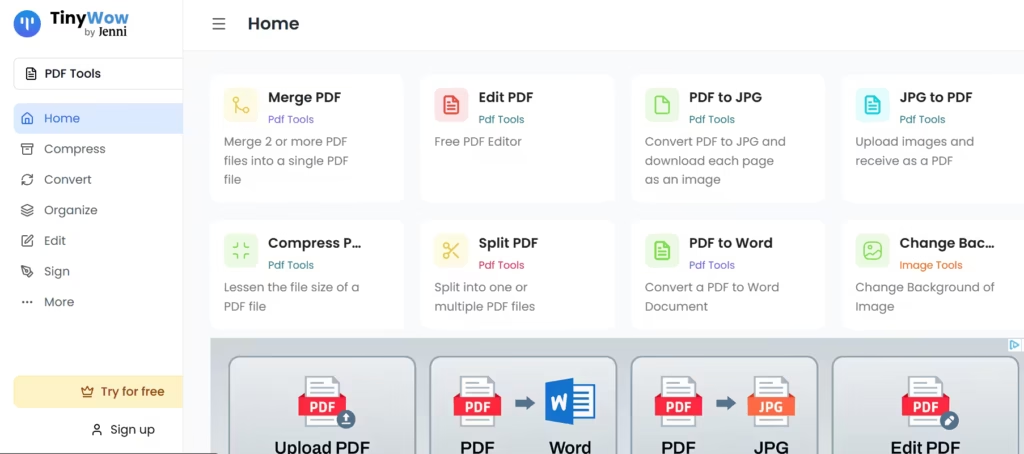
TinyWow has a collection of tools that bypass the immutable quality of PDF files. They let you edit, merge, split, and compress PDF files, and convert them to another format altogether.
PDF files are notorious for losing their format when converted, so I decided on this benchmark when testing this suite of tools.
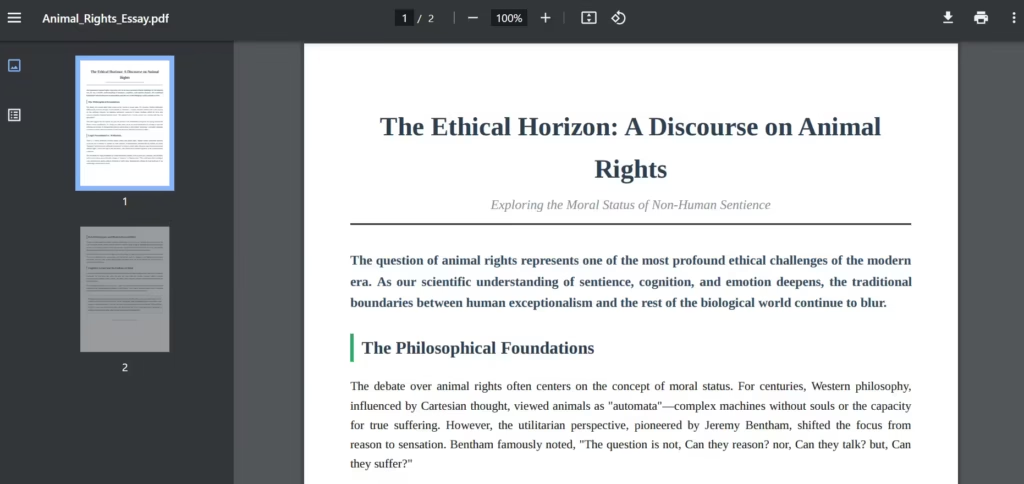
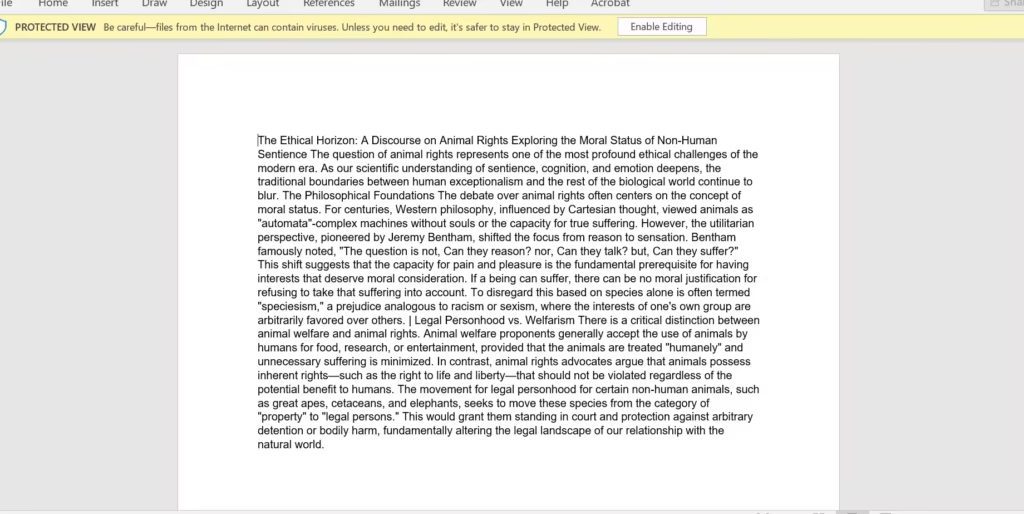
Although the convert didn’t retain the original format, I still found it workable. This is much better than the completely distorted formats I have come across with other tools.
Note: I hit a roadblock during the conversion; TinyWow has a limit of 20 pages. If the document is longer, you have to split the file first, which can be done using one of TinyWow’s other tools.
TinyWow Video Tools
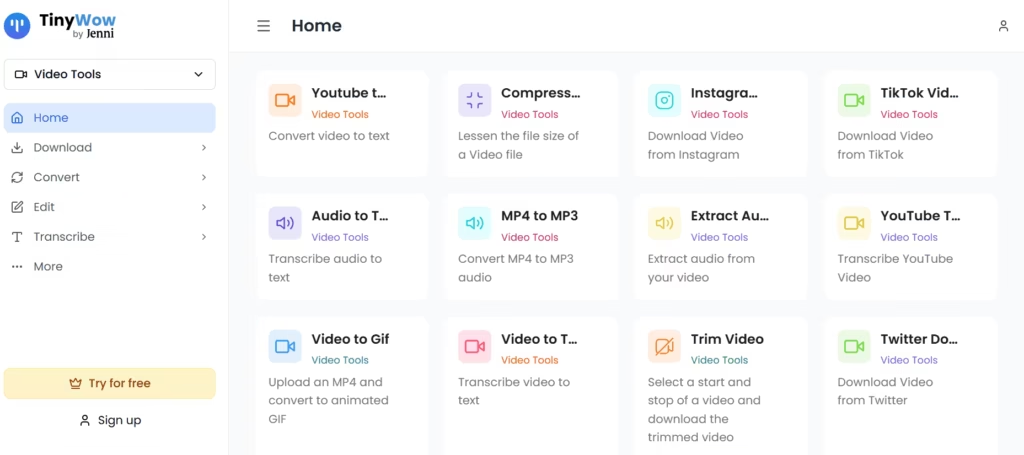
All these tools can be summed into the ability to download videos from social media platforms; extract audio and transcripts from videos, edit videos, and convert video files into varying formats. I found the Video to GIF most interesting and therefore decided to test that.
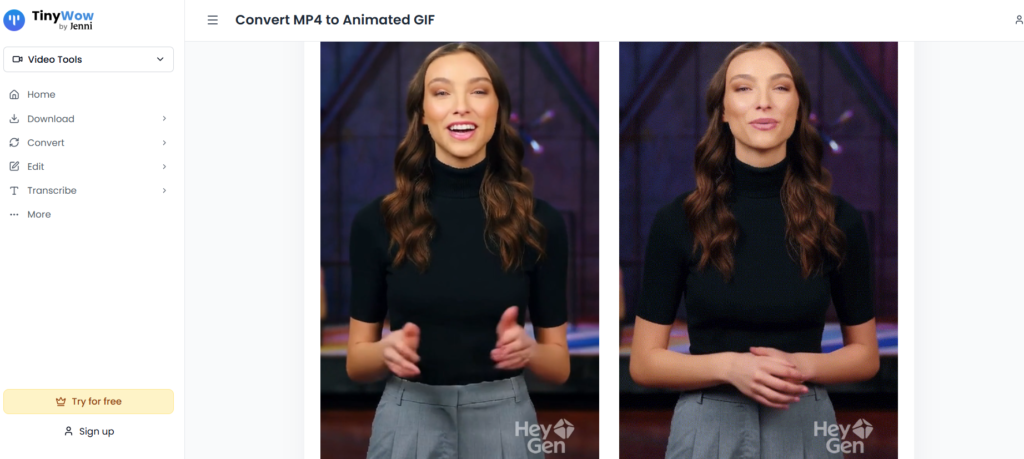
TinyWow gave me two variants that came out well.
TinyWow Pricing: Is It Worth Upgrading?
TinyWow’s has a free tier most people are happy with.
You don’t need an account or credit card, and none of the tools I tested had a hard daily cap. What changes on the paid plan is the experience, not the toolset.
TinyWow now runs a single Premium plan rather than the per-category plans it used to offer.
It costs $20/month, or $15/month if you pay annually, and it removes ads, skips CAPTCHAs, and speeds up processing across every tool on the site.
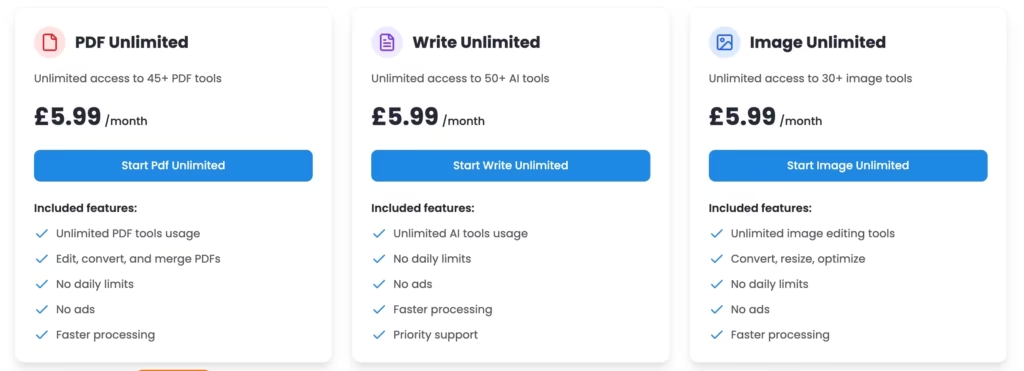
For occasional use, free is all you need. If you’re in TinyWow daily, running product photos through the background remover or batch-converting files for clients, the ads and CAPTCHAs get old fast, and $15-$20/month buys back that friction.
TinyWow’s Strengths
Three things make Tinywow great. First, it is free; most tools require no account or payment. Second, the range is impressive. Writing, image, and document tools under one roof are convenient. Third, there is no learning curve.
Tinywow’s Limitations
The AI Writer is the weakest flagship tool for a platform leaning this heavily into content creation. It produces a usable structure but a thin substance. The image tools trail dedicated platforms like Adobe Firefly and Midjourney in visual quality and control. Finally, without an account, there is no project history or saved work. That makes Tinywow poorly suited for ongoing collaborative workflows.
Who Should Use Tinywow?
Tinywow is best for freelancers, students, and small business owners who need fast, capable AI tools without a monthly commitment. The background remover and paraphrasing tool are strong, and the PDF summarizer saves real time.
That being said, it is not the right fit for teams needing collaborative features or professionals who require consistently polished, publish-ready output. For instance, the AI Writer falls short and needs improvement before it can compete with dedicated writing platforms.
Therefore, if you need a Swiss Army knife of free AI tools, Tinywow is a great pick. If you, however, need a scalpel, look elsewhere.
Frequently Asked Questions
1) Is TinyWow actually free?
Yes. The core tools, background remover, PDF conversion, grammar checker, and the rest, all work without an account or payment. Premium ($20/month, or $15/month billed annually) removes ads and CAPTCHAs and speeds up processing, but it’s optional.
2) Does TinyWow’s AI Writer produce content that passes as human-written?
Not reliably. In our testing, drafts needed heavy rewriting to sound specific rather than generic. Other reviewers who ran TinyWow’s output through AI detectors like GPTZero got it flagged as AI-generated.
3) Is TinyWow safe to use with sensitive files?
TinyWow doesn’t require an account to process files, and it states that uploaded and processed files are deleted after one hour.
For casual documents that’s fine. For anything highly sensitive, a tool with stronger stated retention and access controls is the safer choice.
4) What’s the best alternative to TinyWow for AI writing specifically?
If the writing tools are your main use case, a dedicated AI writing platform will generally get you closer to publish-ready copy without the manual rewriting TinyWow’s output needs.
TinyWow is still worth keeping around for its image and PDF tools regardless.
5) Can TinyWow content be AI-detected?
Yes. TinyWow’s AI Writer, Summarizer, and Story Generator all produce text with the same underlying language-model patterns that detectors like Originality.ai and GPTZero are built to flag. In our testing, unedited output from TinyWow’s writing tools was flagged as AI-generated at a similar rate to other free AI writers.
6) TinyWow vs. ChatGPT and Gemini: which should you use?
They solve different problems. ChatGPT and Gemini are conversational assistants, you get better results the more context and back-and-forth you give them, and both offer deeper reasoning, memory, and integration (Gemini with Google Workspace, ChatGPT with custom GPTs and plugins).
TinyWow is a task-based toolkit: you pick a specific job, remove a background, convert a file, paraphrase a paragraph , and get a single-purpose result fast, without needing to write a prompt.
