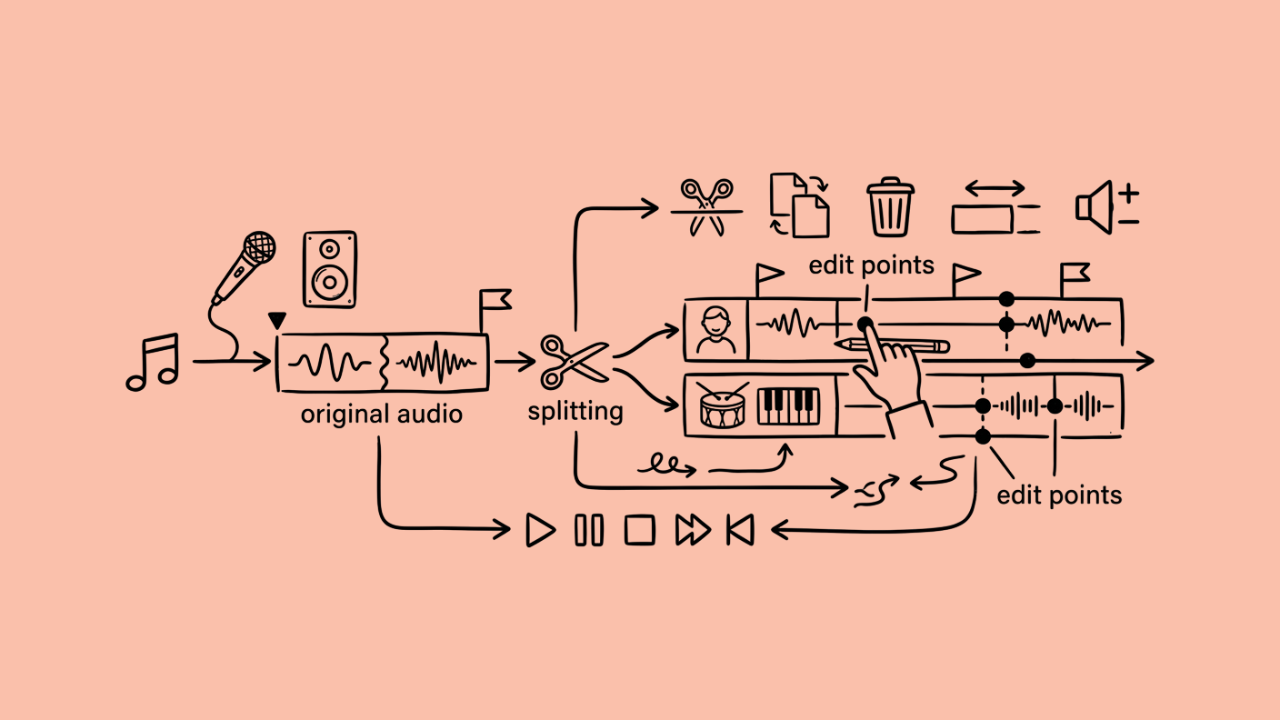

Some video projects still require creators to move between separate tools for recording, media review, editing, captions, or finishing. Files moved between them, and another export usually followed each small change.
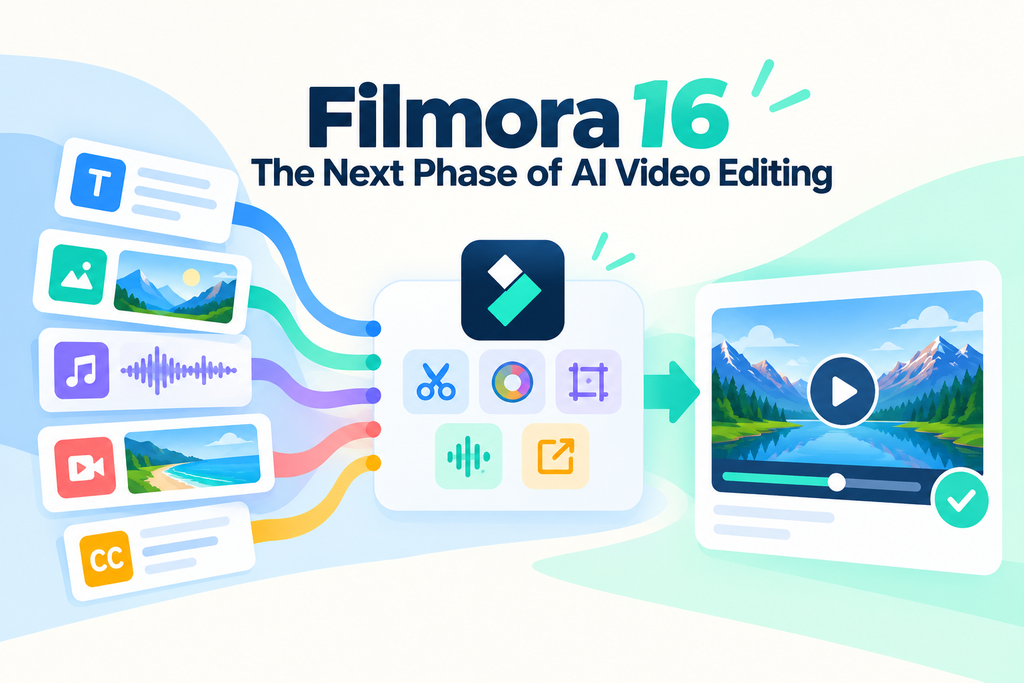
Wondershare Filmora 16 brings recording, media organization, editing, captions, and finishing tools into the same desktop workflow.
AI Media Analysis can analyze supported footage and generate tags, descriptions, summaries, and editing suggestions before editors review every clip in detail. For this library team, that matters when another monthly video comes around. They record, find old clips, make changes, and export without changing programs.
Part 1. Find the Right Footage Without Reviewing Every Clip
The library keeps around 400 event clips collected from programs across several years. Finding useful footage inside this archive once took the team around 2 hours. Filmora 16 uses AI Media Analysis to make this search much faster. The process below shows how the team finds useful footage from its archive:
Import the Archive
The team imports approved event videos and photos into one Filmora project. Clips showing children remain excluded unless the library already has written consent. The team then selects 360 suitable files for AI Media Analysis.
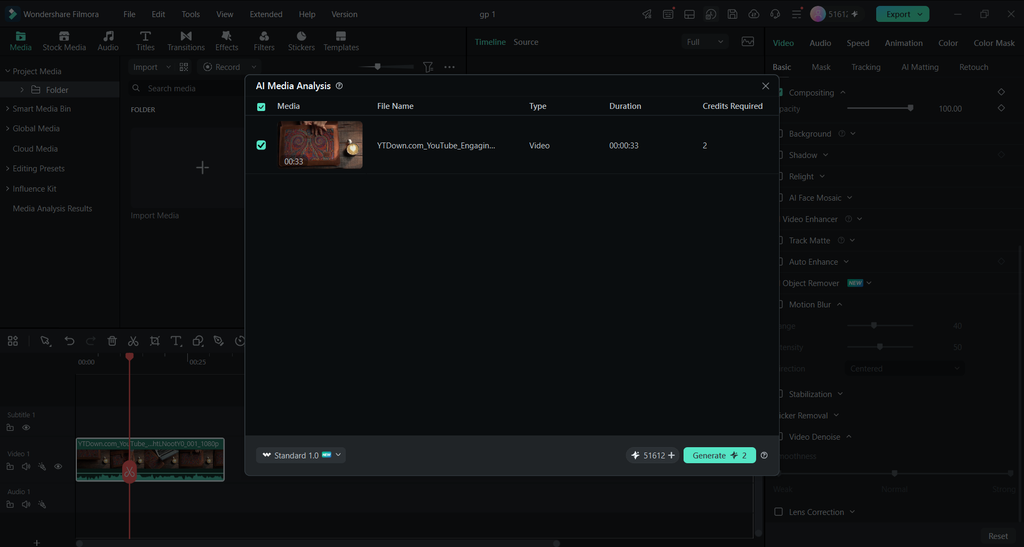
Run AI Media Analysis
Filmora reviews selected media and adds keywords based on the visible content. These keywords help the team find forgotten footage without opening every file.
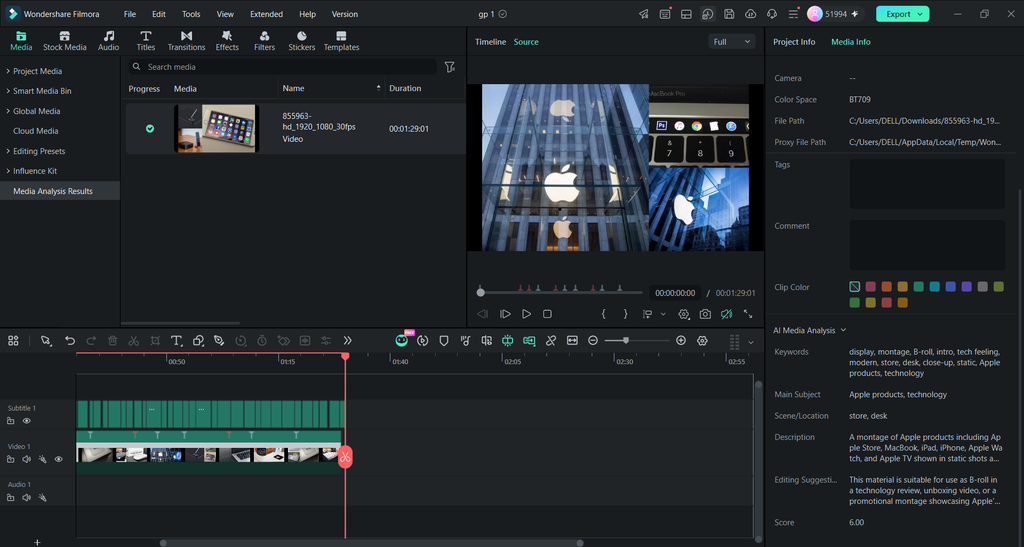
Review and Select the Best-Fit Clips
Keyword searches lead the team toward 12 clips worth checking. Results include the reading room, checkout kiosk, and an evening book drop. The team still chooses which shots best support the current monthly video. The team now spends around 20 minutes finding clips for each monthly video. Filmora brings up matching footage, but the team picks what actually belongs.
Part 2. Fine-Tune Every Detail After AI Finds the Footage
Finding the right clips is only the first part of this monthly project. The team next handles the visual details that need a human decision. Filmora 16 keeps these controls available after AI Media Analysis finishes its job.
The librarian’s intro needs extra work due to green light from overhead tubes. Teams use color correction before moving to titles and screen details. Look at the table below to see how each control improves the library video:
| Control | Use in the Library Video |
| Auto Color | Gives the intro a quick starting point for further color changes |
| White Balance and Tint | Removes the green cast and brings the gray cardigan closer |
| HSL | Keeps the teal library logo accurate without changing natural skin tones |
| Curves | Helps older archive clips match footage recorded for the current video |
| Keyframes | Moves each title into view when the matching app screen appears |
Auto Color can provide an automated starting point, while white balance, HSL, curves, and other refinements still depend on the editor’s judgment. The remaining changes depend on what the team sees in each shot. Each title also uses keyframe animation to control its movement across the screen. A 10 frame position change brings each title in at the right moment. The saved color preset also cuts this month’s intro work to 6 minutes.
Part 3. Complete the Whole Video in One Project
The library once used separate programs for recording, captions, and final editing. That setup required several exports before the team could finish each monthly video. Filmora 16 now keeps every stage inside the same project from recording onward.
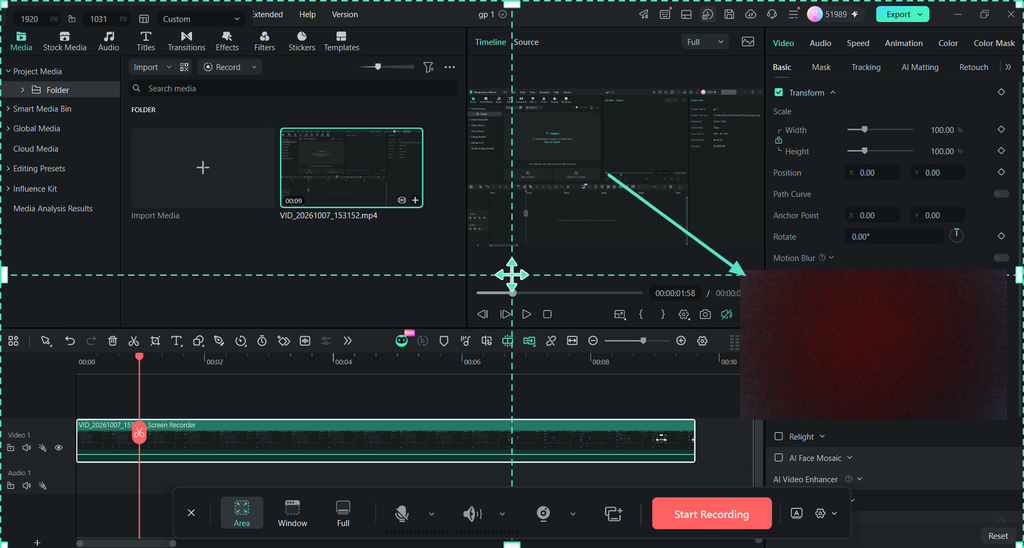
Recording Inside the Editor
The team uses Filmora’s screen recording software for each monthly app walkthrough. The team uses Filmora’s screen recording workflow to capture the screen and camera in the same session, with supported sources remaining separately editable in Filmora afterward.
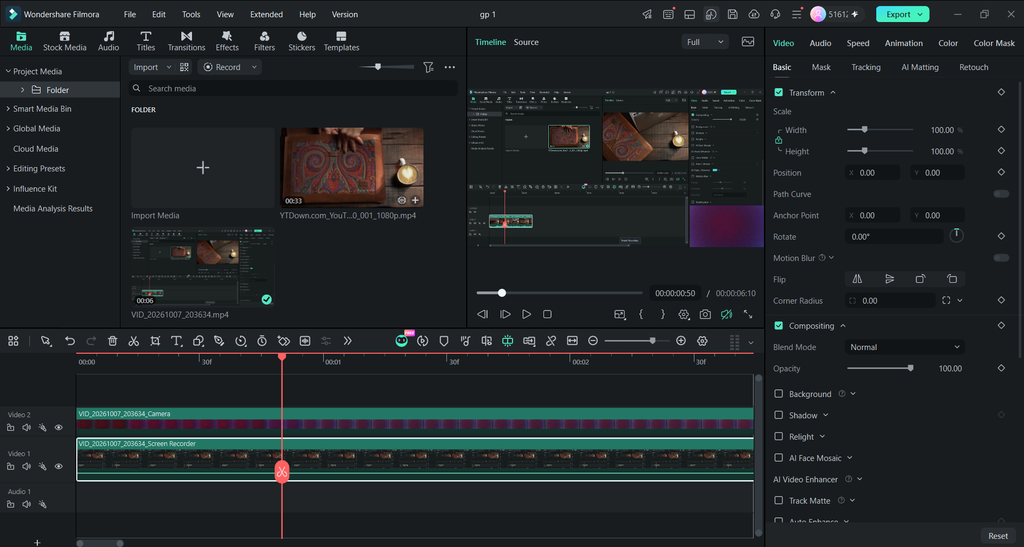
Editing in the Same Project
The 12 archive shots already sit beside the newly recorded app walkthrough. Editors place these clips directly over pauses between the librarian’s app instructions. Her webcam moves into one corner when the app needs more space. The finished walkthrough reaches around 4 minutes after the team removes extra pauses.
Refinement and Delivery on One Timeline
Speech to Text turns the librarian’s narration into captions for manual review. The team checks each caption before choosing its final style and placement. The team can create separate YouTube and vertical social versions from the same project, adjusting aspect ratio and layout as needed before export. The vertical version takes around 15 minutes since earlier edits remain available.
Part 4. What Makes Filmora 16 Work for This Workflow
Filmora 16 includes a wide range of editing and AI-assisted capabilities, but this workflow relies on only a few of them regularly. The main value comes from three workflow strengths rather than from feature count alone. These 3 strengths explain why the setup works well for their monthly videos:
- Faster Preparation: AI Media Analysis makes searching through the library archive much quicker. Auto Color also gives each monthly intro a useful starting point. STT prepares captions without requiring the team to type everything manually.
- Direct Editing Control: Automatic results remain open for changes throughout the entire editing process. The team can adjust color settings after checking every recorded library scene. Captions and keyframes also remain editable until the final video is exported.
- One Complete Project: Recording, color work, captions, and timeline editing can stay within Filmora 16, reducing the need to export files simply to continue routine editing in another application. Both finished versions also remain together inside the same Filmora project.
For creators who regularly move between separate tools, Filmora 16 offers a more connected workflow that combines AI-assisted media review with color correction, keyframes, recording, and timeline editing. You can use AI to simplify preparation while keeping direct control over your video’s final look.
Conclusion
Filmora 16 brings AI-assisted preparation and hands-on editing into a more connected workflow. AI Media Analysis helps creators narrow large media libraries, while color correction and keyframe animation provide direct visual control. With recording, editing, captions, and export available in the same desktop environment, creators can reduce unnecessary handoffs between tools while keeping final creative decisions in their own hands.
