
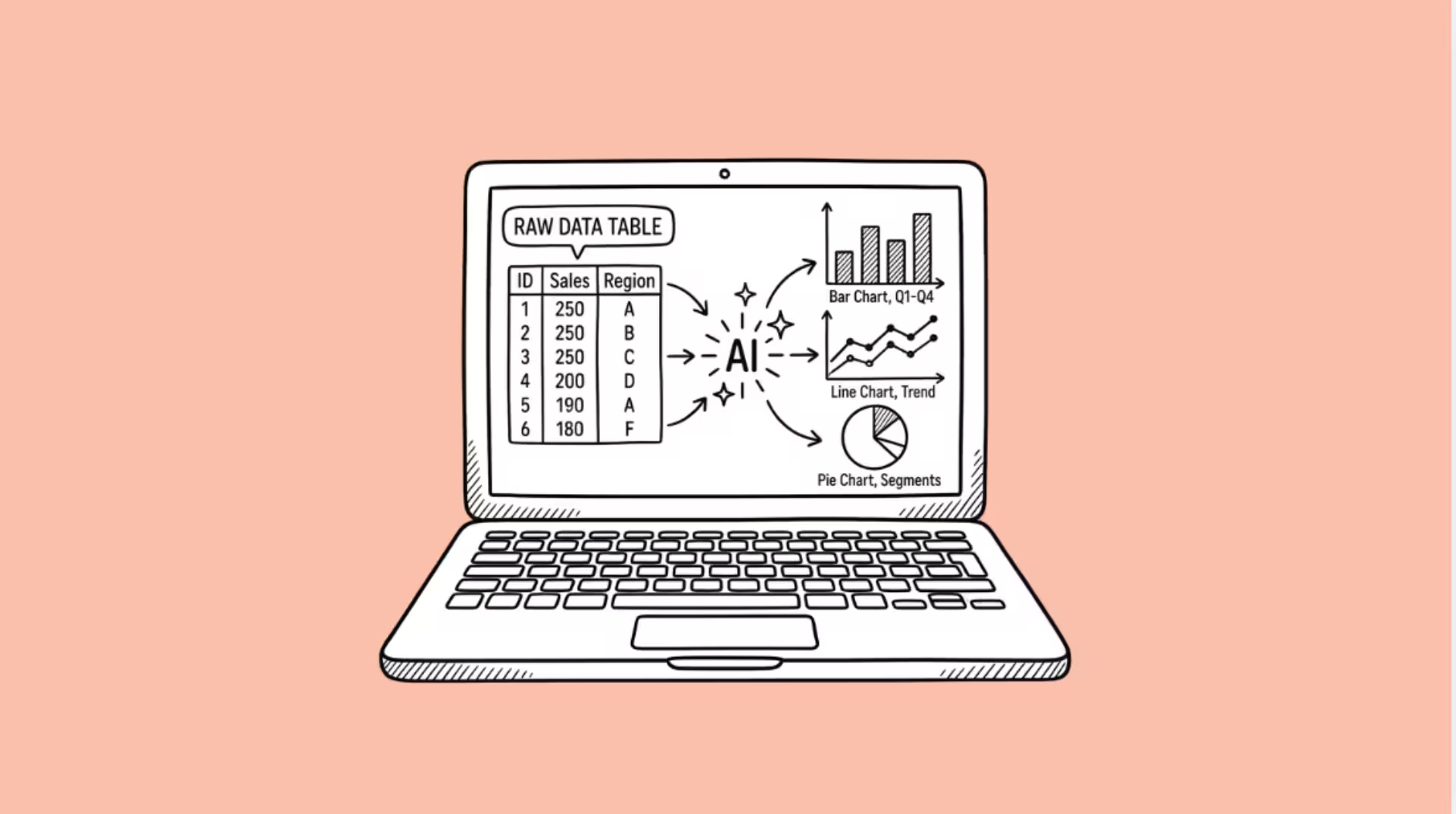

The best AI data visualization tools in 2026 are Julius AI for chat-based analysis without code, Tableau with AI for enterprise-grade dashboards, Hex for collaborative data notebooks, and Datawrapper for publishing clean charts fast.
But “best” depends entirely on whether you are a solo analyst uploading CSVs or a data team connected to a warehouse, and the pricing gap between those two worlds is enormous.
I have tested several of these tools against the same messy sales dataset (a 40,000-row CSV with inconsistent date formats and missing values) to see which ones handle real-world data versus demo-ready spreadsheets.
The results were uneven enough to be useful.
Here is what I found, tool by tool, with honest notes on where each one breaks down.
Julius AI
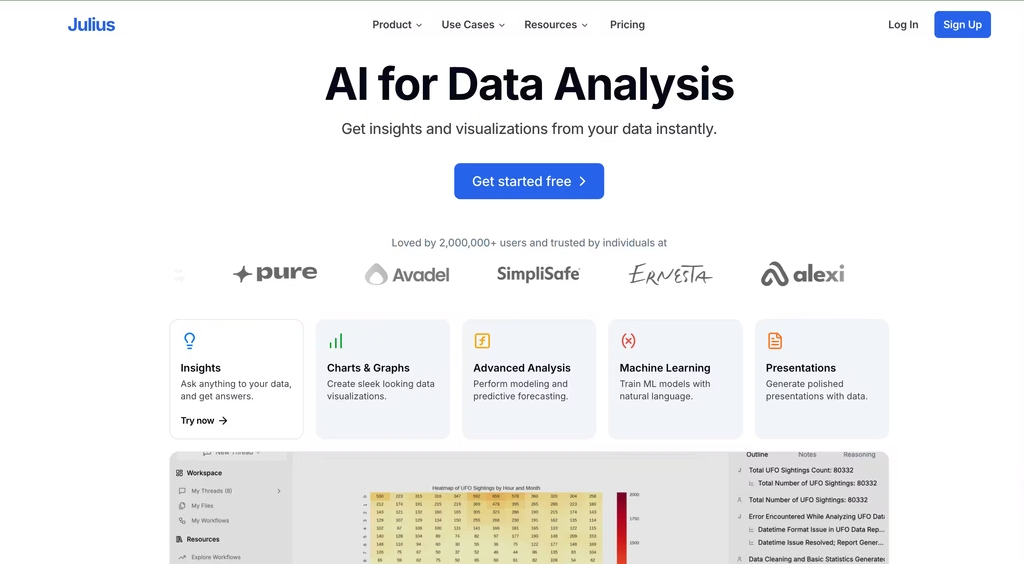
Julius AI is the tool that gets the most attention in this category right now, and the pitch is simple: upload a file, ask a question in plain English, get a chart.
Behind the scenes, it writes and runs Python or R, but you never have to touch the code unless you want to.
I uploaded that messy sales CSV and asked for monthly revenue by region.
Julius flagged the inconsistent date formats before I mentioned them, cleaned the column, and returned an interactive bar chart with a written explanation of what it found.
That cleanup step is where most no-code tools silently fail, so it earned some trust early.
The tool supports over 40 chart types, connects to PostgreSQL, Snowflake, BigQuery, and Google Sheets, and offers Notebooks for saving repeatable analyses that you can rerun when the data updates.
Students and educators get 50% off, which is a rare and genuine discount in this space.
Starting price: $20/month
The limitation. That free tier is functionally a demo. A single analysis session can burn through 10 to 15 messages, so you get roughly one real exploration before hitting the wall.
Datasets over 100,000 rows can also slow down or hit processing limits, and the AI occasionally misreads ambiguous queries in ways that take a few back-and-forth messages to correct.
For production dashboards that need to stay live and update automatically, Julius is not the right tool. It is a conversation, not a pipeline.
Best for: Business analysts and small teams who spend hours in spreadsheets and want faster answers without hiring a data engineer.
Tableau with AI
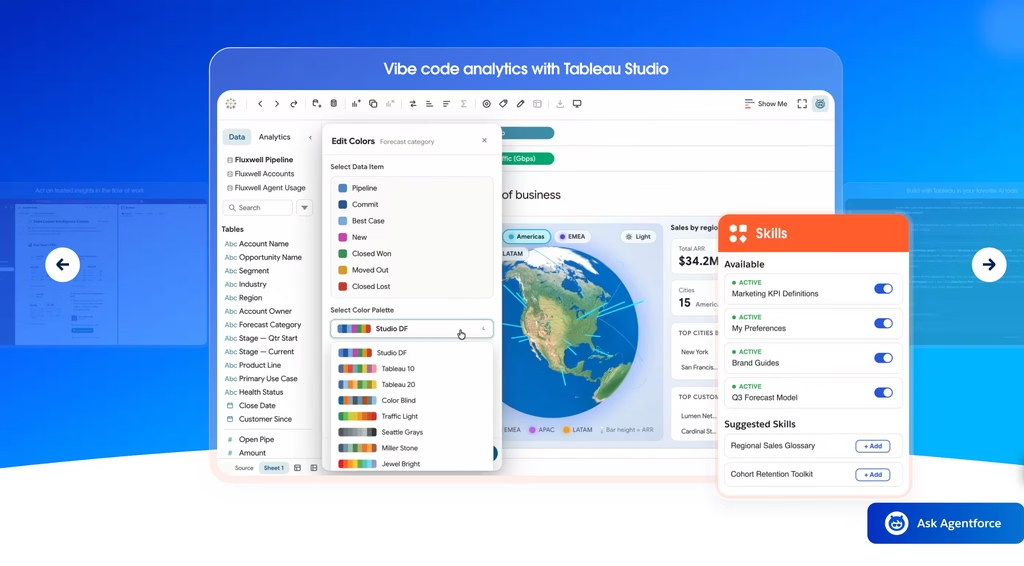
Tableau has been the default enterprise visualization tool for over a decade, and the 2026 version adds two AI layers worth knowing about.
Tableau Pulse sends you plain-language digests about metric changes without opening a dashboard.
Think of it as a morning briefing that says “revenue in the Northeast region dropped 12% week over week, driven primarily by a decline in enterprise renewals.”
You read it in Slack or email and decide whether to investigate.
Tableau Agent (generally available in 2026) lets you describe a dashboard in natural language and have it built for you.
The quality depends heavily on how clean your data model is.
Point it at a well-structured warehouse and you get surprisingly good first drafts. Point it at a messy data source and you get confidently wrong charts, which is worse than no chart at all.
Tableau still has the strongest visual design system in the category.
Forty-plus chart types, native connections to 90+ data sources, and Tableau Prep for data cleaning before anything reaches a dashboard. If your organization already has Tableau expertise, the AI features are genuine productivity gains.
Starting price: $15/month
The limitation. Cost. A ten-person team with two Creators, three Explorers, and five Viewers on Standard is paying $951/month before you add the AI features.
Tableau+ pricing is not published, which in enterprise software usually means “expensive enough that publishing it would scare people off.”
For small teams and startups, Tableau remains overkill. The AI does not change the fundamental learning curve or the infrastructure you need to run it well.
Best for: Large organizations with existing Tableau deployments that want AI-assisted insights without rebuilding their stack.
Hex
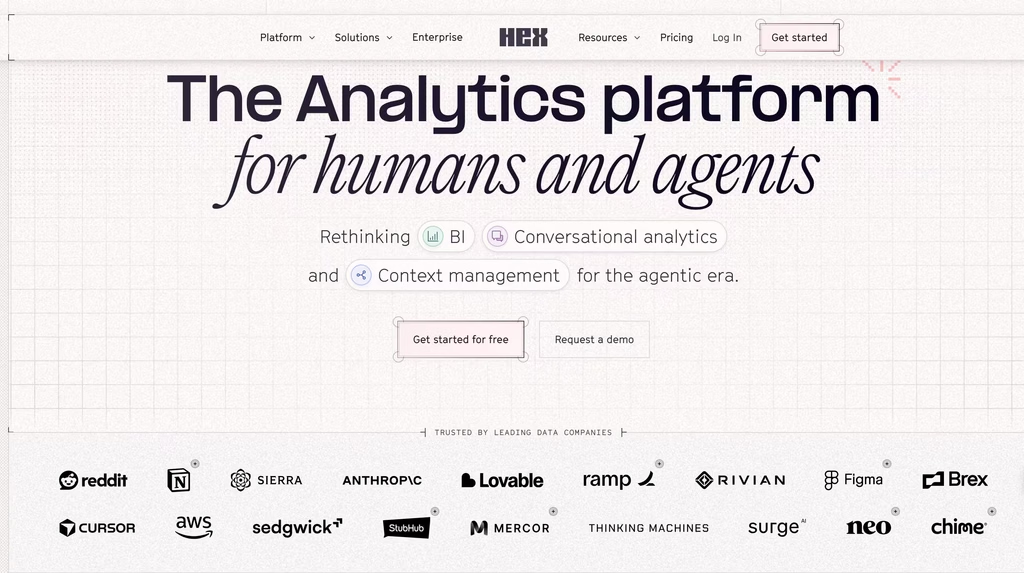
Hex sits in an interesting middle ground.
It is a collaborative notebook where SQL and Python cells live together, results pass between cells automatically, and the output can be turned into interactive data apps with dropdowns, date pickers, and shareable links.
The AI Notebook Agent is the standout feature.
You describe what you want (“show me revenue by customer segment for the last six months, broken down by plan tier”), and the agent writes the SQL, runs it against your connected warehouse, and builds the visualization.
It uses knowledge of your actual schema, so the queries are usually valid on the first try.
Version control works like Git, with branching, merging, and review, which matters when multiple analysts touch the same notebook.
The data app layer is what makes Hex more than “another notebook.”
An analyst builds the logic, then publishes it as a simple tool that a sales manager can use without ever seeing a SQL query. Scheduled runs and threshold alerts add a monitoring layer on top.
Starting price: $36/month
The limitation. You need a data warehouse. Hex does not store data. If your company’s data lives in spreadsheets and email attachments, Hex is not for you.
The Professional plan caps you at 5 published apps, which teams outgrow fast, and jumping to Team doubles your per-editor cost. Python support also lags behind Jupyter in library management and debugging.
The community and learning resources are thinner than Tableau’s or Power BI’s, so troubleshooting can mean more time in documentation and less in forums.
Best for: Data teams at startups and growth-stage companies that want analysis, visualization, and stakeholder-facing apps in one workspace.
Power BI with Copilot
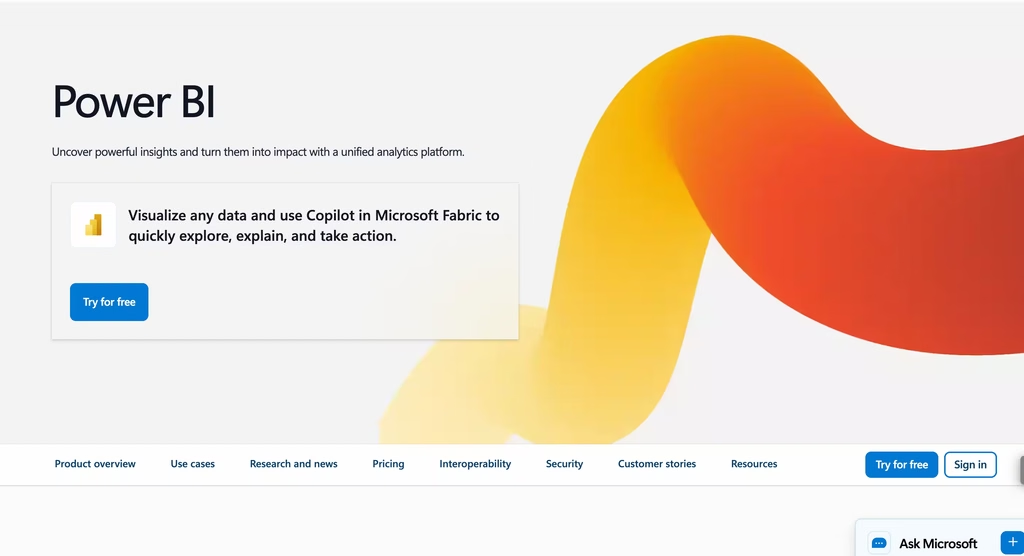
Power BI is the obvious choice if your organization already runs on Microsoft 365, and Copilot makes it more accessible than it used to be.
You can describe a report page in plain language, and Copilot generates it.
It summarizes dashboards, writes DAX measures (Power BI’s formula language), and answers questions about your data in conversational English.
The integration story is where Power BI pulls ahead.
It talks natively to Excel, Teams, SharePoint, and Azure. DirectQuery connects to live warehouse data without importing copies. Mobile dashboards work well.
If your team already knows the Microsoft ecosystem, the ramp-up is shorter than with any competitor.
Starting price: $14/month
Microsoft Fabric capacity (needed for some Copilot features at the Pro level) starts around $262/month at the F2 tier.
The limitation. Copilot’s output quality correlates directly with your data model’s cleanliness. Messy schemas produce messy results, and Copilot does not warn you.
It generates a chart that looks plausible but pulls from the wrong table join, and you only catch it if you know the data well enough to spot the error.
The licensing structure is also a mess.
Pro, Premium Per User, Fabric capacity, and the Copilot add-on are all separate line items, and figuring out what you actually need is a project in itself.
For organizations not already in the Microsoft ecosystem, the integration advantages disappear and you are left with a tool that has a steeper learning curve than Julius or Polymer.
Best for: Microsoft-heavy organizations with analytics staff who want AI assistance inside tools they already use daily.
Datawrapper
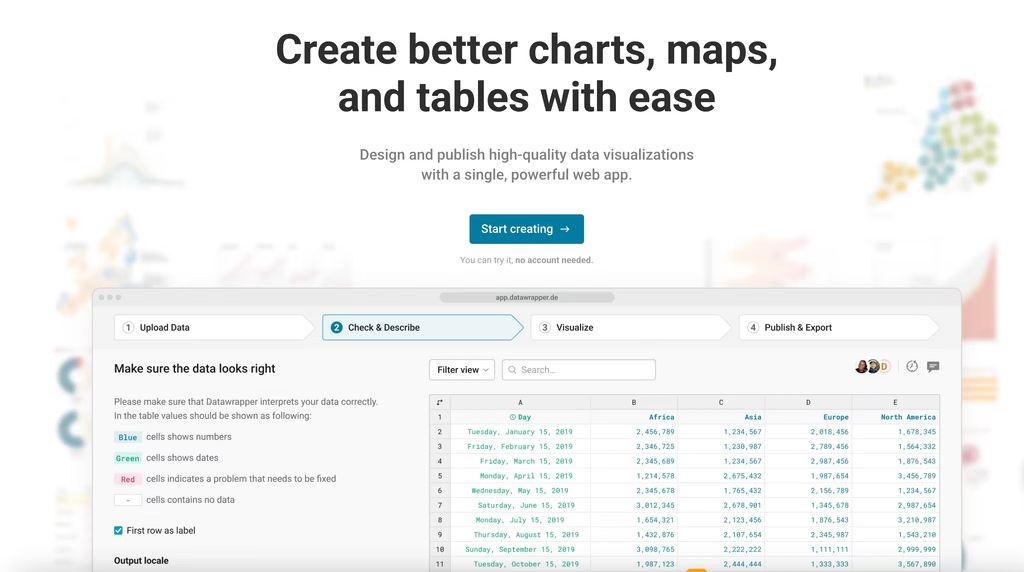
Datawrapper is the tool I reach for when I need a single clean chart published fast. It is a no-code chart, map, and table builder that produces WCAG-compliant, responsive output by default.
You paste data from a spreadsheet, pick a chart type (or let the AI suggest one), customize labels and colors, and embed the result anywhere.
The design quality is noticeably better than what you get from most AI chart generators.
Datawrapper was built for newsrooms (The New York Times, The Washington Post, and Reuters all use it), and that editorial DNA shows in the typography, spacing, and annotation defaults.
Annotation AI suggests label placements that do not overlap, which sounds trivial until you have spent 20 minutes manually adjusting labels on a scatter plot.
Starting price: $25/month
The limitation. No live data connectors. Every chart requires a manual CSV or paste upload, which means Datawrapper is for publishing, not monitoring.
If you need a dashboard that updates automatically when your database changes, this is the wrong tool.
The AI features are limited to chart-type suggestions and annotation placement.
There is no natural-language querying, no automated analysis, and no code generation. It does one thing, but it does that thing better than almost anything else.
Best for: Journalists, content teams, and anyone who needs publication-ready charts without touching code or managing a BI platform.
Polymer
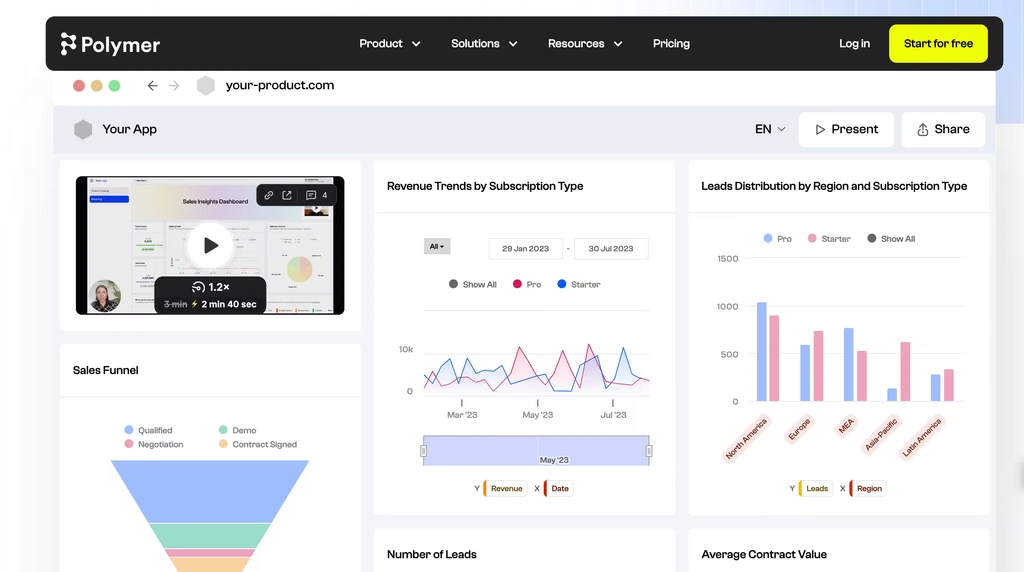
Polymer takes a different approach from the tools above.
Instead of connecting to a data warehouse or running code, it connects to Google Sheets, Airtable, Shopify, and GA4, then auto-generates dashboards from whatever it finds.
Upload a CSV or connect a sheet, and Polymer’s PolyAI picks chart types, highlights trends and anomalies, and builds an interactive dashboard you can share with a link.
The AI handles the “what should I visualize?” question that stops a lot of non-technical users from getting started at all.
For marketers tracking campaign performance across spreadsheets, or small e-commerce teams pulling Shopify data into a visual format, Polymer removes the gap between “I have data” and “I have a dashboard.” The learning curve is close to zero.
Starting price: $50/month
The limitation. Polymer is a presentation layer. It visualizes what you give it, but it does not do regression, forecasting, or complex calculated fields.
Teams that outgrow it tend to move to ThoughtSpot or Tableau, and the transition is not smooth because Polymer’s simplicity means you have not been building the data modeling habits those tools require.
Live data support from connected sources is also limited compared to dedicated BI platforms.
Best for: Marketers and small teams who live in spreadsheets and want shareable dashboards without learning a BI tool.
ChatGPT Advanced Data Analysis
If you pay for ChatGPT Plus ($20/month), you already have a data visualization tool.
Upload a spreadsheet, JSON file, or CSV, and ChatGPT writes and runs Python to build charts, run regressions, spot patterns, and clean messy data.
I mention it here because it is the tool most people try first, and for one-off analysis, it works well.
Ask “what are the top 5 products by revenue growth rate, and chart the trend over the last 12 months” and you get a matplotlib chart in seconds.
The AI agents and automation landscape keeps expanding, and ChatGPT’s data analysis mode is one of the more practical examples of an AI agent doing real analytical work.
Starting price: Included in ChatGPT Plus at $20/month.
The limitation. No persistent dashboards. No live data connections. No shareable URLs that update. Once the chat session ends, the analysis is gone unless you manually export it.
The charts render as static images in the web interface (interactive HTML requires manual export and hosting).
For anything recurring, you will eventually need a dedicated tool. But for “I just got this spreadsheet and need to understand what is in it,” ChatGPT is the fastest path from confusion to clarity.
Best for: Quick, one-off analysis when you do not want to sign up for another tool.
How to Pick the Right One
The decision tree is simpler than the tool count suggests.
| Your situation | Start here |
| Non-technical, working from spreadsheets | Julius AI or Polymer |
| Need a quick chart for a blog or report | Datawrapper |
| Data team with a warehouse | Hex |
| Enterprise, already using Microsoft tools | Power BI with Copilot |
| Enterprise, already using Tableau | Tableau with AI |
| One-off analysis, no new subscriptions | ChatGPT Advanced Data Analysis |
One pattern I have noticed across all of these tools: the AI works best when the data is clean and well-structured, and it fails most visibly when the data is messy.
That is true whether you are using a $75/month enterprise platform or a free ChatGPT session.
If your charts keep coming out wrong, the problem is probably upstream of the visualization tool. Fix the data first.
The other pattern worth noting is cost.
The gap between the cheapest useful option (Datawrapper’s free tier or ChatGPT Plus at $20/month) and an enterprise deployment (Tableau+ or Power BI with Fabric) can be $10,000+ per year for a small team.
Most teams I talk to start with Julius or ChatGPT, hit a wall when they need live dashboards or collaboration, and then make the jump to Hex or Tableau. Knowing that path in advance saves you from over-buying on day one.
FAQ
Can AI really replace a data analyst for visualization?
For simple charts and basic pattern recognition, yes. Tools like Julius AI and ChatGPT can turn a spreadsheet into a chart faster than most analysts can open Tableau.
But for complex analysis involving multiple data sources, statistical rigor, and business context, AI tools still need a human checking the output. The best setup is an analyst using AI tools to work faster, not AI tools replacing the analyst.
What is the best free AI data visualization tool?
Datawrapper offers unlimited free charts with branding. ChatGPT’s free tier includes limited data analysis. Julius AI’s free tier gives you 15 messages per month. Hex’s Community plan includes 5 notebooks. For most people, Datawrapper is the best free option if you need to publish charts, and ChatGPT is the best free option if you need to explore data.
Do I need to know how to code to use these tools?
No. Julius AI, Polymer, Datawrapper, and Tableau are all designed for non-technical users. Hex and Observable are better for users who know SQL or Python. Power BI falls somewhere in between: you can use it without code, but DAX formulas and data modeling help you get more out of it.
How do AI visualization tools handle sensitive data?
It varies widely. Julius AI is SOC 2 and GDPR compliant. Tableau and Power BI offer row-level security and enterprise governance. Hex offers HIPAA compliance on Enterprise plans.
ChatGPT processes your data through OpenAI’s servers (check their data retention policies). Datawrapper does not store your underlying data after chart creation. Always check the specific tool’s security documentation before uploading anything confidential.
Which AI visualization tool is best for real-time dashboards?
Tableau and Power BI are the strongest options for live, auto-refreshing dashboards connected to your data sources. Hex supports scheduled notebook runs with alerts. Julius AI, Datawrapper, and ChatGPT do not support live data connections, so they require manual updates.
