
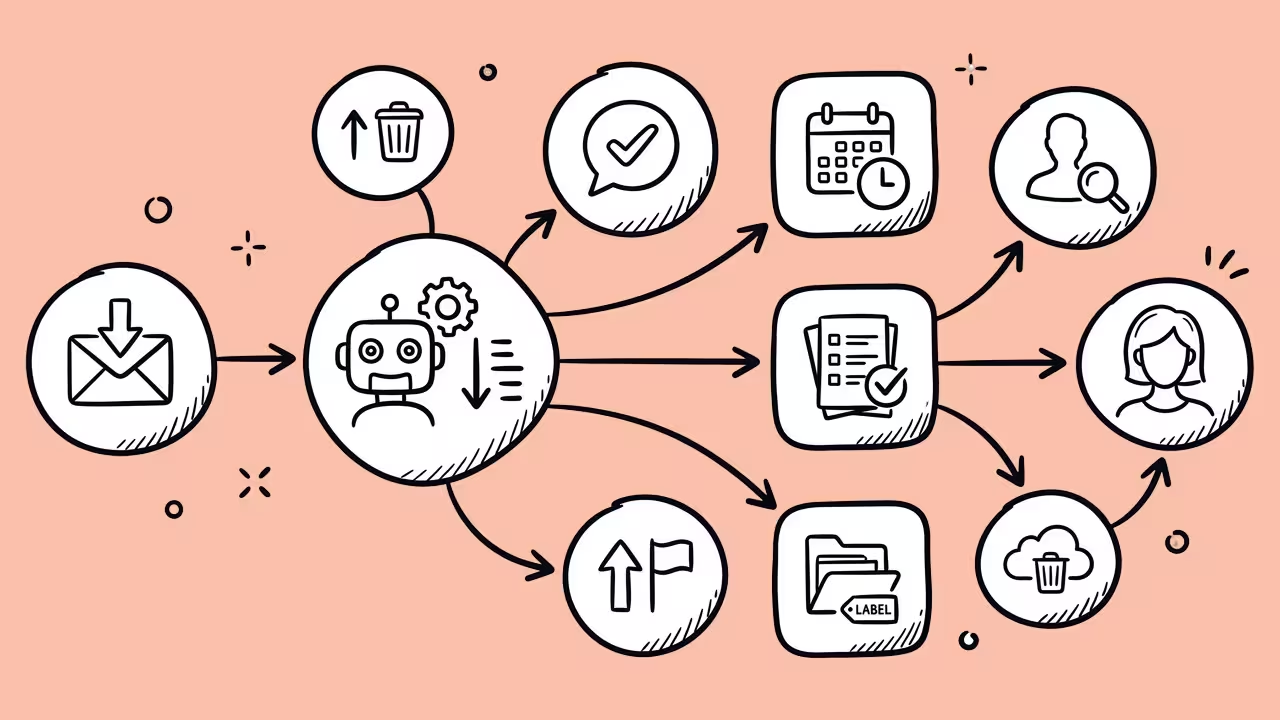

When people hear “AI agent,” most often they imagine something like a digital assistant that performs routine tasks on its own.
When it comes to working with files, this isn’t a futuristic scenario any more. Modern agents can log into systems and locate the needed documents.
They can also download them on a schedule and transfer them to other services for further processing. For teams which work with large volumes of backups, reports, media files, or analytical data on a daily basis, this automation saves hours of manual work.

Meanwhile, along with convenience come questions of access control, process reliability, and security. A single misconfigured agent could miss a critical update, download an outdated file, or create an unnecessary load on the system.
AI Agents Automate File Downloads. How?
In most cases, an agent performs a sequence of actions that previously a human did:
- Opens a website;
- Goes through authorization;
- Checks if there are new files;
- Downloads them to cloud storage or a specified folder;
- Triggers further processing if necessary.
This process is commonly known as automated data retrieval, since the system independently retrieves data from external sources without user intervention.

In practice, such scenarios are used for:
- Downloading logs from servers;
- Retrieving financial reports daily;
- Retrieving media files from content platforms;
- Synchronizing documents between cloud services;
- Archiving backups.
What to do when automatic downloads suddenly stop working
Even a well-configured artificial intelligence agent is not immune to simple glitches. Most often, the problem is not with the model or script itself, but with the environment where the download is taking place.
This is especially noticeable on a Mac when the system locks a file, the network connection is unstable, or the browser loses access to the folder. In such cases, it’s best to start not with complex diagnostics, but with simple checks. For Mac downloads, it’s helpful to follow a set of quick steps. Specifically, look if your internet connection is active and check the Downloads folder. Also, clear your browser’s cache and review the security and permissions settings in macOS.
If needed, restart the browser or the computer itself. If the agent is using Safari or Chrome, check whether the browser is blocking automatic downloads or suspicious files. Another issue is a lack of free disk space. The system may start interrupting downloads without any obvious notification. But if these basic steps do not help, you may check the agent’s logs, API access tokens, or changes to the configuration of the service from which the files are obtained. This sequence usually allows you to find the cause much faster than diving straight into the code or network settings.
Tools That Support Automated Uploads
On-Premises AI agents
Some organizations run agents on their own servers or workstations. That gives them more control over sensitive data. Yet, it requires separate administration.

AI workflow automation platforms
Zapier, Make, n8n, or Microsoft Power Automate allow creating workflows without in-depth programming. They can respond to a new file appearing in cloud storage, send it to another service, or trigger a subsequent analysis process. Such platforms are helpful for business teams that need integration among different systems.
Scripts. APIs
For more complex tasks, developers often use:
- Node.js with Puppeteer;
- Python with the Requests and Playwright libraries;
- Official APIs of cloud services.
The benefit of APIs is the next one. The agent receives files directly instead of emulating user actions in a browser.
Advantages of an Automated Approach. Risks
1. Speed.
The agent does hundreds of identical uploads without human intervention.
2. Consistent Schedule.
The process runs hourly, at night, or when a new file appears.
3. Integration.
Files are automatically sent to a storage system, analytics platform, or CRM.
4. Scalability.
This means that the system processes much more data than a single person can.
Main risks. How to avoid them
1. Account credentials security.
AI agents often demand logins, passwords, or API keys. If these are stored in plain text, a serious risk of compromise arises.
Recommended practices:
- Secret managers;
- Separate service accounts with limited rights;
- Environment variables.
2. Downloading malicious files.
An automated process cannot always determine whether a file is safe. If the source is compromised, the agent may download malicious software.
It is helpful to add:
- Antivirus scanning;
- Digital signature verification;
- Filtering by file type.
3. Excessive access to data.
Sometimes the agent gets rights to the entire file system or the entire corporate drive, even though it only needs a single folder to function. This increases the potential consequences of an error or a breach.
Common Issues. How to Resolve Them
The file won’t upload
Possible causes:
- The file’s URL has changed;
- The authorization token has expired;
- The server has blocked the request.
What to check:
- The API response status;
- The token’s expiration date;
- Whether there are any redirects.
The wrong version is being downloaded
A common mistake in AI workflow automation scenarios is that the agent takes the first file from the list instead of the most recent one.
Solution:
- Sort files by creation date;
- Use unique file identifiers;
- Check the version number.
Download is interrupted
Causes:
- File size limit;
- Unstable network connection;
- Request timeout.
Solutions:
- Use streaming downloads;
- Implement retries;
- Increase the allowed timeout.
Access permission issues
The agent successfully downloads the file but cannot save it.
Check the following:
- Available disk space;
- Permissions for the destination folder;
- Operating system restrictions.
Practical Tips for Stable Operation
- Keep logs of all downloads.
- Set up error notifications.
- Limit the agent’s permissions to only the necessary resources.
- Store file checksums to verify integrity.
- Regularly update libraries and automation tools.
- Test your scenarios after any changes to external services.
Conclusion
AI agents can already greatly simplify file management. They automatically retrieve data, transfer it between systems, and trigger subsequent processing steps. The tools for this range from simple automation platforms to full-fledged scripts and API integrations. But automation doesn’t mean you can do without oversight. It’s still critical to securely store credentials and verify file sources, as well as monitor errors and properly configure access rights. If the process is set up correctly, AI workflow automation not only saves time but also makes data processing more stable and scalable.
