

What Is Hermes Agent and Why Self-Host It on a VPS
Hermes Agent is an open-source AI agent with a built-in self-improvement loop. The first time you ask it to summarize your weekly GitHub activity, it reasons through the process step by step. The second time, it reuses a stored skill and completes the same task in seconds without re-planning from scratch. Over weeks and months, it builds a library of reusable skills specific to your workflows.
That makes it architecturally different from stateless tools like the ChatGPT interface or the OpenAI Assistants API, where no persistent user model carries over between sessions. With those tools, you or your team remain the primary skill authors, manually updating prompts and tools to improve behavior. Hermes shifts that responsibility to the agent itself, storing skills as human-readable files you can inspect, edit, or remove whenever you want.
Running it on your own VPS means your memory, skills, and interaction logs stay on your infrastructure. You also choose which LLM backend it connects to, giving you far more flexibility over performance, privacy, and automation workflows.
Hosting Hermes Agent Locally on Your PC vs a VPS
Running Hermes Agent locally on your personal computer can work for testing or short-term experimentation, especially if you simply want to explore the platform before committing to a permanent deployment. However, local installations depend entirely on your own hardware staying powered on continuously and sharing resources with your daily applications, browser sessions, development tools, and background processes.
A VPS environment offers a far more reliable setup for long-term automation and persistent AI workflows. Because the server runs independently from your personal device, Hermes Agent can remain online 24/7 without interruptions caused by system restarts, shutdowns, or local resource limitations. VPS hosting also simplifies remote access, scheduled automations, backups, persistent services, and scalability as your workflows become more advanced.
For users planning to run recurring tasks, GitHub integrations, scheduled automations, or continuous AI-assisted workflows, hosting Hermes Agent on a VPS is generally the more stable, scalable, and practical solution over time.
What You Need Before You Start
You will need a VPS capable of running Docker and supporting persistent AI workloads. Resource requirements can vary depending on the models, integrations, and automations you plan to use, so it is best to check the recommended setup and available plans directly on the Hostinger Hermes Agent VPS page before deployment. Ubuntu gives you the broadest compatibility with Docker and its dependencies. A managed solution like the Hostinger Hermes Agent VPS is particularly useful here because it combines optimized VPS infrastructure with Docker support, simplified deployment tools, scalable resources, and a setup environment designed specifically for AI agent hosting. This reduces the amount of manual server configuration normally required when deploying autonomous AI systems.
Step 1: Set Up Your Hostinger VPS
Start by logging into your Hostinger hPanel and opening the VPS dashboard for the server you plan to use with Hermes Agent. During the initial setup process, make sure the operating system is configured as Ubuntu with Docker so Docker Manager is automatically available inside your VPS environment.
This setup simplifies the deployment process considerably because Docker and the container management tools are already integrated into the server environment. Instead of manually configuring Docker from scratch, you can manage and deploy containers directly through Hostinger’s Docker Manager interface, which is designed to streamline AI application deployments such as Hermes Agent.
Step 2: Access Docker Manager in hPanel
If you selected the Ubuntu with Docker operating system during VPS setup, Docker is already pre-installed and configured on your server. There is no need to manually install or configure Docker separately.
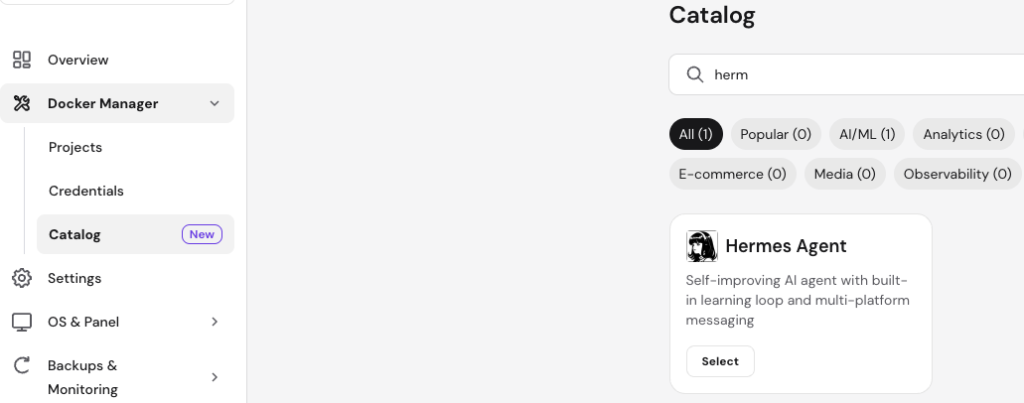
Instead, open Docker Manager directly from your Hostinger hPanel dashboard. Docker Manager allows you to deploy, manage, restart, and monitor containers through a visual interface without relying entirely on command-line configuration. This simplifies the deployment process considerably, especially for users setting up Hermes Agent for the first time.
Docker-based deployment also helps isolate Hermes Agent from the host operating system while keeping updates and long-term maintenance much easier to manage. As your workflows expand, the containerized setup also makes it easier to scale additional AI services, integrations, or automation tools alongside Hermes Agent.
Step 3: Deploy Hermes Agent with Docker
Inside Docker Manager, open the Catalog section and search for Hermes Agent. Once it appears in the available applications list, click Select to begin the deployment process.
During setup, you will be asked to choose and connect your preferred LLM provider by entering an API key from services such as OpenRouter, Anthropic, or OpenAI. After entering the required credentials, click Deploy and Hostinger will automatically create the Hermes Agent container along with the supporting services required for the deployment environment.
This one-click deployment process removes much of the complexity traditionally associated with Docker-based AI hosting. Instead of manually configuring containers, networking, or reverse proxy services, Docker Manager handles the infrastructure layer automatically while still giving you the flexibility and control of a self-hosted VPS environment.
Step 4: Access Hermes Agent Through the Browser Terminal
After deployment is complete, Hermes Agent is accessed directly through the container environment rather than through a browser-based dashboard or setup wizard. Inside your Hostinger hPanel, open the Browser Terminal for your VPS and navigate to the Hermes Agent project directory using:
cd /docker/hermes-agent-xxxx/
The “xxxx” portion represents the unique project identifier shown inside Docker Manager for your deployment.
From there, access the running Hermes Agent container with:
docker compose exec -it hermes-agent /bin/bash
This gives you direct access to the Hermes Agent environment where you can manage configurations, inspect files, monitor processes, and interact with the agent itself.
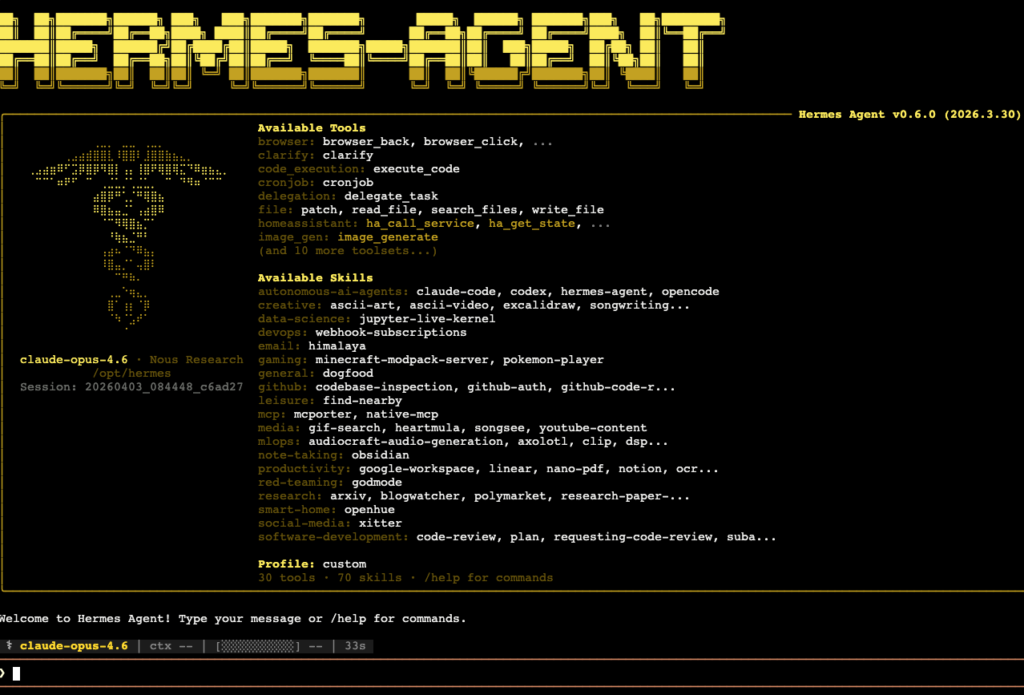
While this approach is more command-line oriented than traditional web dashboards, it provides much greater control over the deployment environment and aligns with how many self-hosted AI tools are managed in production VPS environments.
Step 5: Configure Your LLM Provider
OpenAI, Anthropic, and OpenRouter are the primary supported providers commonly used with Hermes Agent deployments on Hostinger. OpenRouter is often one of the simplest starting points because it provides access to multiple AI models through a single API layer, while OpenAI and Anthropic offer direct access to their own model ecosystems. This flexibility makes it easier to experiment with different AI models without constantly changing infrastructure settings.
Advanced users can also connect Hermes Agent to compatible custom endpoints depending on their deployment requirements. This flexibility is one of the major advantages of self-hosting because it allows you to control how your AI agent operates and which providers it relies on over time.
Step 6: Verify the Hermes Agent Environment
Once Hermes Agent is running inside the container environment, verify that the deployment completed successfully and that your configured LLM provider is responding correctly.
Start by confirming the Hermes Agent container status inside Docker Manager shows Running. Then open the Browser Terminal and access the container environment again (same commands as Step 4)
Inside the Hermes CLI, run:
/help
If Hermes responds with the available commands and tools list, the agent environment is functioning correctly and the container is responding as expected.
You should also review the container logs in Docker Manager to confirm there are no authentication failures or startup errors related to your LLM provider API key. This is also a good time to verify environment variables and confirm the configured provider connection is active before moving on to automations or scheduled workflows.
Checking the environment early helps prevent configuration problems from affecting future automations, workflows, or persistent memory storage. If anything appears incorrect, Docker Manager and the Browser Terminal make it easier to inspect logs, restart containers, and troubleshoot deployment issues directly from your VPS environment.
Step 7: Monitor and Manage Your Hermes Agent Deployment
Once deployed, Hermes Agent can be monitored and managed directly through Hostinger’s Docker Manager and Browser Terminal environment. Docker Manager automatically handles container restart policies, which means the Hermes Agent container is configured to restart automatically after server reboots or temporary interruptions without requiring additional systemd configuration.
Regularly monitoring logs and container activity is still important as your workflows become more advanced. Reviewing logs periodically helps identify configuration issues, failed API requests, or deployment-related problems before they affect long-running automations or persistent AI workflows.
Step 8: Connect to GitHub and Configure Your First Cron Job
Connect Hermes Agent to a GitHub repository to back up skills, workflows, and configuration files automatically. This provides an additional layer of protection if you ever need to migrate servers or recover from deployment failures.
After that, configure your first scheduled automation task through cron jobs. This is where Hermes Agent starts becoming significantly more valuable in practical use cases. Recurring reports, repository monitoring, scheduled research tasks, and automated summaries can all run continuously without requiring manual intervention.
Security, Backups, and Updates
Keep firewall rules restrictive and avoid exposing the web interface publicly without proper authentication. Even though Hermes Agent is designed for automation and persistent memory, it should still be treated like any other internet-connected application from a security perspective.
Schedule regular backups of the agent’s persistent data and store copies off-server whenever possible. Before updating Hermes Agent or pulling newer Docker images, always create a backup first. This allows you to restore your previous environment quickly if an update introduces compatibility issues or unexpected behavior.
Troubleshooting Common Setup Issues
Configuration mistakes remain the most common reason Hermes Agent fails to start correctly. Incorrect API credentials, missing environment variables, or invalid provider settings can all prevent the container from initializing successfully. Instead of relying entirely on SSH access, Hostinger’s Docker Manager provides built-in access to container logs and terminal tools directly through hPanel, making troubleshooting considerably easier for most deployments.
If Hermes Agent is not responding correctly after deployment, review the container logs first to identify startup errors, failed API requests, or missing configuration values. In many cases, deployment issues are caused by invalid environment variables or incomplete LLM provider credentials.
Authentication errors from OpenAI, Anthropic, or OpenRouter usually indicate expired API keys, insufficient permissions, or unsupported model access. Regenerating the key and verifying model access permissions inside the provider dashboard typically resolves the issue quickly.
What Can You Build Once Hermes Agent Is Running
With Hermes Agent running on your VPS, you can create persistent AI assistants that manage recurring tasks, automate GitHub workflows, monitor infrastructure, generate scheduled reports, or handle long-term research processes without constant supervision. Over time, the persistent skill system compounds in value because the agent continuously reuses previously learned workflows instead of rebuilding them from scratch.
This long-term memory architecture is what makes Hermes Agent particularly compelling for developers, researchers, automation enthusiasts, and businesses experimenting with self-hosted AI infrastructure.
