


If you’ve ever opened a long PDF and thought “I don’t have time to read all this,” you’re not alone. Whether it’s a report, research paper, or ebook, learning how to summarize a PDF file can save you hours.
The good news? You don’t need technical skills. In this guide, you’ll learn three simple methods:
- Using an AI PDF editor (best overall)
- Using a free online tool (quick and easy)
- Using ChatGPT (flexible and powerful)
Let’s walk through each method step by step.
Method 1: Summarize PDF with AI PDF Editor – PDFelement
If you want to not only summarize but also edit a PDF editor, using an AI-powered PDF editor is your best option.
Wondershare PDFelement is a beginner-friendly PDF tool with built-in AI features, including a powerful AI PDF summarizer. It’s designed for people who needs a complete PDF editor with AI power.
With PDFelement, you can open your PDF directly and generate summaries instantly. The AI analyzes the entire document and extracts key points, making it ideal for long reports, contracts, or academic papers. It also supports multiple formats and lets you edit, annotate, and organize PDFs in one place.
Another advantage is its context-aware summarization. Instead of just shortening text, it understands structure, such as headings, sections, and key arguments, so your summary actually makes sense.

Step 1: Open Your PDF in PDFelement
Download and install PDFelement, then open your PDF file inside the software.
Step 2: Access the AI Summarizer
Click on the AI Assistant or “Summarize” feature from the toolbar to summarize the whole document. Or select a paragraph to summarize.
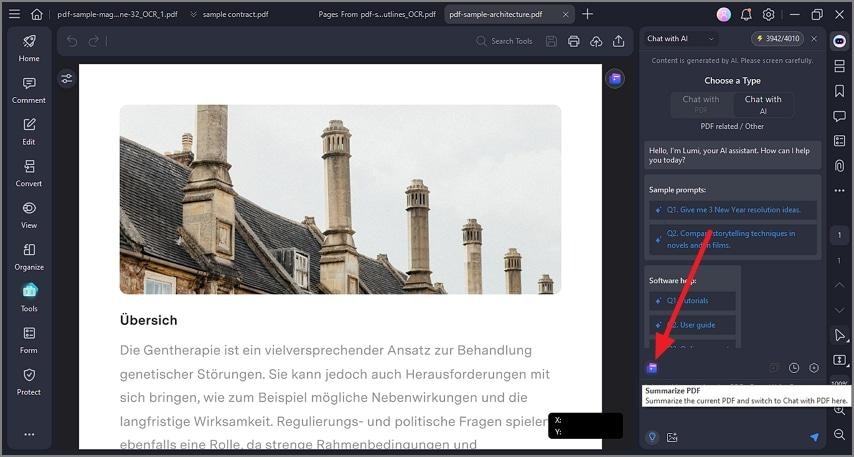
Step 3: Generate the Summary
The AI assistant will process your document and generate a summary instantly in the chat box.
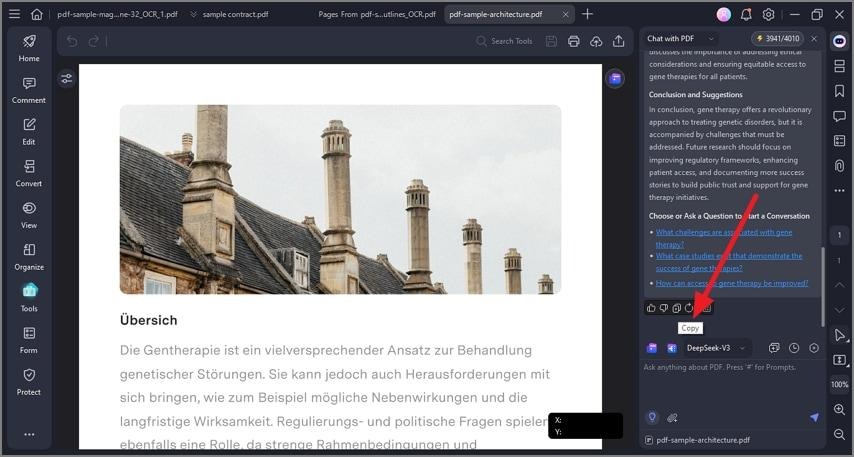
Step 4: Review and Save
Edit or refine the summary if needed, then export or copy it. Or you can ask questions about PDF in the chat box to better understand the context.
💡 Tip: Use bullet-point summaries for presentations and quick reviews.
Method 2: How to Summarize PDF Online for Free – HiPDF
If you don’t want to install anything, an online tool is the fastest way to go.
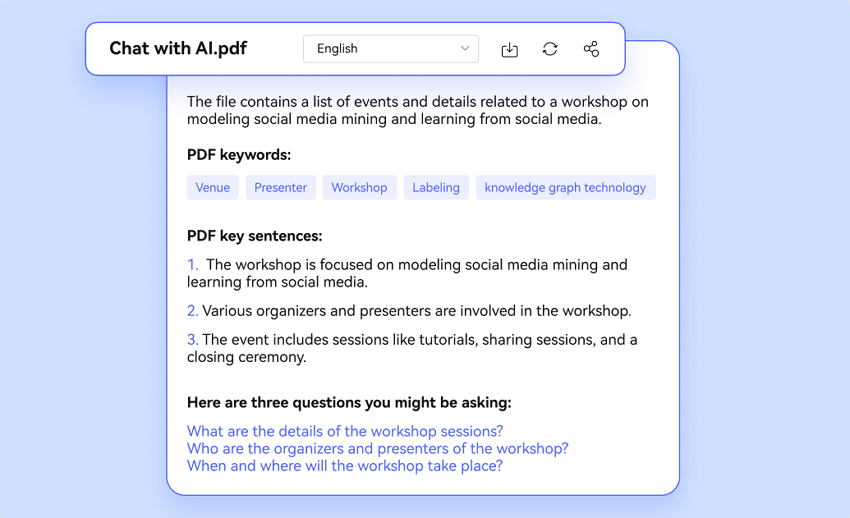
HiPDF PDF Summarizer is a free, browser-based tool that lets you upload a PDF and get a summary in seconds. It’s perfect for quick tasks and works on any device—laptop, tablet, or phone.
What makes HiPDF appealing is its simplicity. You just upload your file, click a button, and get results. There’s no learning curve, and it’s ideal for non-tech users. It also supports cloud integration, so you can upload files from Google Drive or Dropbox.
However, since it’s an online tool, it works best with smaller files and less sensitive documents. Still, for everyday use—like summarizing articles or notes—it’s incredibly convenient.
Step 1: Go to HiPDF Website
Open the HiPDF PDF summarizer in your browser.
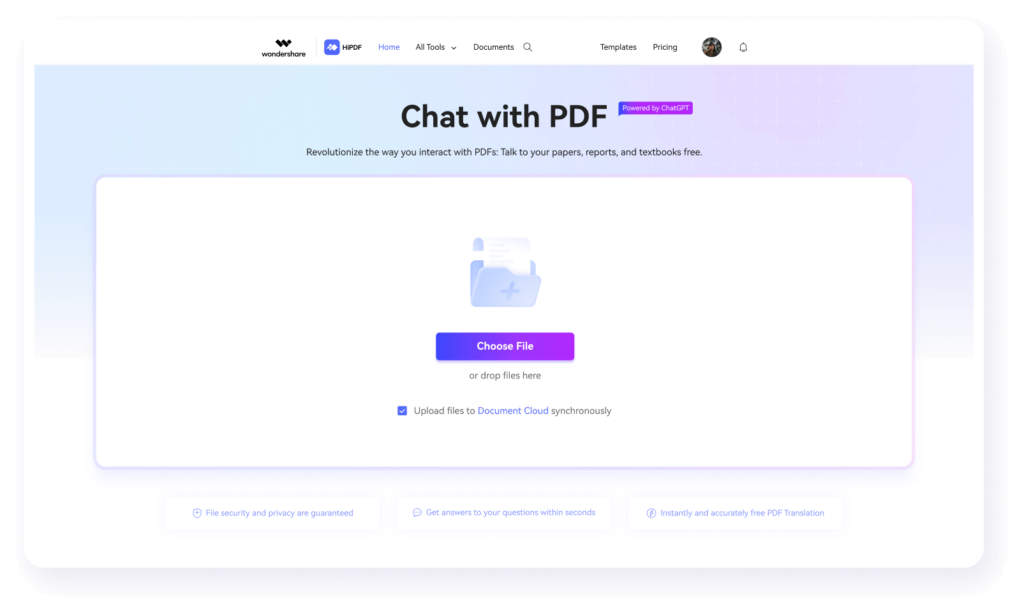
Step 2: Upload Your PDF
Click “Upload” and select your file from your device or cloud storage.
Step 3: Start Summarization
Click the “Summarize” button to begin processing.
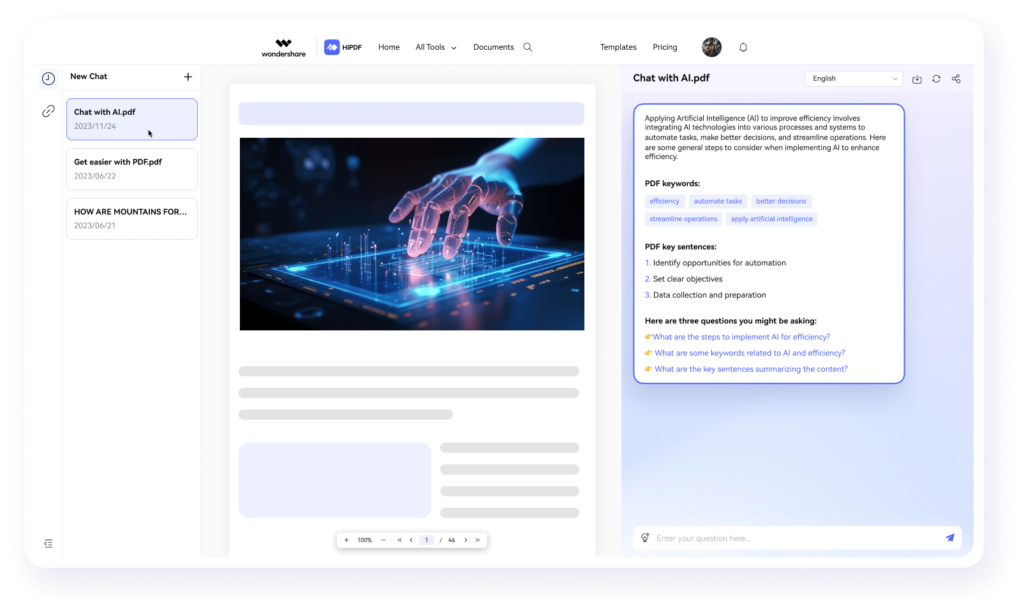
Step 4: View the Summary
The tool will display a concise version of your document.
Step 5: Copy or Download
Copy the summary or download it for later use.
💡 Tip: Keep files under size limits for faster processing.
Method 3: How to Summarize PDF with ChatGPT
If you want more control over how your summary looks, ChatGPT is a great option.
ChatGPT allows you to summarize PDFs by copying text or uploading files (if supported). You can also customize the output—like asking for bullet points, key takeaways, or simplified explanations.
This method is especially useful when you want summaries tailored to a specific purpose, such as studying, writing, or presenting.

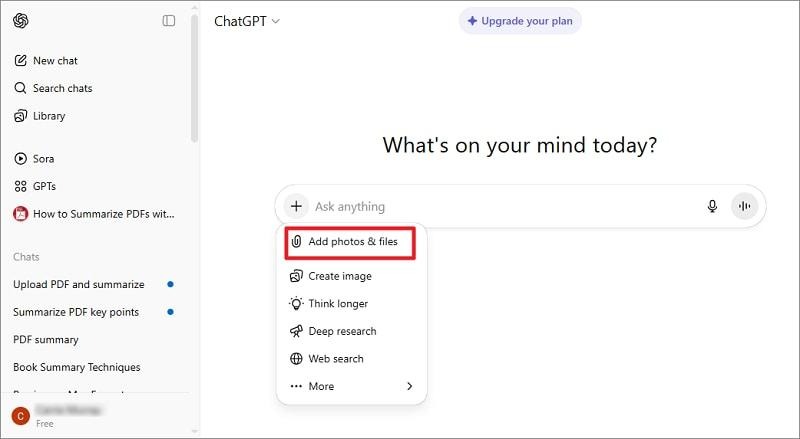
Step 1: Upload PDF to ChatGPT
Upload your PDF that you want to summarize (or copy some text from the PDF).
Step 2: Give Clear Instructions
Use prompts like:
“Summarize this PDF in 5 bullet points” or
“Explain this document in simple terms.”
Step 3: Review the Output
Read the summary and refine it if needed.
Step 4: Ask for Adjustments
You can request shorter, longer, or more detailed summaries.
💡 Tip: Break large PDFs into sections for better accuracy.
Which Is the Best Ways to AI Summarize PDF?
Here are the comparison of the 3 methods to summarize PDF.
- Use PDFelement if you want high accuracy and full control of PDF documents.
- Use HiPDF if you want quick, free summaries online.
- Use ChatGPT if you want flexibility and customization.
| Feature | PDFelement (AI Editor) | HiPDF (Online Tool) | ChatGPT |
|---|---|---|---|
| Ease of Use | ⭐⭐⭐⭐⭐ | ⭐⭐⭐⭐⭐ | ⭐⭐⭐⭐ |
| Cost | Paid (Free trial) | Free | Free/Paid |
| Accuracy | ⭐⭐⭐⭐⭐ | ⭐⭐⭐⭐ | ⭐⭐⭐⭐⭐ |
| PDF Editing | Yes | Yes | No |
| File Handling | Large files supported | Limited size | Depends |
| Best Use Case | Work, study, long docs | Quick summaries | Custom summaries |
FAQs About Summarizing PDFs
1. What is the easiest way to summarize a PDF file?
The easiest way is using an AI tool like HiPDF or PDFelement. They automate the entire process with just a few clicks.
2. Can I summarize a PDF for free?
Yes. Tools like HiPDF and ChatGPT offer free options, though they may have limitations.
3. Is AI PDF summarization accurate?
Generally, yes—especially with advanced tools like PDFelement. However, always review the summary for important details.
4. How do I summarize a large PDF?
Use a desktop tool like PDFelement or break the document into sections when using ChatGPT.
5. Is it safe to upload PDFs online?
It depends on the tool. Avoid uploading sensitive documents to online platforms unless they guarantee security.
Final Thoughts
Learning how to summarize a PDF file doesn’t have to be complicated.
- PDFelement gives you the most powerful, accurate summaries
- HiPDF offers fast and free convenience
- ChatGPT provides flexibility and customization
Choose the method that fits your needs and start saving time today.
