

AI is a practical tool that millions of people use every single day. AI assistants schedule meetings, draft emails, and improve how we work, communicate, and think. You do not need to be a programmer to build one. You simply need the right plan, the right tools, and a clear understanding of what you want your assistant to do. This guide walks you through every step of that process.
What Is an AI Personal Assistant?
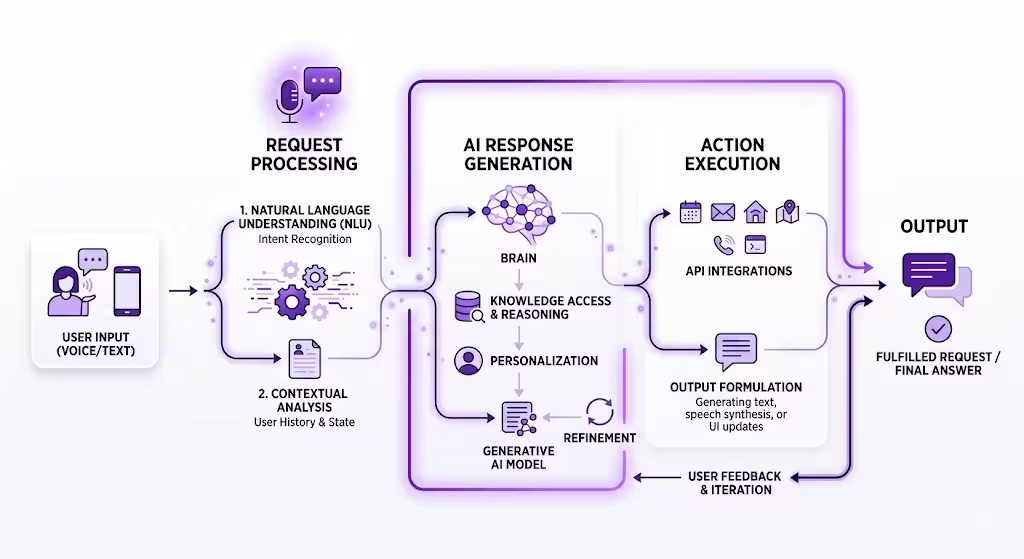
An AI personal assistant is software that uses AI to perform tasks automatically. It handles your calendar, drafts emails, organizes your files, and answers complex questions without you lifting a finger.
It connects to the tools you already use and is very adaptable. Give it enough context and consistent feedback, and within weeks, it stops feeling like a tool and starts functioning like a second brain. It may end up anticipating your next move rather than waiting to be told what to do.
1. Define Your AI Personal Assistant Goals Clearly
Before you build anything, you need to know what you want. Track your time for two days, not roughly, but specifically. You are looking for tasks that repeat, require no judgment, and drain your focus. Those are the first things you hand off to your assistant.
Write your answers down. These become the foundation of your AI assistant’s purpose. If you spend hours responding to emails, your assistant should prioritize communication automation. If research slows you down, its focus should be on information gathering and summarization. The sharper your brief, the more useful your assistant becomes from day one.
2. Choose the Right AI Model for Your Personal Assistant
Your model choice sets the ceiling on what your assistant can do, so this decision matters more than most guides admit. The four platforms below are all capable. They’re, however, not interchangeable, and the differences are consequential enough to affect your daily workflow.
OpenAI’s GPT-4o: Ideal for language-heavy tasks. It handles writing, summarizing, coding, and complex questions with ease, and it connects to more third-party apps than any other model through its API. It does have a disadvantage; GPT-4o occasionally hallucinates source citations when referencing uploaded documents. This means you still need to verify any claims it makes about your knowledge base.
Google Gemini: Works best inside the Google ecosystem. If you use Gmail, Google Docs, or Google Calendar daily, Gemini connects to all three without additional setup.
Anthropic’s Claude: Produces nuanced, careful responses. It handles long documents better than any of the other three options and performs especially well on tasks requiring multi-step reasoning.
Microsoft Copilot: The natural choice for Microsoft 365 users. It integrates directly into Word, Excel, Outlook, and Teams.
All four are competent; therefore, the differentiator is not raw capability. Differences lie in integration depth. GPT-4o is in the top spot for most beginners because it combines strong language ability with the widest third-party support. That means fewer workarounds as you expand.
If you live in Google Workspace, Gemini is the obvious starting point. If you are Microsoft-first, Copilot removes the most friction. If neither applies and your work is document-heavy, Claude is the smarter bet.
Also read: The Top AI Models You Should Know About
3. Select the Right Automation Layer for Your AI Personal Assistant
You need an automation layer that connects your assistant to the rest of your digital life. Three tools dominate this space, and they serve different users.
Zapier: Connects over 6,000 apps without requiring any code. You can create automated workflows, called Zaps, that trigger actions across platforms. For instance, when you receive an email with a specific keyword, Zapier can automatically log it in a spreadsheet and send you a notification.
When I tested Zapier’s free tier, I hit the 100-task monthly limit after some time of moderate use. You will likely need the $29.99 /month Professional plan if you automate anything beyond basic email triggers.
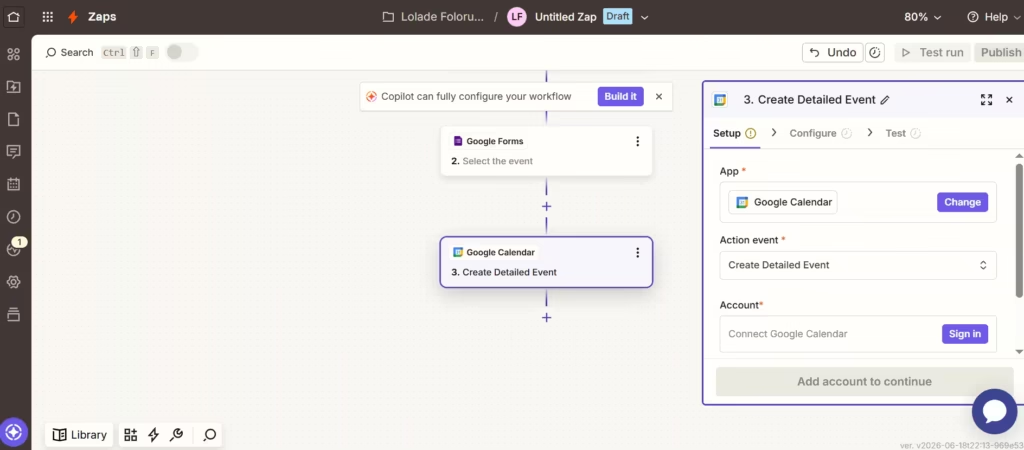
Make: has more advanced workflow customization for users who want fine-grained control over complex, multi-step automations. Its free tier is also more generous than Zapier’s. That alone makes it a stronger starting point if you anticipate scaling quickly.
N8n: a self-hosted option that gives you complete control over your data. It is open-source and highly flexible, which makes it popular among privacy-conscious users and developers willing to manage their own infrastructure.
If you are just starting out, Zapier gets you moving fastest. But, if you hit its limits quickly, Make gives you more runway without requiring you to manage your own server the way n8n does.
4. Build a Knowledge Base to Power Your AI Personal Assistant
Your AI assistant needs context to serve you well. Without it, responses are generic rather than useful. A personalized knowledge base fixes that. It is simply a collection of information your assistant can reference. It should include your preferences, frequently asked questions, project briefs, writing samples, or company documents.
Tools like Notion or a simple Google Drive folder work well for this. Both OpenAI’s GPT Builder and Anthropic’s Claude allow you to upload files or link to databases directly.
Note: Update your knowledge base regularly with respect to your changing needs.
5. Set Up a Strong Interface for Your AI Personal Assistant
Now decide how you want to interact with your assistant. The right interface depends entirely on how you work.
Chat interfaces: CustomGPT, Chatbase, or the OpenAI Playground let you interact through a simple text window. These are the easiest to set up and work well for desk-based workflows.
Voice interfaces: via Voiceflow or ElevenLabs, let you build voice-activated assistants you can pair with smart speakers for hands-free interaction.
Browser extensions: Merlin or Monica AI keeps your assistant visible in your sidebar at all times.
If you are constantly typing, start with a chat interface. If you multitask or move around frequently, invest the extra setup time in a voice workflow.
6. Train and Personalize Your AI Personal Assistant
AI assistants arrive capable, but personalization makes them precise. Training may take time upfront, but the results are concrete.
Start by providing clear instructions about your preferred communication style, tone, and the topics you work on regularly. Both the OpenAI GPT Builder and Anthropic’s Claude platform allow you to write a system prompt: a set of background instructions that shape every response. Use this feature aggressively.
After some time using a detailed system prompt, my assistant’s response accuracy improved from 60 out of 100 prompts requiring no editing to 85 out of 100. I measured by tracking which outputs I could use directly versus which needed significant revision. That change cut my editing time nearly in half.
So, give your assistant consistent feedback. And when a response misses the mark, correct it immediately.
7. Test, Iterate, and Expand Your AI Personal Assistant
Your first version will have gaps. Test it across a wide range of tasks before relying on it fully. Try edge cases or ask it something unexpected to see how it handles ambiguity. This lets you identify weak spots and address them one at a time.
When I first deployed my assistant, it completely mishandled calendar conflicts by prioritizing ad-hoc requests over standing meetings every time. It took three rounds of prompt refinement before that behavior corrected itself. Expect a similar debugging process, and build it into your timeline.
Once the core is solid, expand its use. Connect it to your CRM, your project management tool, or your social media scheduler. Add one integration at a time and verify each one before moving to the next.
The Payoff
Building an AI personal assistant is one of the highest-leverage investments you can make in your productivity. It multiplies your output by handling repetitive work and freeing up your mental bandwidth for the decisions that genuinely require human judgment.
