

YouTube Shorts averages more than 200 billion daily views, a figure CEO Neal Mohan first shared at Cannes Lions in June 2025 and repeated in his 2026 letter. So every long video you publish holds a stack of potential Shorts, Reels and TikToks.
Cutting those clips by hand can eat an entire afternoon per video. AI video clipping tools hand that work to software. They scan your footage, find the strongest moments, reframe them vertically, and add captions, all within minutes.
However, many “best of” lists bury the actual cost. Some rank their own product first; others include manual editors or “free” tools that turn out to be trials. Every tool below has a free plan you can use today, and we checked each limit against the vendor’s own pricing page.
How We Chose These Tools
- AI does the clipping
- There is an actual free plan that doesn’t require card information.
- It is easy to use
We split the list into dedicated clippers, which do one job well, and hybrid tools, which pair AI clipping with a full editor.
| Tool | Type | Free Allowance | Free Export | Watermark on Free |
| OpusClip | Dedicated | 60 credits/month | Up to 1080p | Yes |
| Vizard | Dedicated | 60 credits/month | 720p | Yes |
| Reap | Dedicated | 1 hour/month | 720p | Yes |
| WayinVideo | Dedicated | 100 one-time credits | 720p | No |
| Quso.ai | Dedicated | 75 credits/month | 720p | Removed on paid plans |
| Spikes Studio | Dedicated | 30 minutes/month | 720p | Yes |
| 2short.ai | Dedicated | 30 min AI analysis/month | Up to 1080p | No |
| Descript | Hybrid | 60 media min/month | 720p | Yes |
| Riverside | Hybrid | Magic Clips included | 720p | Yes |
| Kapwing | Hybrid | 10 credits | 720p | Yes |
Dedicated AI Video Clipping Tools
1. OpusClip: Best Overall Free AI Clipper
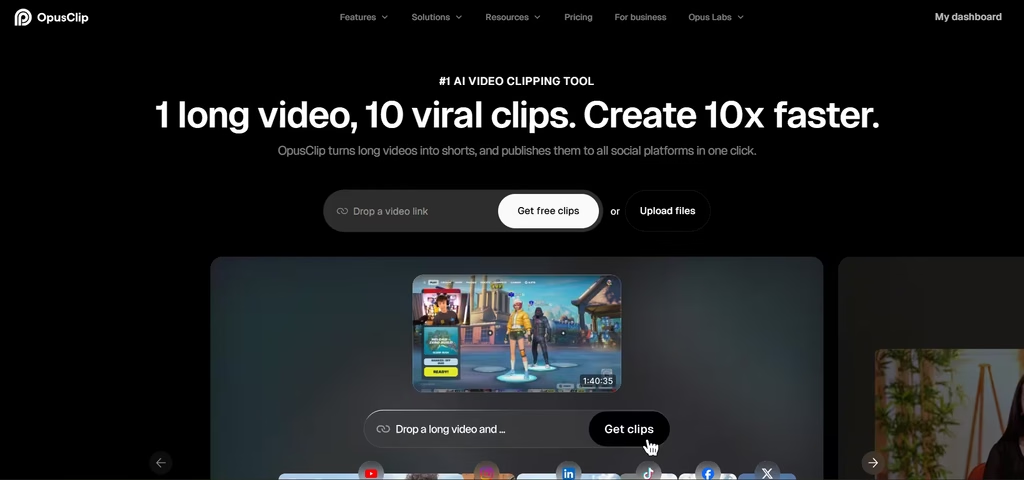
OpusClip is where I’d send a first-time clipper, and its free plan showed me why. By signing up, I’d get 60 credits every month, and without linking my credit card. I uploaded a fashion video, and OpusClip reframed it to vertical automatically. It also gave me the option to automatically add headlines to my videos alongside animated captions with emojis and keyword highlights.
Six clips came back from that single upload. And each pulled on a different idea from the video. However, in one of those videos, I noticed it had more fluff than content.
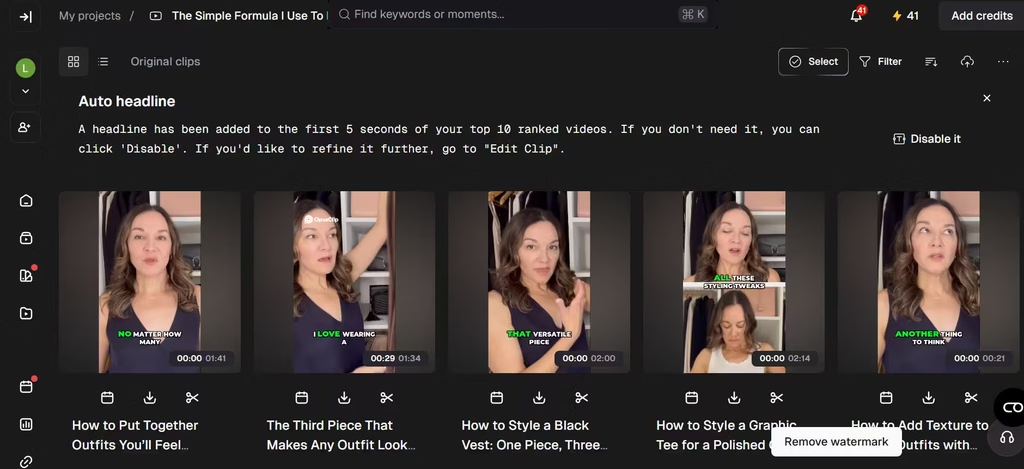
The catch: I had no control over the edit. The free plan offers no editing, which means I can do nothing to cut out the fluff. Also, clips stop being exportable after three days. Each export also carries a watermark. Still, renders reach 1080p, which beats most free tiers.
Upgrade path: Starter costs $15 per month. Pro costs $29 monthly or $14.50 per month billed yearly. Pro adds the Virality Score and team seats.
2. Vizard: Best for Developers on a Budget
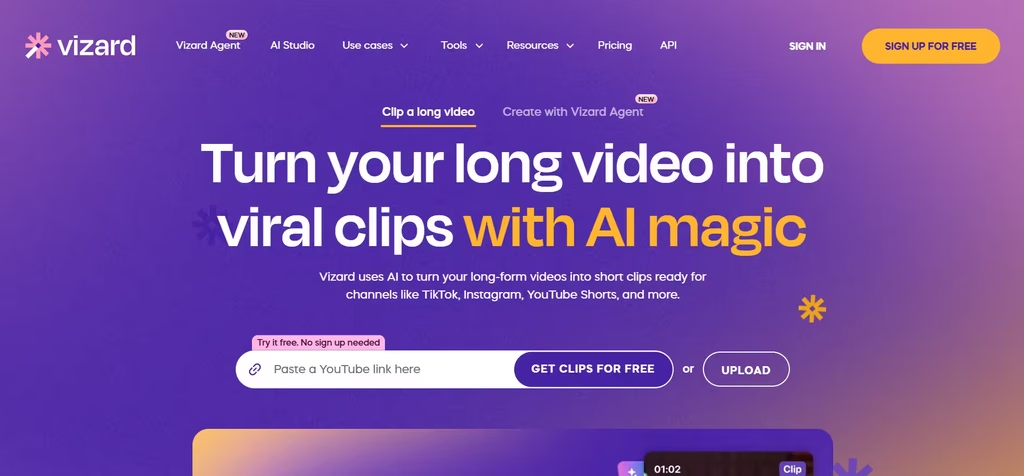
Automation is where Vizard stands apart. Vizard offers a public API on its free plan, limited to one request per minute. Few competitors do that.
Beyond the API, the free tier gives you a full hour of footage to work with each month. You get 60 credits per month, and one credit covers one minute of uploaded video. You also get AI clips, full access to the editor, and one connected social account.
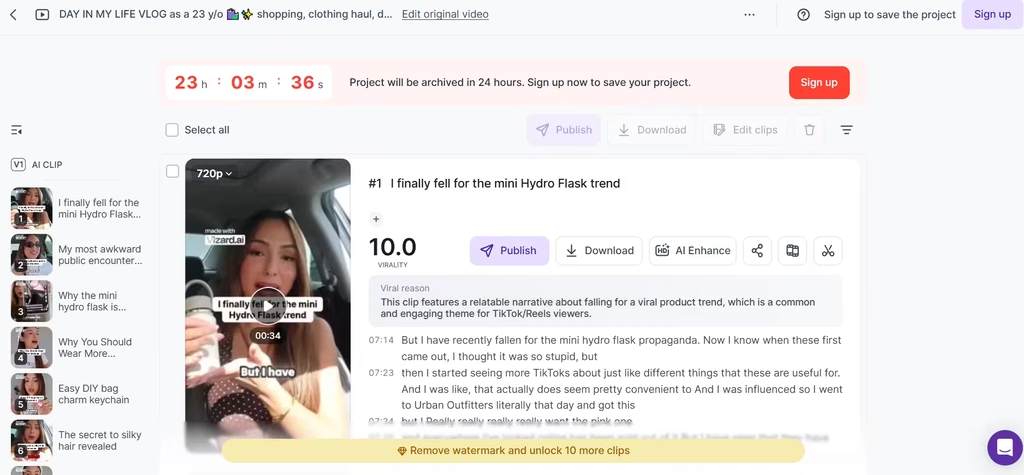
Just like other tools on this list, Vizard provides multiple AI clips. And each video tells a complete narrative, containing the full thought.
On the downside, exports cap at 720p and 10 minutes, and Vizard deletes stored files after three days.
Best for: Builders testing a clipping workflow before they commit.
Also read: Best AI Long-Form Video Generator
3. Reap: Best for Multilingual Captions
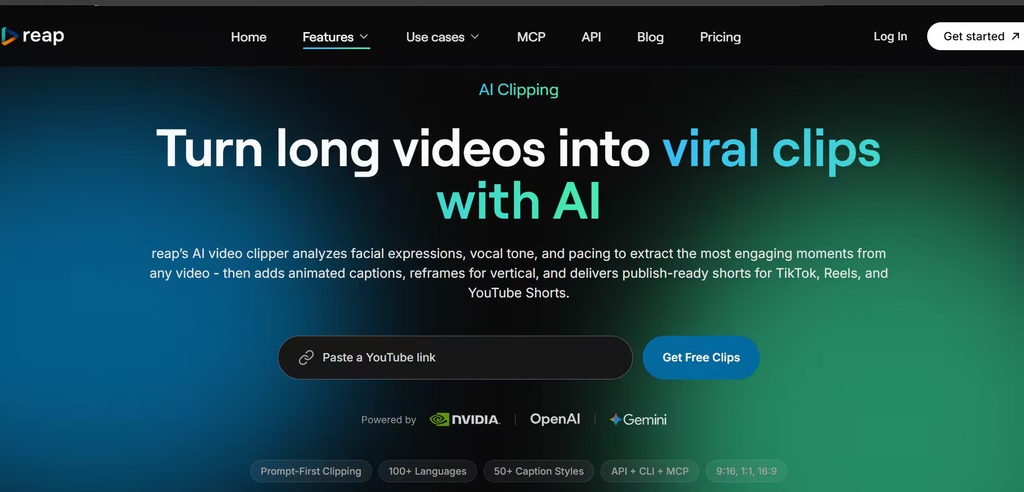
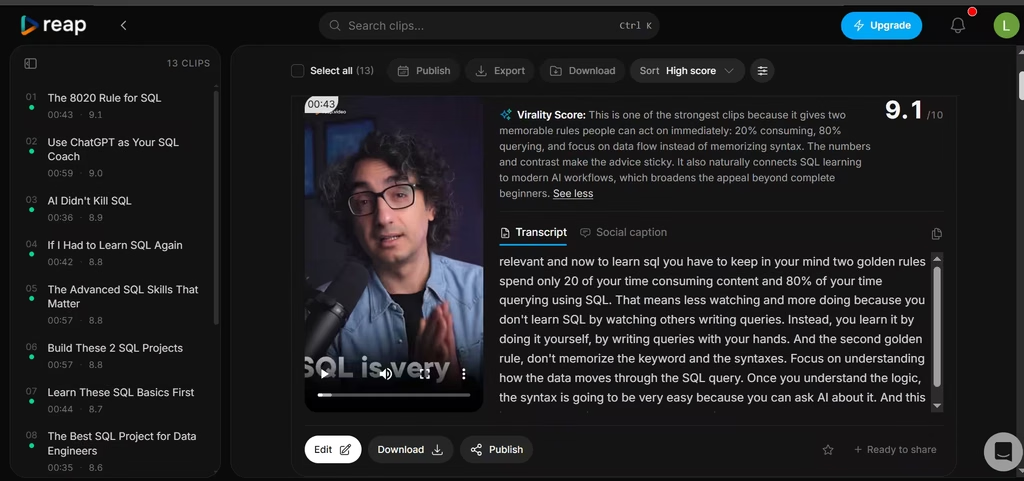
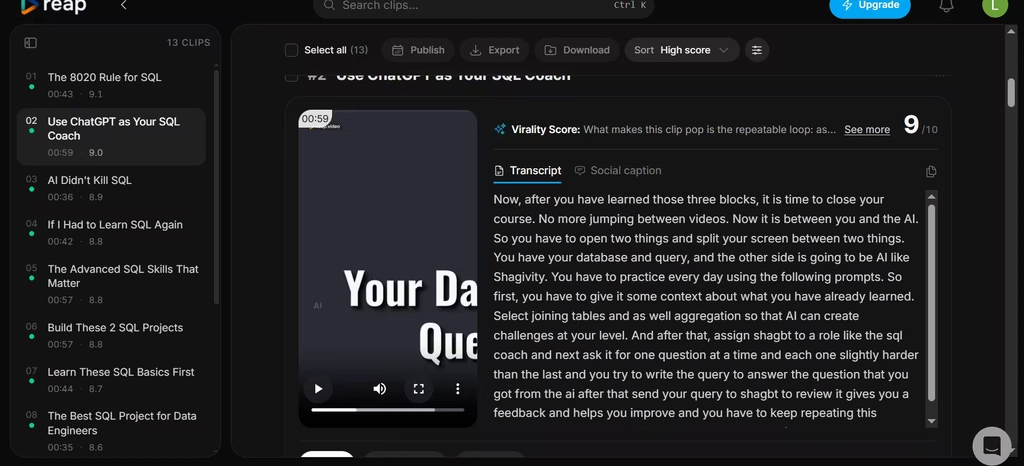
Reap is the tool I’d hand to a creator whose viewers live outside the English-speaking world. Its captions support more than 100 languages, even on the free plan. However, I noticed an error. The AI had transcribed “ChatGPT” as “ShabGPT.”
The free plan gives you one hour of AI clipping and one hour of captions each month. That covers one full-length podcast episode, but not a weekly posting schedule. You can also import straight from YouTube, Twitch, X, and Vimeo. Free exports are 720p with a watermark, and projects expire after seven days.
The paid Creator Plan, $9.99 per month billed annually, adds 10 clipping hours and AI dubbing in more than 80 languages.
Reap produced 13 clips, and I like that they followed a logical order, mirroring the flow of ideas in the original video. This means each video can be published in sequence, with each one building on the other.
I found that each clip told the whole story, without mashing in unrelated areas of the video. And unlike WayinVideo, the intro starts at a high-interest point and ends after the concept has been sufficiently shared.
But as good as these sound, I did notice one major issue. Reap seemed to have a problem keeping the speaker at the center of the frame at some points. In the conversion from a 16:9 to 9:16 video, some parts of the screen, especially the screen sharing parts.
4. WayinVideo: Best Watermark-Free Option
Most free clippers stamp a watermark on every export. WayinVideo doesn’t. Its help center states that exports carry no watermark on any plan, free included.
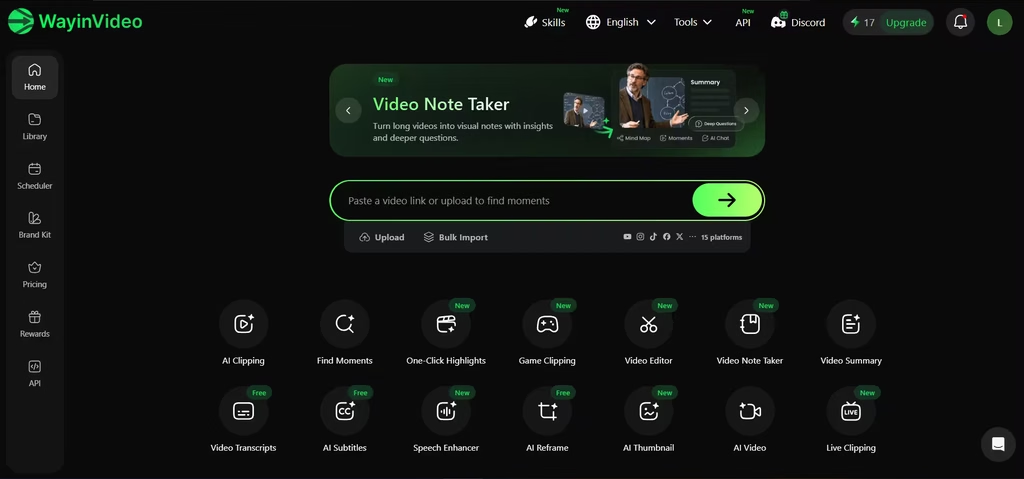
Signing up got me 100 one-time credits, no card required. That could be spent on AI Clipping, Game Clipping, and Find Moments. I chose AI clipping, since that’s the focus of this article.
In my testing, one video resulted in 11 AI clips. As I saw in Reap, each clip doubled down on a main concept, all tied to the article’s overarching theme. Each clip also had a virality score that could predict video performance.
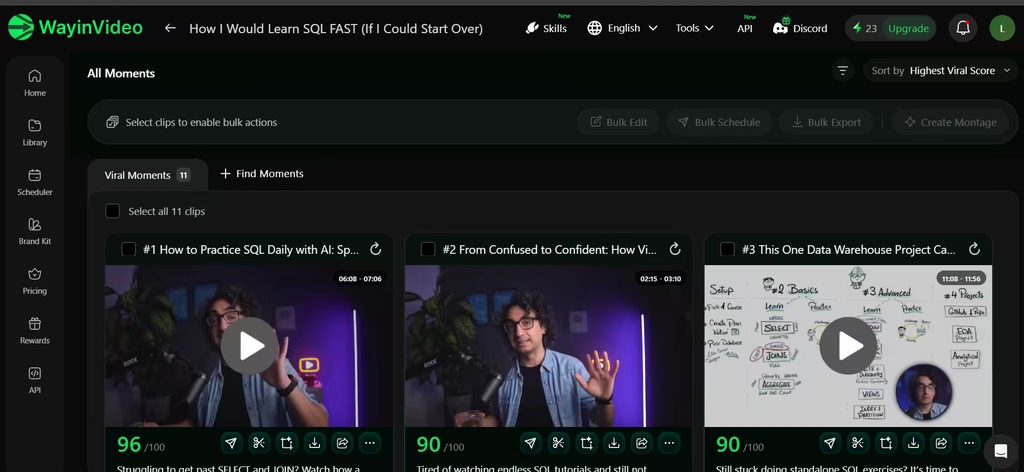
However, I found that the intros and outros cut off mid-thought/sentence. This results in a lower hook quality, as it would take the viewer a few seconds before piecing together the flow of thought. The Find Moments feature had something similar, but I’m more forgiving in its case because the clipping is not supposed to be used right off the bat.
Two more limits matter if you plan to clip regularly. The credits don’t renew, and free accounts can’t upload local files. So you’ll work from video links, with 720p exports and three-day storage.
5. Quso.ai: Best for TikTok-First Creator
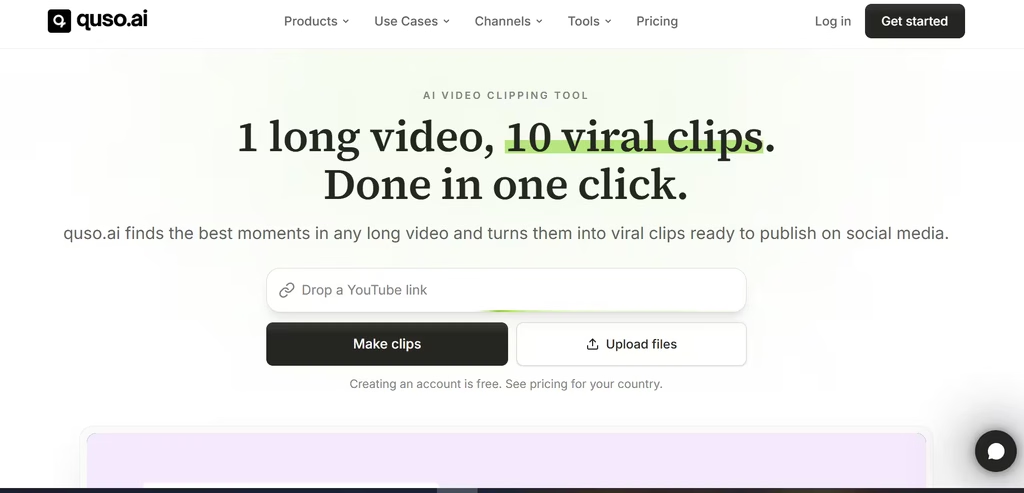
Quso.ai used to be called vidyo.ai. The rebrand kept the core idea: fast AI clips built for social feeds.
The free plan includes 75 credits per month, 720p rendering, chapters and short videos, TikTok publishing, CutMagic, and seven days of data retention. Direct TikTok posting from a free plan is rare. Therefore, Quso.ai fits creators who live on TikTok.
When you outgrow it, the Lite plan costs $29 per month, or $19 per month billed yearly, and adds unlimited 1080p clips plus scheduling to six platforms.
6. Spikes Studio: Best for Streamers and Fast Previews
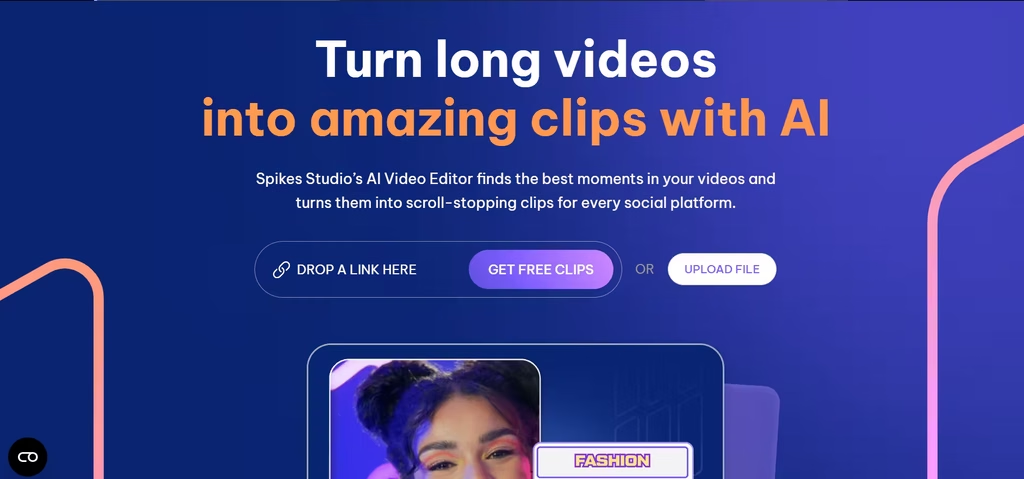
Finish a three-hour stream, and you’ll want highlights posted the same night. Spikes Studio targets exactly that creator.
Its free Basic plan includes up to 30 minutes of video each month. You also get auto-captions, a basic editor, and an AI virality score. On top of that, transcription covers more than 99 languages. In my testing, I was notified that exports are 720p with a watermark and storage lasts seven days.
Moreover, you can earn extra free minutes through onboarding and referrals. The PRO+ plan costs $14.09 per month billed annually. It removes the watermark and adds 1080p exports.
7. 2short.ai: Best for YouTube Link Clipping
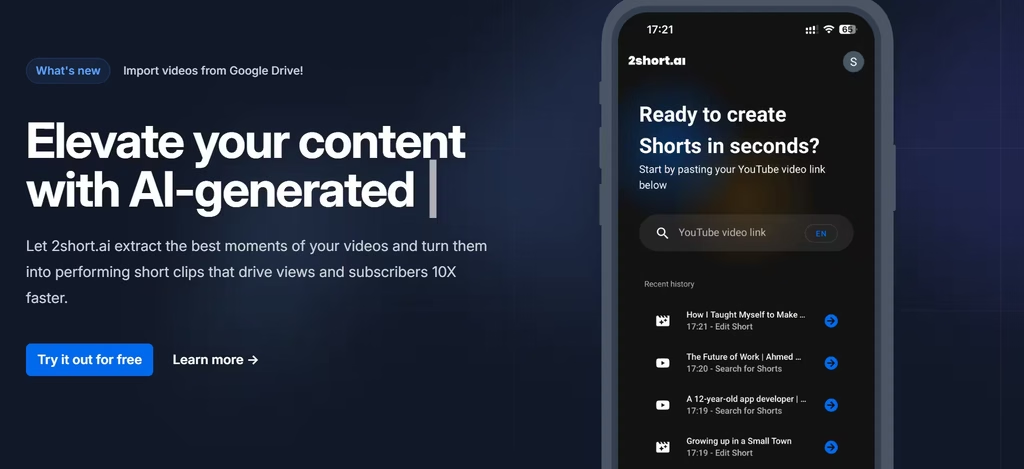
2short.ai asks you for one thing: a YouTube link. Paste it in, and its AI flags highlight segments with timestamps. Then, facial tracking keeps the active speaker centered.
Every plan, free included, gets full feature access. That’s rare in this category and a real win if you’re testing before you pay. The free Starter plan lists 30 minutes of AI analysis per month on its plan card. Features include one-click animated subtitles, brand presets, and vertical, square, or horizontal formats.
Exports go up to 1080p without a watermark. Free users do wait longer, because only paid plans include fast server-side exports.
One caveat: 2short.ai only processes videos with captions. Fortunately, YouTube auto-generates captions for most uploads.
I ran a video through, and what it did first was find major highlights and associated timestamps. And when I gave the go-ahead, the tool proceeded to clip the AI video.
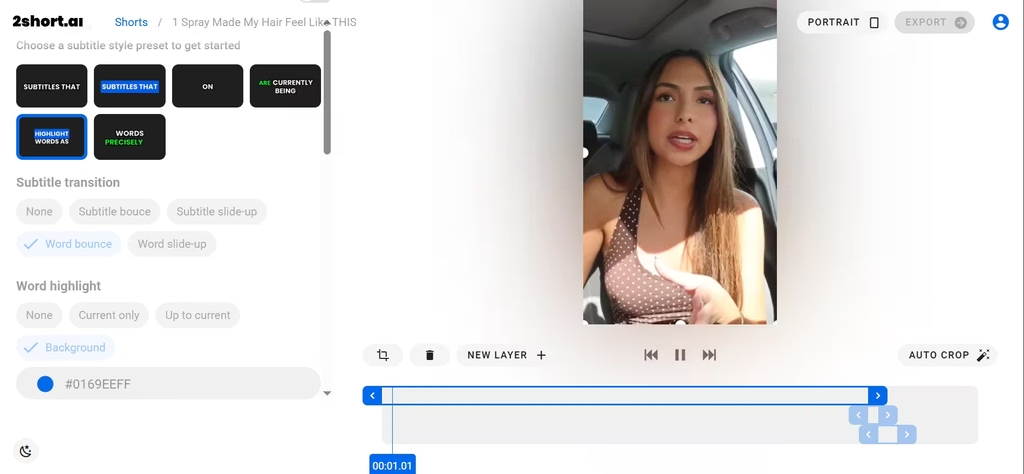
One thing I liked about this tool is the mini editing timeline, which gave me control over the outro.
Hybrid AI Clipping Tools
8. Descript: Best for Editing Clips Like a Document
Descript claims more than 6 million creators and teams on its pricing page. That’s a big user base, but it didn’t spare me one frustration: the tool wouldn’t accept a link and asked for a video file upload instead.
Its signature move is text-based editing. You edit the transcript, and the video changes with it.
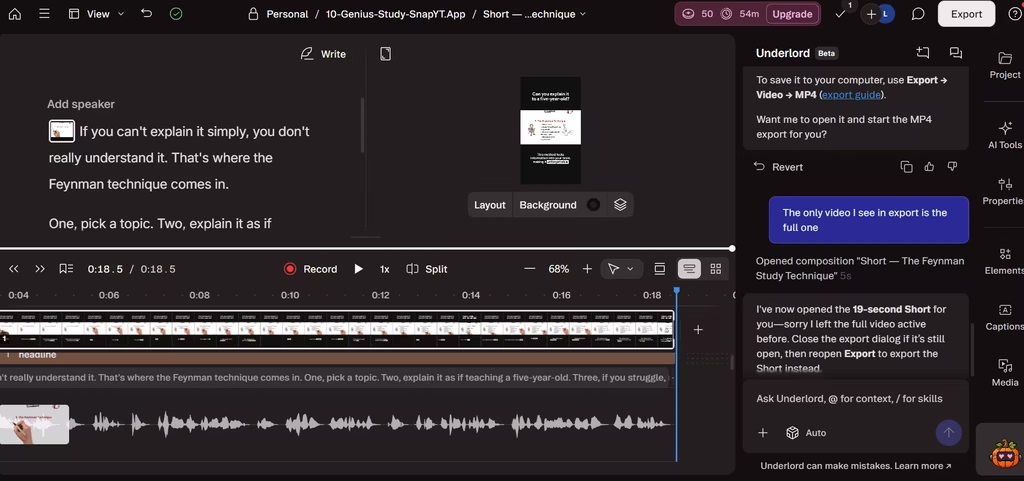
For clipping, Descript’s Create Clips tool finds highlights for you; it has an AI chatbot you can prompt and direct to do this. This is limited in the free plan. You also get 60 media minutes per month and 100 one-time AI credits. However, free exports are 720p and watermarked.
Best for: Podcasters who want AI suggestions and precise, word-level trims. Paid plans start at $16 per month billed annually.
9. Riverside: Best for Recording and Clipping in One Place
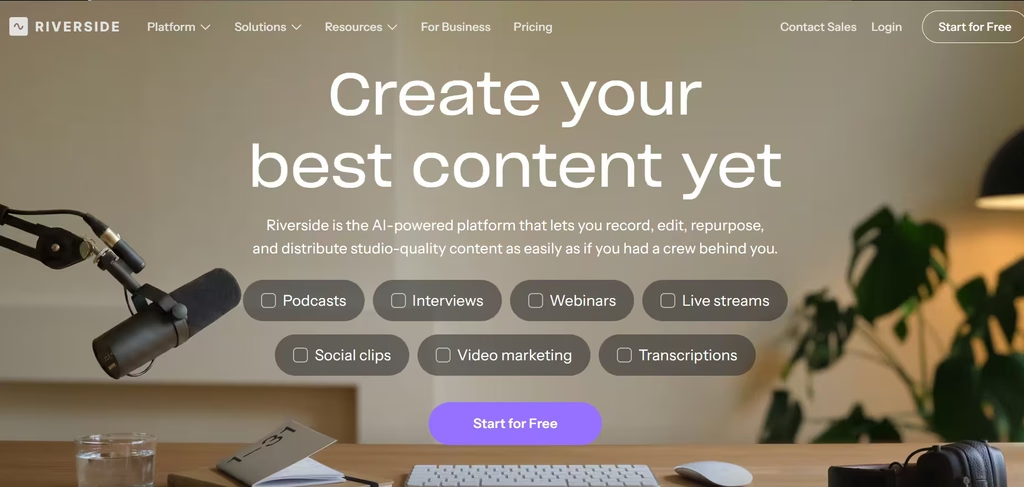
Unlike most tools here, Riverside starts with the recording, which saves you the export-and-reupload step. You record a podcast or interview in its studio. Then its Magic Clips feature turns the session into short clips.
Its free plan includes Magic Clips. Riverside says Magic Clips doesn’t use AI credits. You also get two one-off hours of separate-track recording and a full suite of editing tools. As expected, free exports are 720p and carry a Riverside watermark.
Upgrade path: Pro costs $24 per month billed annually or $29 monthly. It adds 4K video and removes the watermark.
10. Kapwing: Best Prompt-Based Clip Maker
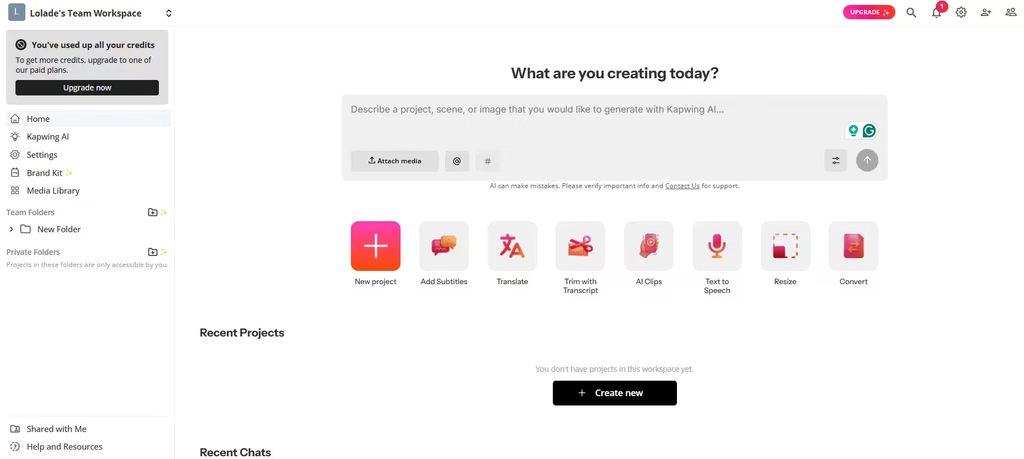
Kapwing claims more than 35 million creators on its platform. That number is self-reported, so treat it as a sign of reach, not quality. Its AI Clip Maker works like a chatbot. You describe the clips you want, including topic, length, and aspect ratio, and the AI finds them.
Notably, Kapwing says the tool works even on videos without audio or a transcript, because it analyzes visuals too. You can then refine clips in Kapwing’s full editor.
The free plan has tight limits, however. Exports max out at four minutes each and 30 minutes per month. They are 720p and include a watermark.
How to Choose the Right Free AI Video Clipper
If I had to start with one free plan today, I’d pick Reap. Its 13 clips told complete stories in a logical order, and its hour of clipping resets every month. The framing slips on screen-share segments are real, so I’d keep OpusClip as a backup whenever I need 1080p exports. If your needs differ, here’s where the other tools fit:
- Podcasts and interviews: Try OpusClip or Descript first. OpusClip suits hands-off clipping, while Descript suits word-level trims. Riverside works best if you also record there.
- Streams and gaming: Pick Spikes Studio or WayinVideo’s Game Clipping, since both are built around long recordings.
- Global audiences: Choose Reap for its 100-plus caption languages, but proofread brand names before you post.
- Clean exports: Use WayinVideo or 2short.ai to avoid watermarks. Expect to trim WayinVideo’s intros by hand.
- Automation: Vizard’s free API is your best bet, because most rivals here keep API access behind paid plans.
Whichever tool you pick, download your clips the day you make them. OpusClip, Vizard and WayinVideo delete free files after three days.
Finally, stack free plans. Each tool’s limits reset or stand alone. Consequently, you can combine two or three free tiers to cover a full content calendar.
