


Both tools promise to make you look like a pro. But they were built for very different jobs, and confusing the two is one of the most common (and costly) mistakes creators make.
This guide compares InVideo and Canva where it counts, and explains where they diverge completely. It then gives a clear answer based on what you actually need to create.
The Core Difference
InVideo is a video-first platform. Every feature, template, and workflow exists to help you produce video content. It is not trying to be anything else. Consequently, it goes deeper on video than any other browser-based tool in its price range.
Canva is a design platform that includes video. It was born as a graphic design tool. Video was added later, and it shows. Canva’s video features are great for simple uses, but video is one item in its list of features, not the main one.
Who Uses Each Tool?
InVideo attracts video-focused creators: YouTubers, marketers producing ads, and agencies building client content. Business owners who need a consistent stream of polished video can benefit from this, too. Its user base skews toward people who think in timelines and sequences.
Canva attracts a much broader audience. Designers, educators, small business owners, social media managers, and non-profits all use it daily. Many of them occasionally need video, but it is rarely their primary output. By 2026, over 95%% of Fortune 500 companies were using Canva for their visuals. This says a lot about its versatility and accessibility.
Interface and Ease of Use
Both platforms use drag-and-drop editing, both run entirely in a browser, and neither requires you to install software. But that’s where the similarities end.
The difference is in depth.
Canva’s interface is clean and straightforward. You open it, pick a template, swap in your content, and export. The learning curve is almost flat. That simplicity is a genuine strength, especially for teams where not everyone is design-savvy.
InVideo’s interface is more layered. It offers two distinct creation paths: InVideo Studio, a more traditional timeline-based editor with frame-level control; and InVideo AI, which generates a complete video, script, visuals, and voiceover from a text prompt.
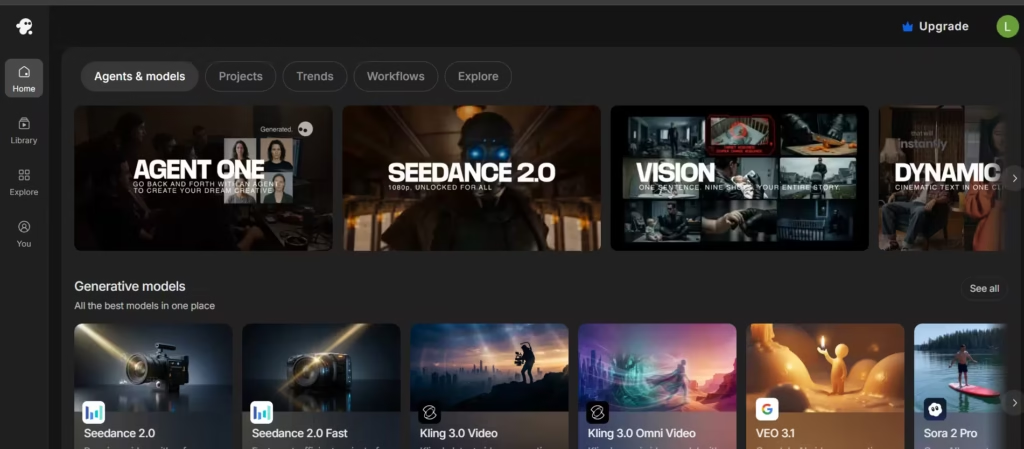
When I first opened InVideo Studio, the dual timeline system confused me for some time before it clicked. Once it did, though, the level of control it unlocks is genuinely hard to give up. The payoff is significantly more control over pacing, transitions, and narrative structure than Canva offers.
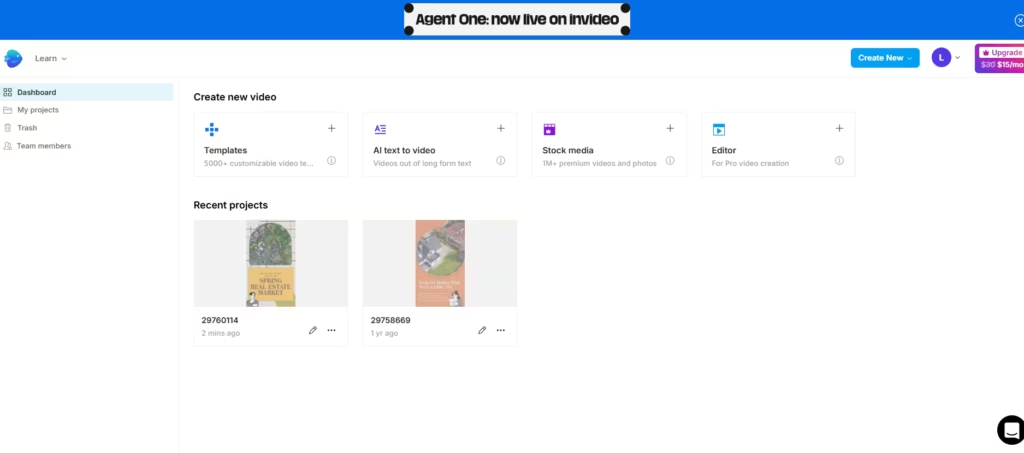
Verdict: Canva wins on immediate simplicity. InVideo is better suited for video editing depth and granular control beyond the basics.
Video Editing Features
This is where the gap widens most dramatically. After editing the same 90-second video in both platforms, InVideo’s timeline precision cut my revision time by roughly half compared to Canva’s frame-based approach.
Small adjustments, tightening a cut by two frames, nudging audio sync, and swapping a transition mid-sequence took seconds in InVideo and multiple workarounds in Canva.
InVideo’s Video Tools
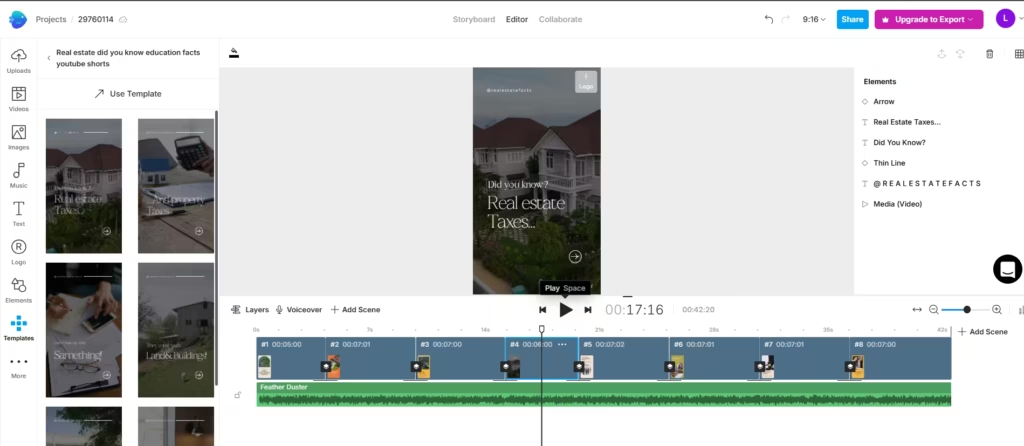
InVideo gives you a proper timeline editor. You can trim clips with precision, layer multiple tracks, fine-tune transitions, adjust typography with animation controls, and sync elements to audio. It supports color correction, custom subtitles in 50+ fonts, and multi-platform export presets for YouTube, TikTok, Instagram, and LinkedIn, all in one click.
InVideo AI takes things further. Feed it a prompt like “60-second product explainer for a skincare brand,” and it builds a full video with a script, stock footage, and a voiceover. It also supports voice cloning, so your videos can feature consistent, personalized narration without recording each time.
The mobile app mirrors the desktop experience closely. AI tools, template access, and live previews all carry over. That’s a good advantage for creators who edit on the go.
Canva’s Video Tools
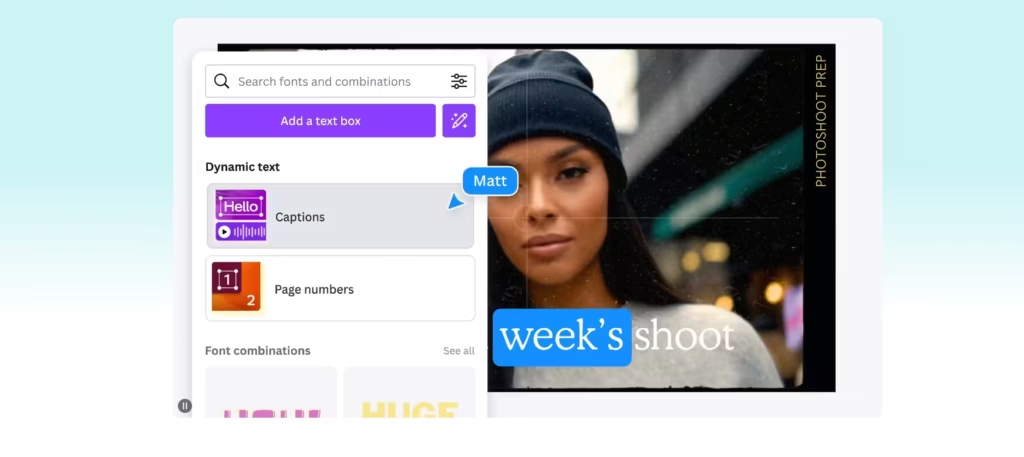
Canva takes a frame-based approach, similar to building a presentation. You add content to individual frames that play in sequence. You can add transitions, simple animations, and audio. For quick, polished social media clips, this works well. For anything requiring precise editorial timing or complex layering, it starts to feel limiting.
Canva does offer “Magic Design”, an AI feature that can generate template-based layouts from a prompt. However, it does not produce full video narratives the way InVideo AI does.
Verdict: For video editing depth, InVideo is the better option.
Graphic Design and Static Content
Canva is the most capable browser-based graphic design platform available for non-designers today. It offers an enormous library of templates for social posts, presentations, infographics, resumes, business cards, flyers, and more.
Its photo editor, background remover, brand kit system, and Magic Write AI text generator make it a complete content production environment, not just for video, but for virtually every visual format.
InVideo, by contrast, provides graphics primarily as elements within video projects. It is not built to help you design a pitch deck or a social media carousel. Its graphic tools exist to serve the video, not to stand alone.
Verdict: For anything that is not video, Canva is better by a wide margin.
InVideo Templates vs Canva Templates
Both tools have extensive template libraries, but the intent behind those templates differs significantly. As of early 2026, InVideo lists approximately 5,000+ video-specific templates in its library. Canva, by contrast, offers 610,000+ templates for all formats, according to their respective websites.
That large gap reflects the difference in scope rather than quality. Canva’s total includes templates for presentations, social posts, print materials, resumes, and dozens of other formats. InVideo’s count covers video only.
InVideo’s templates are built specifically for video storytelling, ads, explainers, promos, tutorials, and social clips. They include pre-timed animations, placeholder voiceover tracks, and stock footage integrations. They give video editors a running start, not just a visual shell.
Canva’s video templates are strong for quick social content, branded reels, and presentation-style videos. They are less focused on complex narrative sequencing but excel at speed and visual polish.
Verdict: InVideo has better video-specific templates. Canva has more templates across more content types overall.
Stock Assets
InVideo includes access to over 9 million iStock images and an extensive royalty-free music library. Its stock footage integration is built directly into the video editor, so you can search and drop footage into your timeline without leaving the platform.
Canva’s stock library is also massive, with over 100 million photos, videos, graphics, and audio files on the Pro plan. Its asset variety is unmatched among design tools at this price point, especially for static design work. Canva also integrates with many external platforms, including Google Drive, social media schedulers, and productivity tools.
Verdict: Both are strong. Canva edges ahead on sheer asset variety. InVideo has better stock integration, specifically within video workflows.
Collaboration Features
Canva has always excelled at team collaboration. Multiple users can edit the same design simultaneously. Comments, approvals, and brand kit sharing make it a natural choice for marketing teams managing multiple content types together.
InVideo supports collaboration on video projects, too. However, it is more tailored to individual creators or small production teams working on video content specifically. It lacks the real-time co-editing polish that Canva has refined over years of enterprise use.
Verdict: Canva is the stronger collaboration platform, especially for larger or mixed-function teams.
InVideo AI vs Canva AI
AI is now central to both platforms, but they apply it very differently. And in my view, InVideo AI is the more transformative of the two, not because it is flashier, but because it compresses genuine production work.
InVideo AI generates full video content from a text prompt. It writes the script, selects stock footage, adds music, and produces a voiceover. Voice cloning and automatic subtitling are included.
This is a significant workflow accelerator in video production. It reduces production time dramatically, especially for high-volume content creators. Does the output quality justify InVideo’s higher price tag over Canva? For anyone producing more than four or five videos per month, yes, comfortably. The time savings alone offset the cost difference within the first week of regular use. For occasional creators, the math is closer.
Canva’s AI tools, Magic Design, Magic Write, and Magic Edit, focus on graphic design. Magic Write generates copy. Magic Edit modifies images. Magic Design creates layout templates from prompts. These are genuinely useful, but they operate mostly in the static design space rather than full video generation. Canva’s AI accelerates design work. InVideo’s AI replaces production work. That is a meaningful distinction.
Pricing
Both platforms offer free tiers. Here is how paid plans compare:
| Plan | InVideo | Canva |
| Free | Yes (watermarked exports) | Yes (generous free tier) |
| Entry Paid | $17-$20/month | $15/month (Pro) |
| Team Plans | Available | Available |
Summary: Canva is more affordable for general design work. InVideo’s pricing reflects its specialized video capabilities. If video is your primary output and you use it regularly, InVideo’s cost is justified. If video is occasional and design is your main need, Canva’s Pro plan promises exceptional value.
Also read: Invideo AI Pricing Explained
When InVideo Is the Right Call
InVideo makes sense when video is central to your workflow. If you are publishing to YouTube regularly, running paid video ads, or building a content operation that demands consistent branded output, InVideo’s timeline precision and AI generation become competitive advantages.
It is also the better pick for solo creators who need to scale to a faster work rate. Voice cloning means dozens of video narrations without recording a single line. The advanced subtitle control becomes significant when you publish on multiple platforms with different captioning standards.
The less obvious case for InVideo is agencies. If you manage video production for multiple clients, InVideo’s brand presets and template customization let you maintain distinct identities across projects without starting from scratch each time. Canva can do some of this, but not with the same video-native depth.
When Canva Is the Right Call
Canva is better when video is one of many things you create, not the centerpiece. A social media manager juggling Instagram graphics, email headers, pitch decks, and occasional reels does not need InVideo’s depth. Canva handles all of that in one place, cheaply, and with almost no learning curve.
It is also the stronger choice for teams. Canva’s real-time collaboration, approval workflows, and brand kit system are built for groups where multiple people touch the same assets. InVideo’s collaboration is adequate for a small video team; it is not designed for the kind of cross-functional creative coordination that Canva handles effortlessly.
One use case worth naming. Teachers, non-profit communicators, and educators will find Canva’s free tier very generous. Its education features are unmatched. InVideo has no equivalent in that space.
Can You Use Both?
Yes, and many creators do. Canva handles brand graphics, social posts, presentations, and quick visual content. InVideo handles everything video. They do not directly compete for the same tasks. Together, they cover most of a modern content creator’s needs.
InVideo or Canva?
InVideo is the right choice if video is your primary output. It goes deeper into every aspect of video creation, editing precision, AI generation, stock integration, and multi-platform export. No comparable browser-based tool beats it for dedicated video production.
Canva is the right choice if you need to create across many content formats. Its breadth, simplicity, and collaboration features make it indispensable for teams and individuals managing a wide visual content workload.
The wrong move is using Canva as your main video tool when you need video depth, or using InVideo when what you really need is a full-featured design suite. Know what you are building. Then pick the tool that was built for exactly that.
